

What this is for
Settings → Console groups two per-user dashboard preferences: Session timeout (auto-logoff on inactivity) and Timezone (how timestamps are rendered across the dashboard).Both settings are stored in your browser’s local storage. They apply per user, per device — they do not roam across browsers and do not affect other users in your organization.
Session timeout
Auto-logoff on inactivity. Card is titled Auto-Logoff with help text “Automatically log out after a period of inactivity to protect your account.”Options
What triggers a timeout
Any mouse movement, keystroke, or scroll resets the inactivity timer. When it runs out, you’re logged out automatically.Warning dialog
Two minutes before logout, a dialog appears with the message “You will be automatically logged out in {MM:SS} due to inactivity.”- Stay Logged In — resets the timer.
- Log Out Now — ends the session immediately.
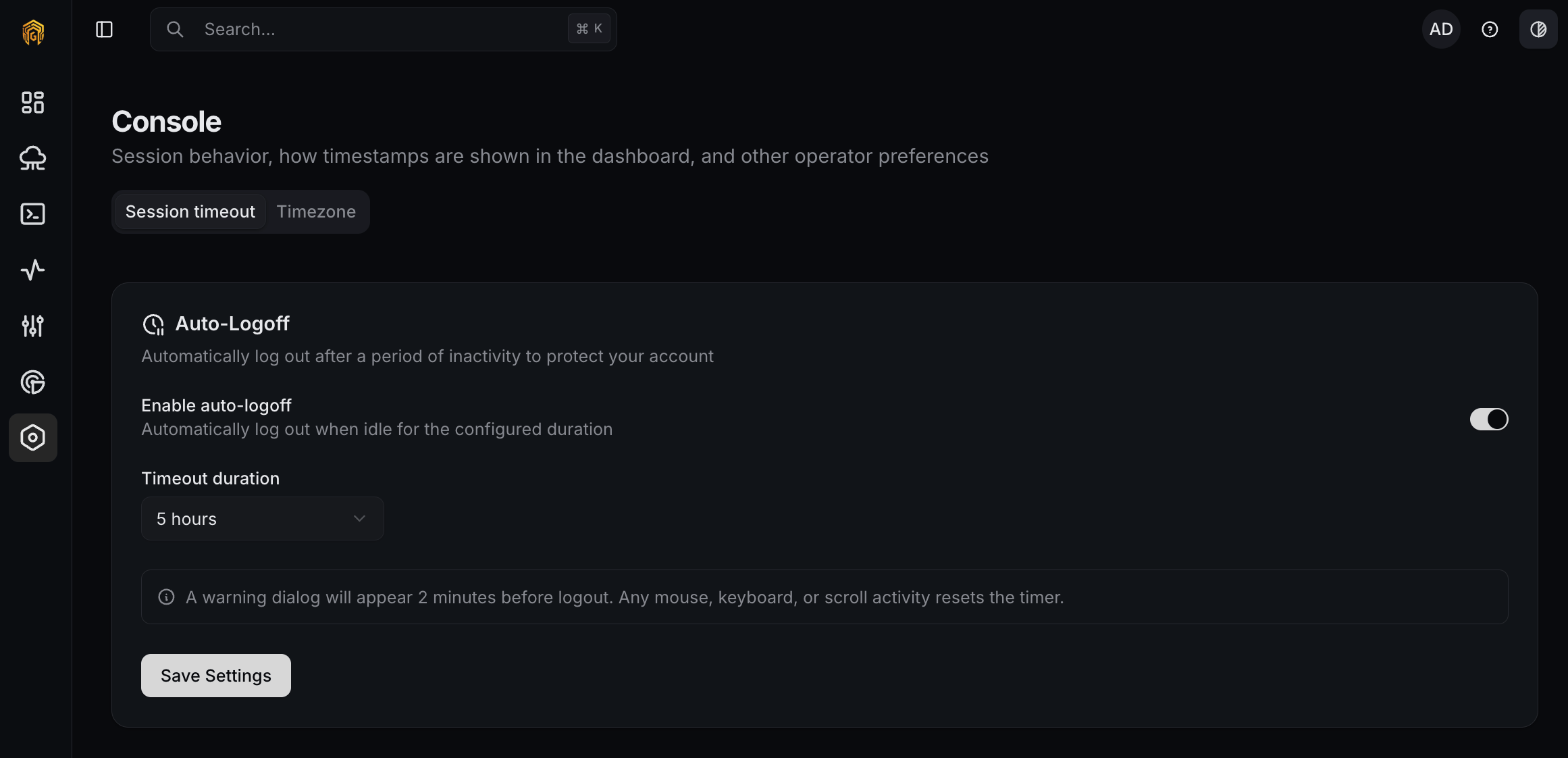
Console → Session timeout
Timezone
Card is titled Display Timezone with help text “Choose the timezone used to render timestamps across logs, traces, analytics, and audit views. API queries always use UTC.”What it affects
Timestamps shown in:- Logs — Requests, MCP, Guardrails, Traces tabs.
- Audit log.
- Dashboard → Usage, Spend, Security.
Options
- Dropdown with System default (detected timezone) at the top plus a curated list of common timezones (UTC, major US, EU, APAC, etc.).
- If your system timezone isn’t in the curated list, it’s still shown as the system-default option.
- A preview line renders the current time in the selected timezone with its abbreviation, e.g. 2026-04-17 14:23:45 (EDT).
- Default: system timezone (resolved via the browser’s
Intl.DateTimeFormat()API).
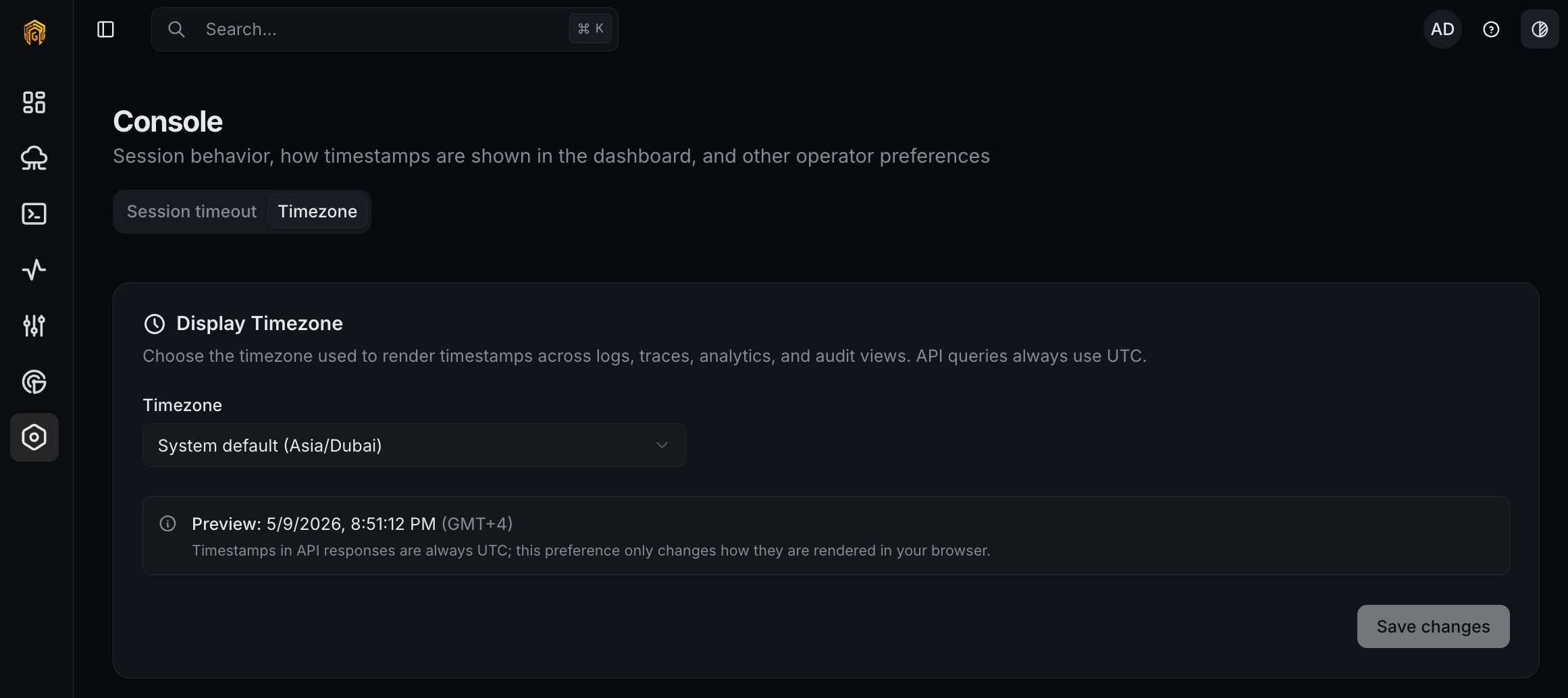
Console → Timezone
How to configure
1
Open Settings → Console
Open Settings → Console from the dashboard sidebar.
2
Set session timeout
On the Session timeout tab, toggle Enable auto-logoff on and pick a Timeout duration. Settings save automatically.
3
Set the display timezone
Switch to the Timezone tab and pick a value from the dropdown. The preview line updates immediately so you can verify.