

What this is for
Settings → Roles is a read-only reference for the three roles available in a Guardway organization. Use it as the source of truth when deciding what role to grant a new teammate from Settings → Users or what permissions a teammate already has. Roles apply org-wide — they are not per-gateway. If you need finer-grained access control (e.g. one team only sees its own keys), use teams on Configuration → Access.Roles
Owner
Full access to all resources and settings. The Owner is the creator of the organization and cannot be removed or demoted. There is exactly one Owner per organization.- Full access to all features and settings
- Manage members: invite, change roles, remove
- Manage organization settings and billing
- Access all data across the organization
- Cannot be removed or demoted
Admin
Full access to all resources and settings, similar to the Owner. Admins can manage members and all organization resources.- Full access to all features and settings
- Manage members: invite, change roles, remove
- Create, update, and delete resources
- Access all data across the organization
- Can be removed by the Owner or other Admins
- Multiple Admins allowed per organization
Read Only
View-only access to all resources. Read Only users can see all data but cannot make any changes.- View all dashboards, logs, and reports
- View all configuration and settings
- View members and organization details
- Cannot create, update, or delete any resources
- Cannot invite or manage members
- Cannot change organization settings
How to configure
You don’t configure this page — roles are assigned when you invite someone, or by editing an existing member.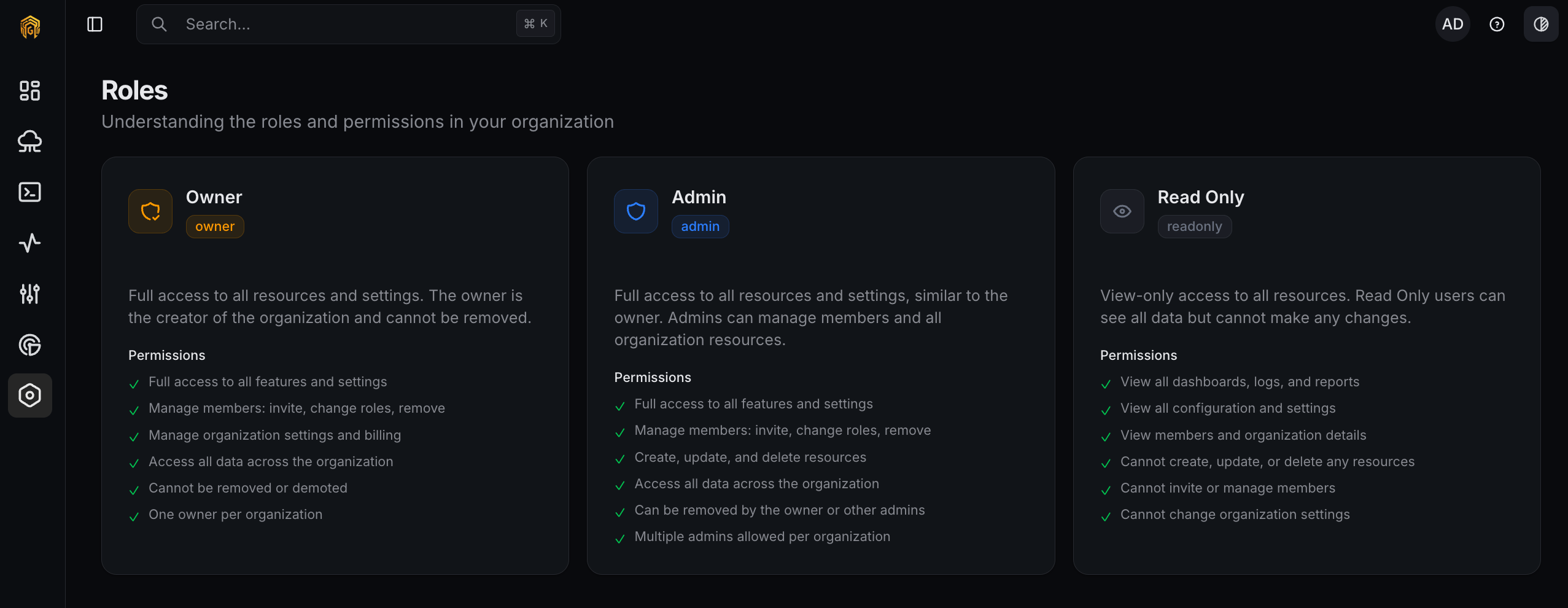
Settings → Roles
1
Pick the right role
Use the rules above to decide between Admin (full read/write) and Read Only (view-only) for a new teammate.
2
Assign the role
On Settings → Users, click Invite Member and set the Role dropdown.
3
Change a role later
From the same page, open the member’s profile and update their role. Changes take effect on the member’s next page load.
Related
- Members — invite, change roles, remove.
- Configuration → Access — team-level access for gateway resources.
- Audit Log — role changes are recorded here.