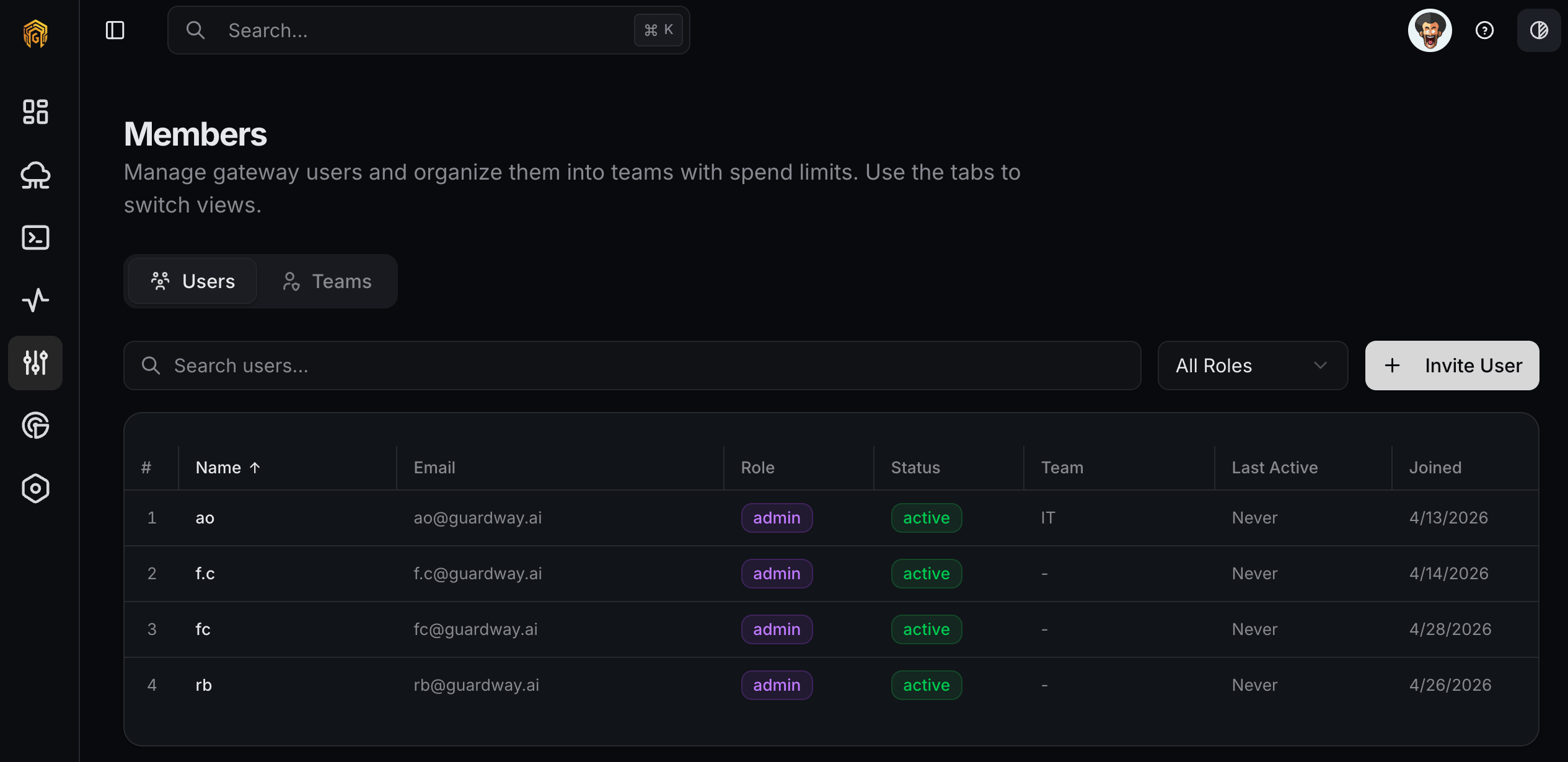
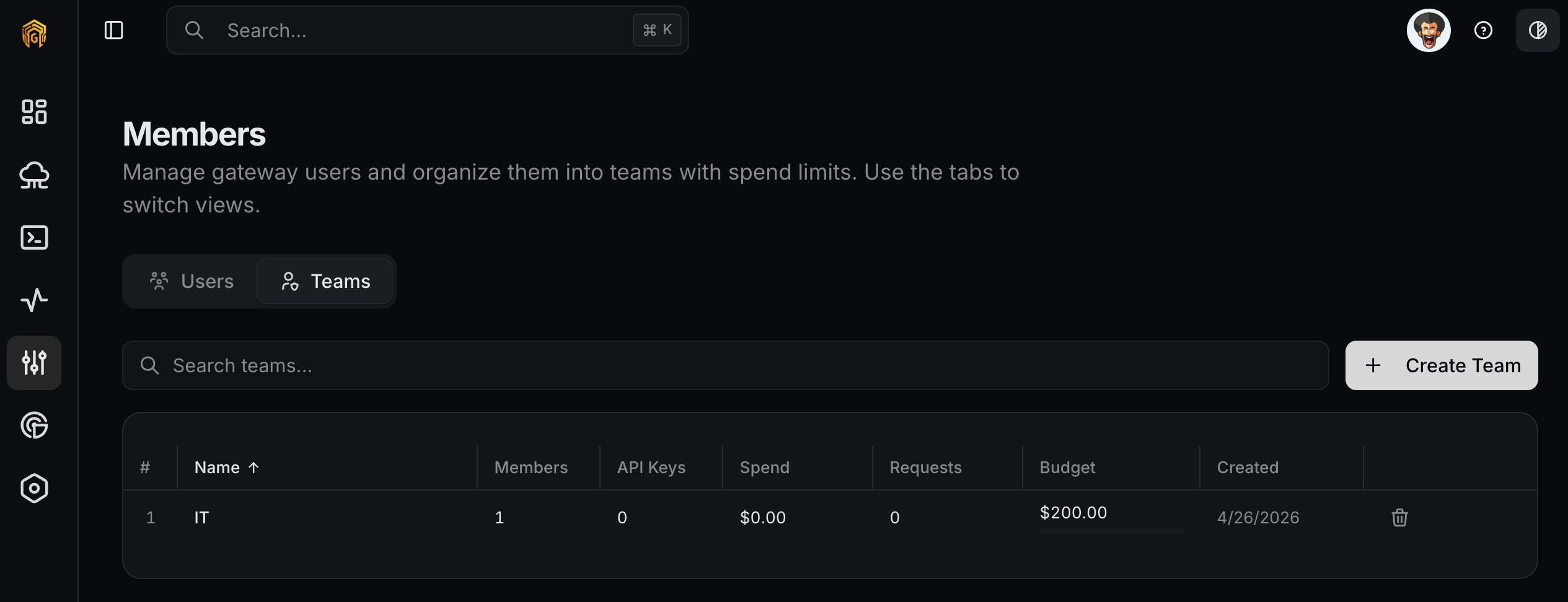
Configuration → Access groups the users and teams that operate a specific gateway. These entries live alongside the gateway’s providers, routes, and keys — separately from the platform-level organization members managed under Settings → Users.Use this page to invite users to a gateway, group them into teams, set per-team monthly spend caps, and assign roles that control what each user can do.
Filters: full-text search on name/email, Role dropdown (All Roles, Owner, Admin, Member, Viewer), sortable columns. Summary cards at the top: Total users, Active, Admins, Pending invites.Invite User form:
Field
Required
Notes
Email
Yes
Invite is sent here.
Role
No
Admin, Member, or Viewer. Defaults to Member.
Team
No
Assign at invite time or later.
Row actions: Edit (inline role change), Change Role, Suspend / Reactivate, Resend Invite (only for invited status), Delete (with confirmation).
Teams group users for budget and spend tracking. Each row shows the team name, member count, monthly spend, monthly requests, and a budget progress bar (green under 70%, yellow 70–89%, red ≥90%).Summary cards: Total teams, Total members, Monthly spend, Monthly requests.Create Team form:
Field
Required
Notes
Team Name
Yes
e.g. Engineering.
Description
No
What the team does.
Monthly Spend Limit (USD)
No
Hard cap — requests are blocked when the team hits it. Leave blank for no limit.
Open Configuration → Access from the dashboard sidebar. The Users tab is open by default; switch to Teams for budget/spend grouping.
2
Invite a user
On the Users tab, click Invite User, enter the email, pick a role (defaults to Member), optionally assign a team, and send. The user appears with status invited until they accept.
3
Create a team (optional)
Switch to Teams, click Create Team, set a Team Name, an optional Description, and an optional Monthly Spend Limit (USD).
Configuration → Access → Teams
4
Verify in audit
Every invite, role change, suspension, team create/edit, and delete is recorded in Audit log. Confirm the actions appear with the correct actor.
The Invite User button and mutating actions are hidden for users without mutate permission. Only Owner and Admin can invite, edit, suspend, or delete users and teams.