

What this is for
Playground is an in-dashboard chat UI that sends real requests through your activated gateway. Use it to smoke-test a provider after connecting it, debug guardrails, validate routing rules, or compare models side-by-side without writing any client code. Every playground request flows through the gateway exactly like a production call, so it’s also the fastest way to verify a change to providers, models, routing, or guardrails.Options
The right rail surfaces Request JSON and Response JSON tabs so you can copy the exact payload into your own client.
Requirements
- At least one Healthy gateway — see Activate.
- At least one provider attached to that gateway with valid credentials — see Providers.
- At least one enabled model — see Models.
How to configure
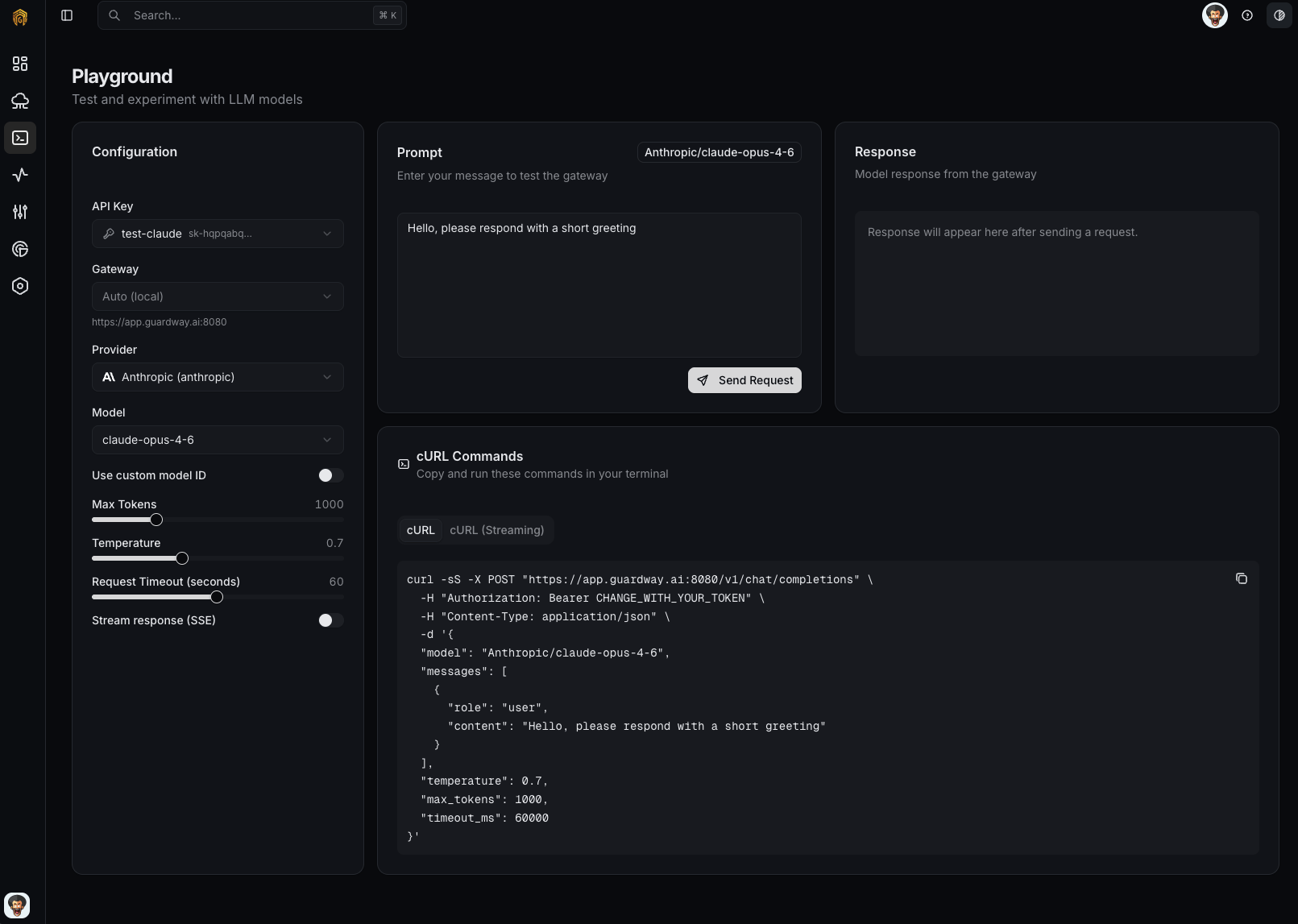
Playground
1
Open Playground
Open Playground from the dashboard sidebar.
2
Pick a provider and model
Use the Provider dropdown to filter, then pick an enabled Model.
3
Set sampling parameters
Adjust Temperature, Max tokens, and Top-P as needed. Toggle Streaming on to see tokens arrive incrementally.
4
Send a prompt
Type into the chat box and press Send. The response renders in the chat pane and the Request / Response JSON tabs populate on the right.
5
Verify in Logs
Open Logs — the request appears with its trace ID, latency, and cost. Click the trace to see every step the gateway took.
Tips
Test guardrails
Test guardrails
Enable a PII rule under Configuration → Security, then paste a prompt containing a fake SSN into the Playground. The gateway should block or redact it depending on the rule’s action — and the trigger will show in the Guardrails tab of Logs.
Compare models
Compare models
Open Playground in two tabs, pick different models, send the same prompt. The Traces view in Logs lets you compare latency and cost after the fact.
Reproduce in your client
Reproduce in your client
The Request JSON tab shows the exact payload sent to the gateway, so you can drop it into your own client unchanged.
Related
- Logs — every Playground request is logged and traced.
- Configuration → Routing — rules that decide which provider serves a Playground request.