

What this is for
Settings → Users controls who can sign in to your Guardway organization and what they can do once they’re in. Use it to onboard teammates, change roles, send password resets, or revoke a pending invitation that hasn’t been accepted yet. This is the org-wide members list. For gateway-scoped users and teams (used to attribute traffic and apply per-team budgets), see Configuration → Access.Options
Members list
For each active member you’ll see:- Avatar, full name (or email), and email
- Role badge —
Owner,Admin, orRead Only - A
Pending Activationbadge if the user has accepted the invite but not yet completed sign-up - A “you” tag next to your own row
Pending invitations
A separate list shows invitations that have been sent but not yet accepted. Each row shows the email, when it was invited, and when it expires. Owners and admins can revoke a pending invite.Row actions
The… menu on each row offers:
Invite Member dialog
Submitting sends an invitation email; the row appears under Pending Invitations until accepted.
How to configure
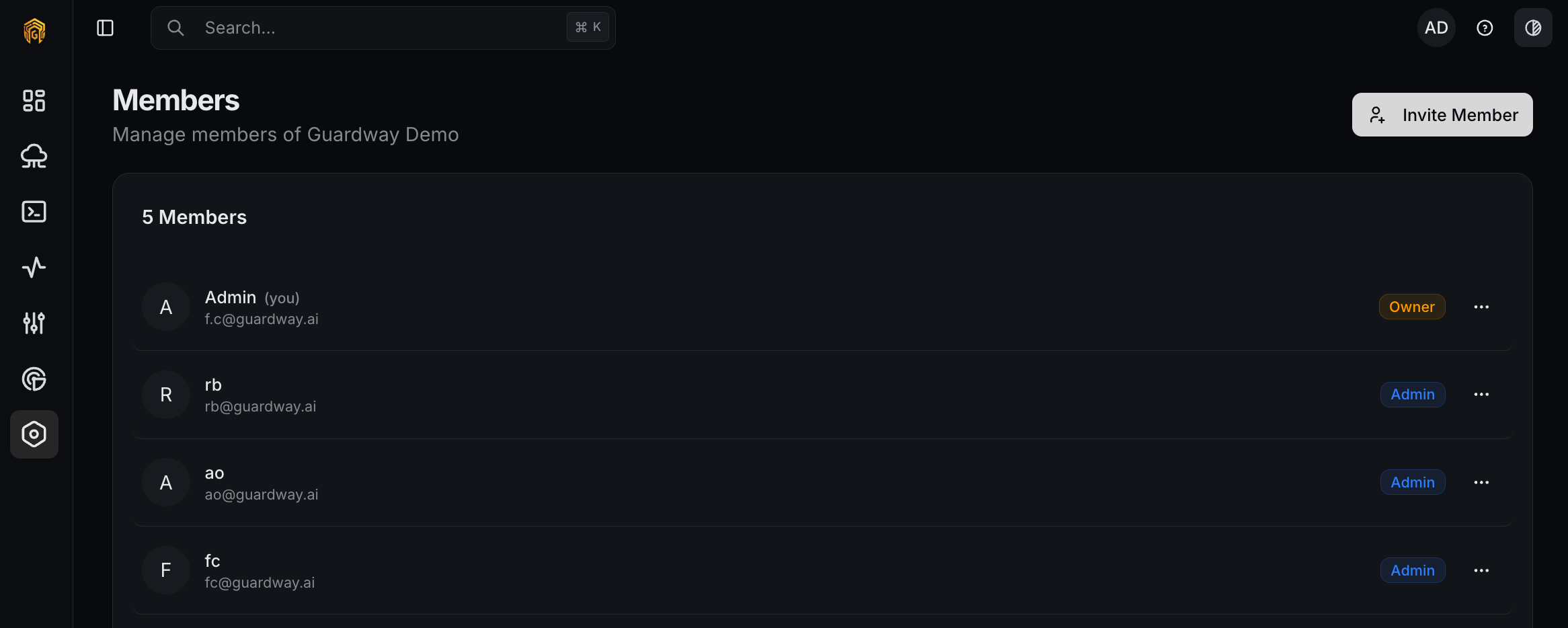
Settings → Users
1
Open Settings → Users
Open Settings → Users from the dashboard sidebar.
2
Invite a teammate
Click Invite Member, enter the email, pick a role, and click Send Invitation. The invitee receives an email with a sign-up link.
3
Change a role or remove a member
Open the
… menu on the member’s row. Use Reset Password to send a reset email, or Remove Member to revoke access immediately.4
Revoke a pending invitation
In Pending Invitations, click the trash icon on a row. The invitee’s link stops working immediately and you can re-invite the same email later.
Permissions
- Owner — invite, change roles, remove anyone except themselves and other owners.
- Admin — same as Owner except cannot remove an Owner.
- Read Only — can view this page but cannot invite, change roles, or remove members.
Related
- Roles — what each role can do across the dashboard.
- Configuration → Access — gateway-scoped users and teams used for budgets and quotas.
- Audit Log — every member change is recorded here.