

What this is for
Every Guardway gateway is customer-hosted: the dashboard issues a one-time registration token, you start the gateway in your own network, and the gateway calls the Guardway control plane on first boot to exchange the token for long-lived credentials. This page mirrors the Register Gateway dialog on the Gateways page end-to-end and tells you exactly what to do on the host.Docker Compose is the only supported installation method today. Kubernetes / Helm and systemd are not shipped — see Limitations.
Before you start
- Docker Engine ≥ 24 with Compose v2 (
docker compose version). - Outbound HTTPS internet access to Guardway’s control plane, image registries and your LLM providers. The hosts and ports to allow are on Network Requirements.
- One free TCP port on the gateway host. Default
8080.
Step 1 — Pick a deployment target
Open the Gateways page from the dashboard sidebar, click Register Gateway, and pick one of the four options. The bundle pins a Docker container platform that matches your host:
On Apple Silicon, pick Arm For Apple Silicon for native ARM containers. The two x86_64 options pin
linux/amd64; the two Arm options pin linux/arm64.
Step 2 — Bundle vs. registration token
The dialog offers two ways to start:
The registration token is valid for 1 hour and single-use. If it expires before you start the gateway, just register again to get a new one.
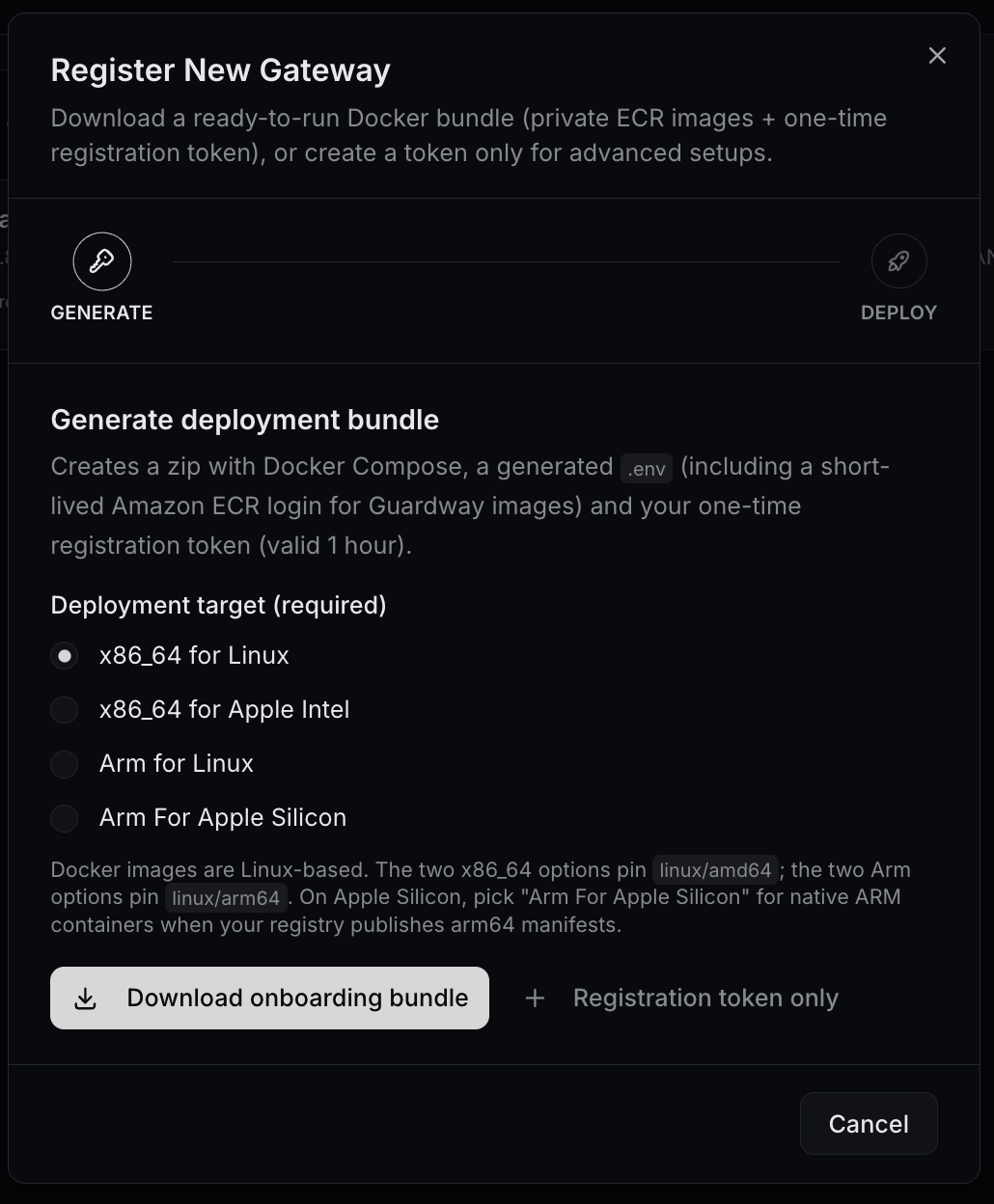
Register Gateway — Generate
Step 3 — docker compose up -d
From the bundle
Unzip the bundle on the host, then from the unpacked directory:login-ecr.sh runs Amazon ECR’s get-login-password flow against the credentials baked into the bundle. Those credentials expire in about 1 hour — if Docker can’t pull the image, regenerate the bundle and try again.
From the token only
Drop the printed env block into your own.env, point your docker-compose.yml at the Guardway gateway image, and:
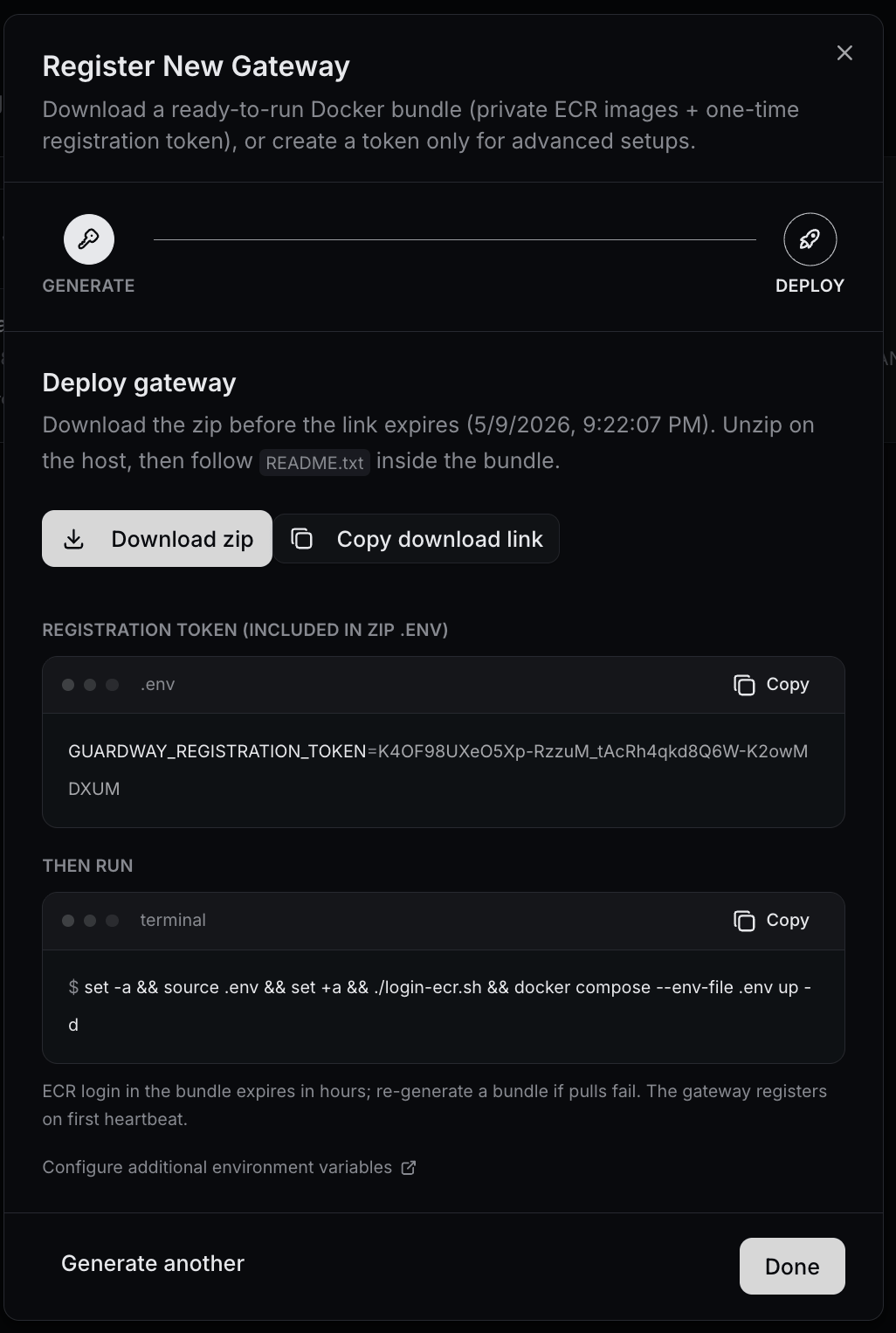
Register Gateway — Deploy
Step 4 — Registration handshake
On first boot the gateway:- Reads
GUARDWAY_REGISTRATION_TOKENfrom the environment. - Reaches the Guardway control plane (
GUARDWAY_CLOUD_URL) and exchanges the token for long-lived credentials. - Persists those credentials at
/etc/guardway/credentials.json(override withGUARDWAY_CREDENTIALS_PATH). - Starts heartbeating every
GUARDWAY_HEARTBEAT_INTERVAL(default 60 s). - Appears in the dashboard under Gateways after the first successful heartbeat.
Step 5 — Default port and minimum env vars
The gateway HTTP API listens on TCP8080 (override with PORT).
The dialog generates exactly these env vars for the bundle:
The full reference is on Environment.
Step 6 — Verify
On the Gateways page the gateway row flips to a green Healthy pill once the first heartbeat lands. That’s the customer-facing signal that the gateway is up and reachable from the control plane. If it stays Pending for more than a minute, see Troubleshooting below.Troubleshooting
Token already used / expired
Token already used / expired
Tokens are single-use and live for ~1 hour. Re-open the dialog and generate a fresh one.
ECR pull fails right after download
ECR pull fails right after download
The bundle’s
login-ecr.sh credentials expire in roughly 1 hour. If you didn’t run up -d in time, re-download the bundle.Gateway never appears (stays Pending)
Gateway never appears (stays Pending)
Check outbound HTTPS from the host (corporate proxy / firewall). Confirm host clock is in sync — clock skew breaks JWT signatures. Verify
GUARDWAY_CLOUD_URL is reachable from the container.credentials.json permission denied
credentials.json permission denied
The default path is
/etc/guardway/credentials.json. Either run the container as a user that can write it, mount a writable volume, or set GUARDWAY_CREDENTIALS_PATH to a directory the process can write.Force re-registration
Force re-registration
Stop the gateway, delete the credentials file (default
/etc/guardway/credentials.json), generate a new token, and start again. The gateway re-registers as if it were a fresh install.Related
- Environment — every env var the gateway reads.
- Activate — what success looks like once the gateway is up.
- Requirements — hardware and network prerequisites.
- Limitations — Kubernetes/Helm and systemd are not yet shipped.