> ## Documentation Index
> Fetch the complete documentation index at: https://docs.guardway.ai/llms.txt
> Use this file to discover all available pages before exploring further.
# Traffic
> Org-wide rate limits and cache settings applied across every gateway in your organization.
## What this is for
**Settings → Traffic** is where you set org-wide guardrails on the volume of requests and the caching behavior every gateway in your org enforces. Use it to cap traffic during a noisy launch, or to turn on response caching to absorb bursty workloads at lower latency and cost.
The page has two tabs: **Rate Limits** and **Cache**.
## Rate Limits
Card is titled **Global Rate Limits** with help text *"Org-wide limits applied across all gateways. Window is fixed at 1 minute."*
### Options
| Field | Notes |
| ----------------------- | --------------------------------------------------------------------------------------------------------------------- |
| **Enforcement** | Master switch. When off, the limits below are not enforced. |
| **Requests per minute** | Maximum HTTP requests across all gateways in the org per 1-minute window. Set `0` to disable just this limit. |
| **Tokens per minute** | Maximum total prompt + completion tokens across all gateways per 1-minute window. Set `0` to disable just this limit. |
Per-key, per-user, per-team, and custom-window limits are not yet supported by the backend. Configure those at the API key level once available.
### How to configure rate limits
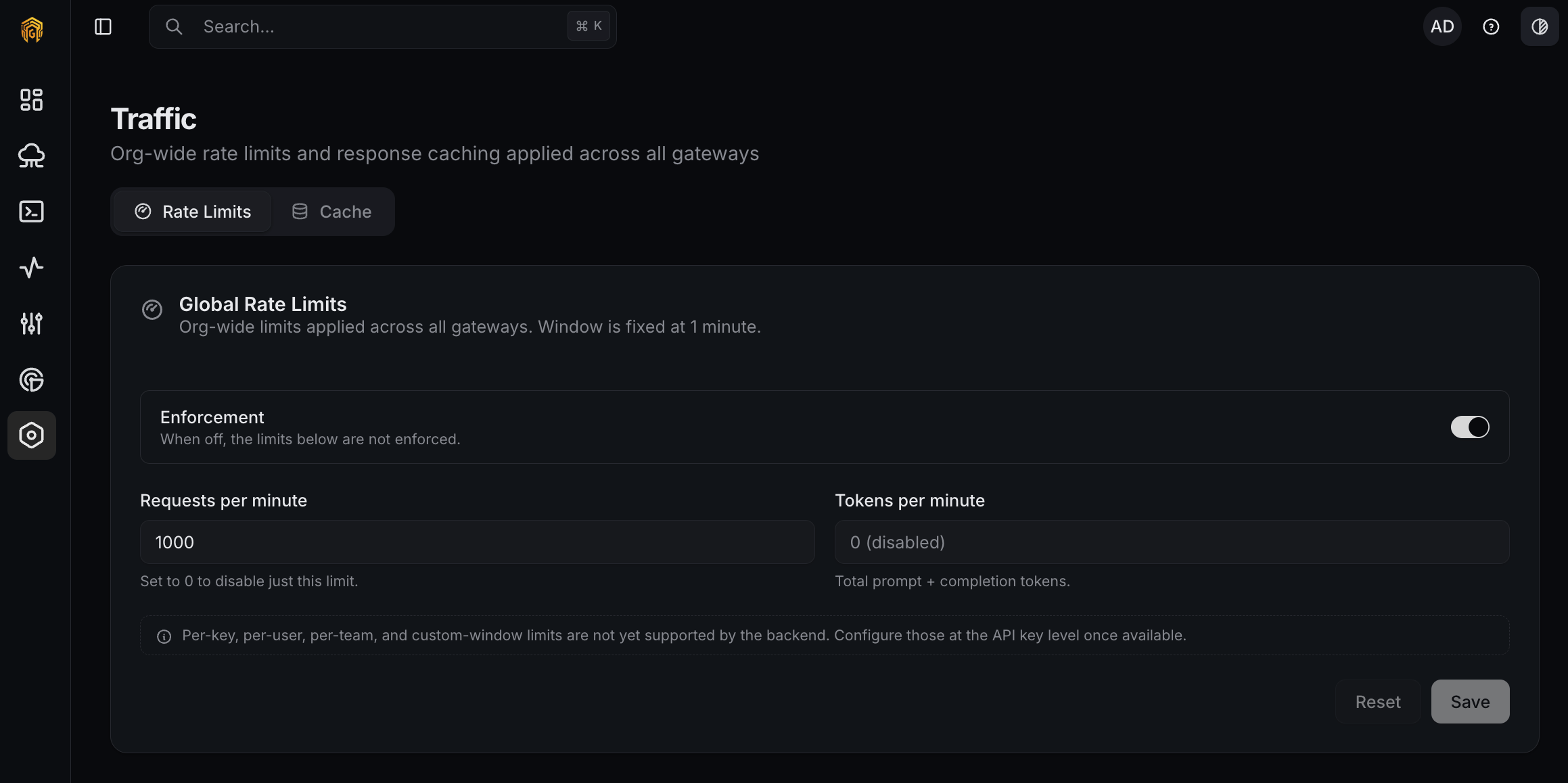 Open **Settings → Traffic** from the dashboard sidebar. The **Rate Limits** tab is active by default.
Turn **Enforcement** on. The numeric inputs below take effect on the next request.
Enter values for **Requests per minute** and **Tokens per minute** and click **Save**. Use `0` in either field to disable that specific limit while keeping the other one active.
On a gateway, send traffic that crosses the threshold and confirm `request.rate_limited` events appear on [Logs](/platform/logs). Optionally subscribe to `request.rate_limited` on [Notifications](/platform/settings/notifications).
## Cache
Card is titled **Cache** with help text *"Org-wide cache configuration. Applies to every gateway in this org."*
### Options
| Field | Notes |
| ----------------- | --------------------------------------------------------------------------------------- |
| **Enable cache** | Master switch. When off, gateways serve every request from upstream. |
| **TTL (seconds)** | How long cache entries stay valid. `0` disables expiration. |
| **Max size (MB)** | Per-gateway upper bound on cache memory. Slider, range **256–8192 MB** in 256 MB steps. |
Strategy (exact / semantic / hybrid) and similarity-threshold tuning are not yet supported by the backend.
### How to configure the cache
Open **Settings → Traffic** from the dashboard sidebar. The **Rate Limits** tab is active by default.
Turn **Enforcement** on. The numeric inputs below take effect on the next request.
Enter values for **Requests per minute** and **Tokens per minute** and click **Save**. Use `0` in either field to disable that specific limit while keeping the other one active.
On a gateway, send traffic that crosses the threshold and confirm `request.rate_limited` events appear on [Logs](/platform/logs). Optionally subscribe to `request.rate_limited` on [Notifications](/platform/settings/notifications).
## Cache
Card is titled **Cache** with help text *"Org-wide cache configuration. Applies to every gateway in this org."*
### Options
| Field | Notes |
| ----------------- | --------------------------------------------------------------------------------------- |
| **Enable cache** | Master switch. When off, gateways serve every request from upstream. |
| **TTL (seconds)** | How long cache entries stay valid. `0` disables expiration. |
| **Max size (MB)** | Per-gateway upper bound on cache memory. Slider, range **256–8192 MB** in 256 MB steps. |
Strategy (exact / semantic / hybrid) and similarity-threshold tuning are not yet supported by the backend.
### How to configure the cache
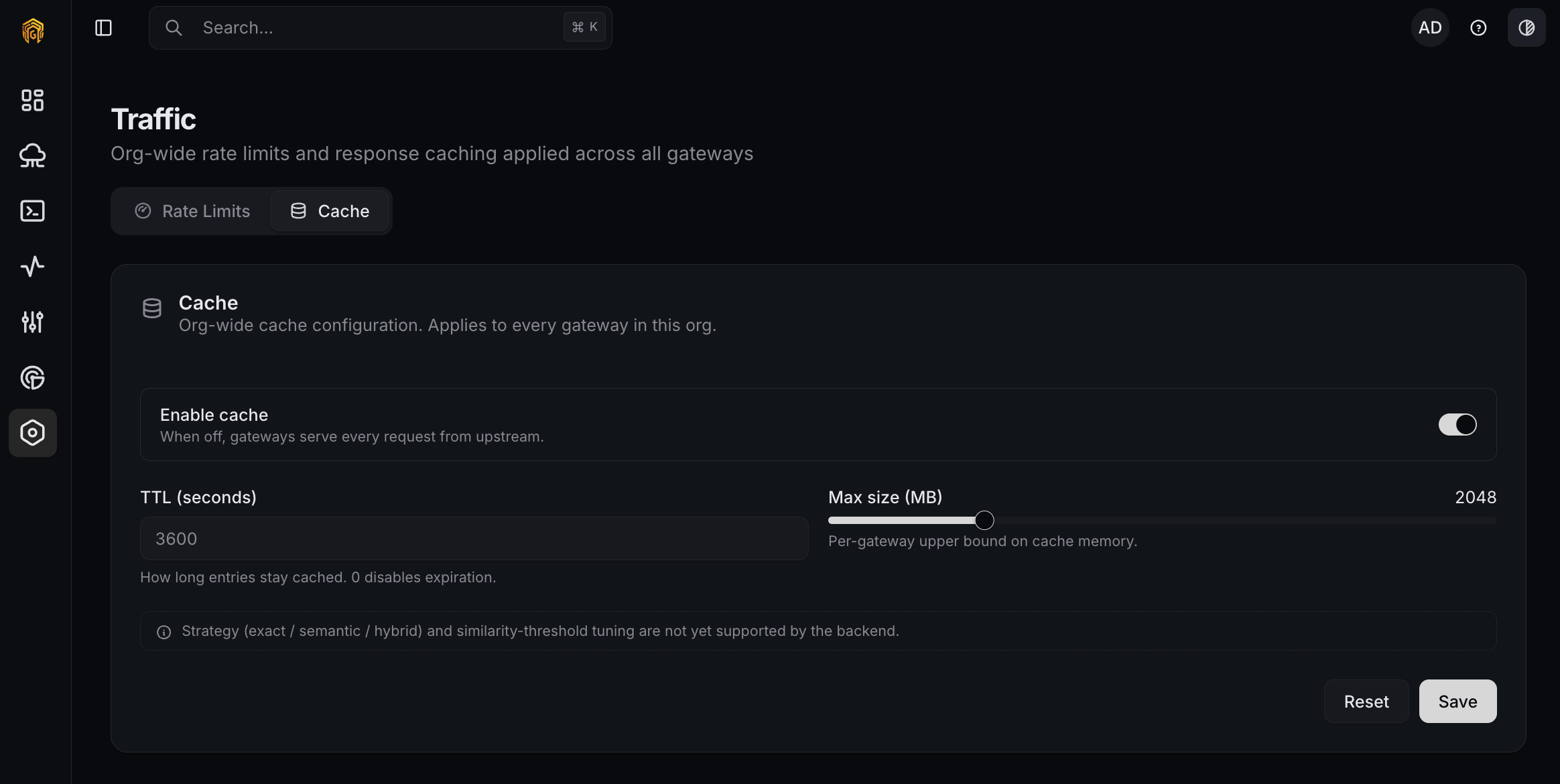 On **Settings → Traffic**, click the **Cache** tab.
Turn **Enable cache** on.
Set **TTL (seconds)** (start with `3600` for one hour) and slide **Max size (MB)** to a value the gateway host can spare. Click **Save**.
Replay a request that should hit the cache and confirm latency drops. Cached responses are flagged in [Logs](/platform/logs).
## Permissions
Owner and Admin can change rate limits and cache. Read Only users see the page but cannot save.
## Related
* [Logs](/platform/logs) — confirm rate-limit blocks and cache hits.
* [Notifications](/platform/settings/notifications) — fire on `request.rate_limited`.
* [API Keys](/platform/configuration/api-keys) — per-key request and token caps.
On **Settings → Traffic**, click the **Cache** tab.
Turn **Enable cache** on.
Set **TTL (seconds)** (start with `3600` for one hour) and slide **Max size (MB)** to a value the gateway host can spare. Click **Save**.
Replay a request that should hit the cache and confirm latency drops. Cached responses are flagged in [Logs](/platform/logs).
## Permissions
Owner and Admin can change rate limits and cache. Read Only users see the page but cannot save.
## Related
* [Logs](/platform/logs) — confirm rate-limit blocks and cache hits.
* [Notifications](/platform/settings/notifications) — fire on `request.rate_limited`.
* [API Keys](/platform/configuration/api-keys) — per-key request and token caps.