> ## Documentation Index
> Fetch the complete documentation index at: https://docs.guardway.ai/llms.txt
> Use this file to discover all available pages before exploring further.
# Roles
> Reference for the three Guardway organization roles — Owner, Admin, and Read Only — and what each can do.
## What this is for
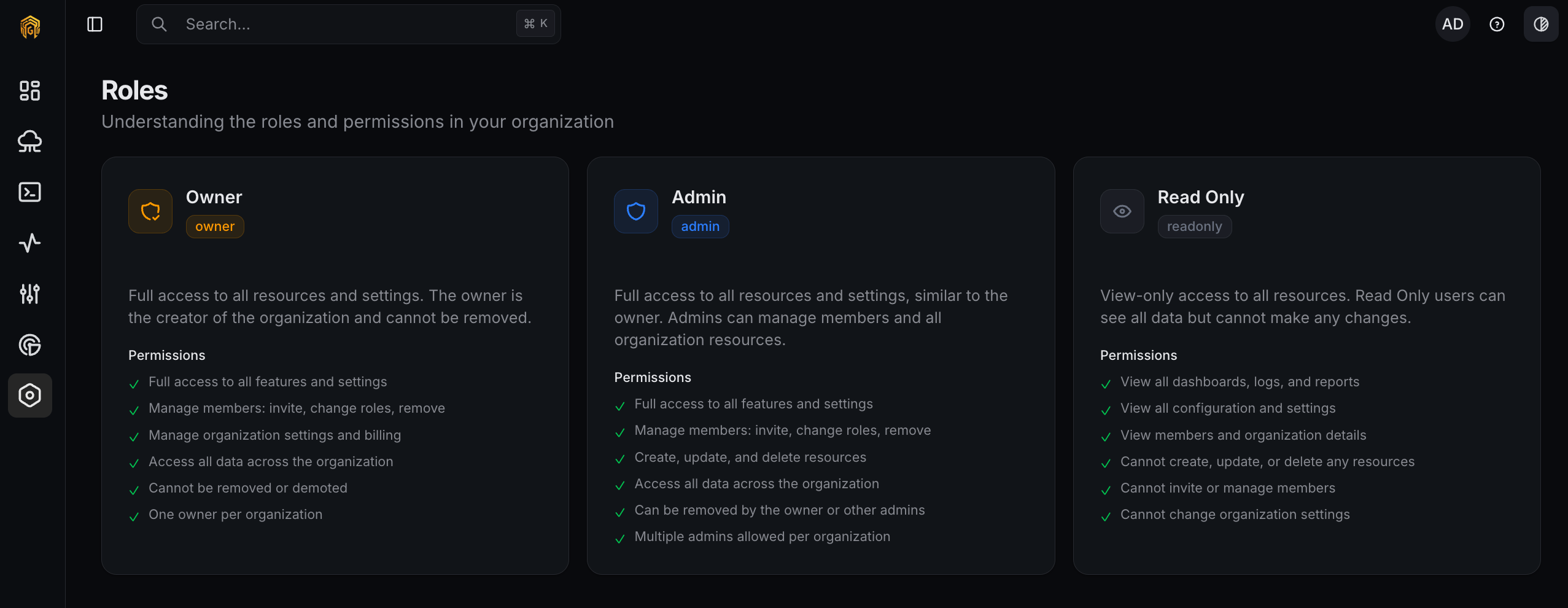
**Settings → Roles** is a read-only reference for the three roles available in a Guardway organization. Use it as the source of truth when deciding what role to grant a new teammate from [Settings → Users](/platform/settings/members) or what permissions a teammate already has.
Roles apply org-wide — they are not per-gateway. If you need finer-grained access control (e.g. one team only sees its own keys), use teams on [Configuration → Access](/platform/configuration/members).
## Roles
### Owner
Full access to all resources and settings. The Owner is the creator of the organization and **cannot be removed** or demoted. There is exactly **one** Owner per organization.
* Full access to all features and settings
* Manage members: invite, change roles, remove
* Manage organization settings and billing
* Access all data across the organization
* Cannot be removed or demoted
### Admin
Full access to all resources and settings, similar to the Owner. Admins can manage members and all organization resources.
* Full access to all features and settings
* Manage members: invite, change roles, remove
* Create, update, and delete resources
* Access all data across the organization
* Can be removed by the Owner or other Admins
* Multiple Admins allowed per organization
### Read Only
View-only access to all resources. Read Only users can see all data but cannot make any changes.
* View all dashboards, logs, and reports
* View all configuration and settings
* View members and organization details
* Cannot create, update, or delete any resources
* Cannot invite or manage members
* Cannot change organization settings
## How to configure
You don't configure this page — roles are assigned when you invite someone, or by editing an existing member.
 Use the rules above to decide between **Admin** (full read/write) and **Read Only** (view-only) for a new teammate.
On [Settings → Users](/platform/settings/members), click **Invite Member** and set the **Role** dropdown.
From the same page, open the member's profile and update their role. Changes take effect on the member's next page load.
## Related
* [Members](/platform/settings/members) — invite, change roles, remove.
* [Configuration → Access](/platform/configuration/members) — team-level access for gateway resources.
* [Audit Log](/platform/settings/audit-log) — role changes are recorded here.
Use the rules above to decide between **Admin** (full read/write) and **Read Only** (view-only) for a new teammate.
On [Settings → Users](/platform/settings/members), click **Invite Member** and set the **Role** dropdown.
From the same page, open the member's profile and update their role. Changes take effect on the member's next page load.
## Related
* [Members](/platform/settings/members) — invite, change roles, remove.
* [Configuration → Access](/platform/configuration/members) — team-level access for gateway resources.
* [Audit Log](/platform/settings/audit-log) — role changes are recorded here.