> ## Documentation Index
> Fetch the complete documentation index at: https://docs.guardway.ai/llms.txt
> Use this file to discover all available pages before exploring further.
# Integrations
> Connect external products to Guardway — GitHub discovery, Azure AI Foundry and Amazon Bedrock agent inventory, and Microsoft Entra ID identity signals.
## What this is for
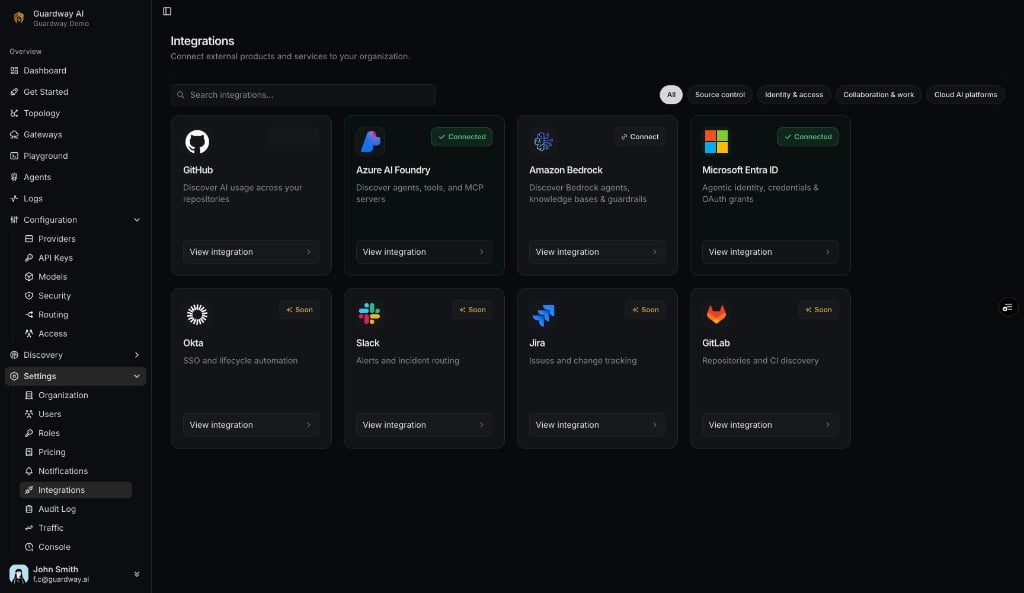
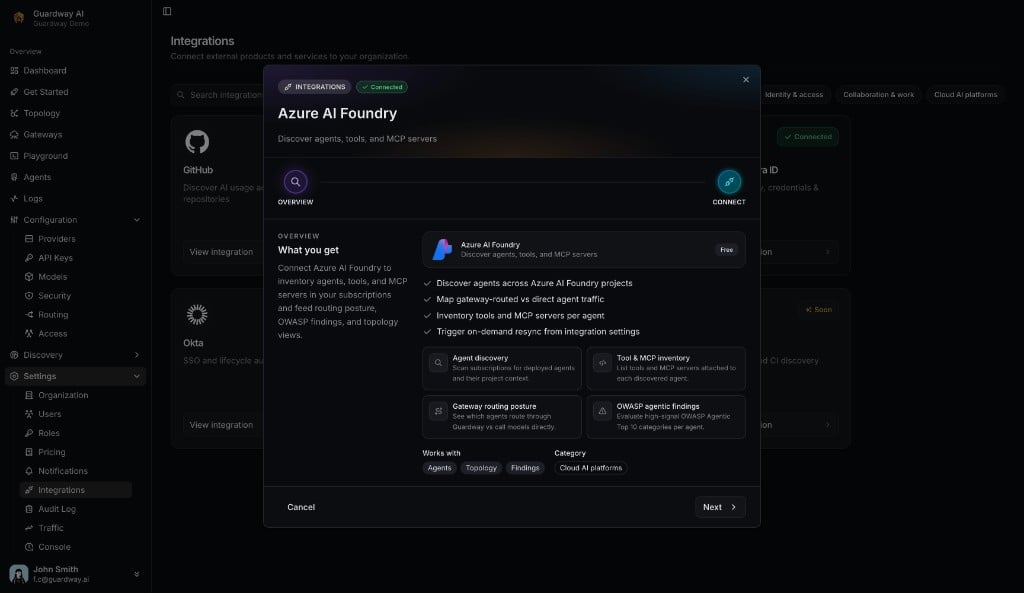
**Settings → Integrations** is the catalog of third-party connections for your organization. Each integration is a card on a searchable hub; clicking **View integration** opens a two-step dialog — **Overview** (what the connector does) and **Connect** (credentials and **Test & Connect**).
Available today:
* **GitHub** — AI-dependency discovery for [Discovery](/discovery/overview).
* **Azure AI Foundry** and **Amazon Bedrock** — cloud agent inventory for [Agents](/platform/agents) and [Topology](/platform/topology).
* **Microsoft Entra ID** — identity hydration and expanded **ASI03** findings on agents (no separate agent list).
Integrations are **platform-scoped** — configure once per organization, not per gateway.
## The integrations hub
### Search and filters
| Element | Notes |
| ------------------------ | -------------------------------------------------- |
| **Search integrations…** | Filters cards by name, tagline, category, or slug. |
| **All** | Shows every integration (default). |
| **Source control** | GitHub, GitLab (soon). |
| **Identity & access** | Microsoft Entra ID, Okta (soon). |
| **Collaboration & work** | Slack, Jira (soon). |
| **Cloud AI platforms** | Azure AI Foundry, Amazon Bedrock. |
### Card states
| Badge | Meaning |
| ------------- | ------------------------------------------------------------------------------------- |
| **Connected** | Integration is active (GitHub PAT, Foundry SP, Bedrock IAM key, or Entra **Active**). |
| **Connect** | Available but not yet configured (e.g. Amazon Bedrock). |
| **Soon** | On the roadmap (Okta, Slack, Jira, GitLab). |
Each card shows the integration name, one-line tagline, and **View integration**.
 ## Integration dialog
Every **View integration** opens the same dialog shell:
| Element | Notes |
| -------------- | ------------------------------------------------------------------------------------------------------------------------------------------------------------------------------ |
| **Step pills** | **OVERVIEW** then **CONNECT**. Use **Next** and **Cancel** in the footer. |
| **Overview** | Tagline, feature checklist, capability cards, **Works with** badges, **Category** chip, **Free** label. |
| **Connect** | Integration-specific fields and **Test & Connect** (or **Test Microsoft Graph access** for Entra). Connected integrations show **Resync** and **Disconnect** where applicable. |
Deep links: opening `?open=` on the integrations route selects the card automatically (`azure-foundry`, `aws-bedrock`, `entra-id`, `github`).
## Integration dialog
Every **View integration** opens the same dialog shell:
| Element | Notes |
| -------------- | ------------------------------------------------------------------------------------------------------------------------------------------------------------------------------ |
| **Step pills** | **OVERVIEW** then **CONNECT**. Use **Next** and **Cancel** in the footer. |
| **Overview** | Tagline, feature checklist, capability cards, **Works with** badges, **Category** chip, **Free** label. |
| **Connect** | Integration-specific fields and **Test & Connect** (or **Test Microsoft Graph access** for Entra). Connected integrations show **Resync** and **Disconnect** where applicable. |
Deep links: opening `?open=` on the integrations route selects the card automatically (`azure-foundry`, `aws-bedrock`, `entra-id`, `github`).
 ## GitHub
| Field | Required | Notes |
| ------------------------- | -------- | ------------------------------------------------------------------------------ |
| **Personal Access Token** | Yes | Classic PAT with `repo` and `read:org`. Password field, placeholder `ghp_...`. |
### Connection state
| Element | Notes |
| ------------------ | ------------------------------------------------------ |
| **Status badge** | `Connected` or `Disconnected`. |
| **Metadata** | Username and `connected_at`. |
| **Test & Connect** | Validates the PAT; toast **Invalid token** on failure. |
| **Disconnect** | Revokes the token. |
### Limits
* One GitHub PAT per organization.
* Used for Discovery only — no per-repo routing.
### How to configure (GitHub)
**Settings → Integrations** → **GitHub** → **View integration** → **Next** to **Connect**.
On [github.com/settings/tokens](https://github.com/settings/tokens), create a classic token with `repo` and `read:org`.
Paste the PAT and click **Test & Connect**. The hub card shows **Connected**.
Open [Discovery → Repositories](/discovery/repositories).
Disconnecting stops discovery scans. Reconnecting requires a new PAT.
## Azure AI Foundry
| Field | Required | Notes |
| ------------------- | -------- | ---------------------------------------------------- |
| **Tenant ID** | Yes | Entra tenant GUID. |
| **Subscription ID** | Yes | Subscription with AI Foundry resources. |
| **Client (App) ID** | Yes | Service Principal application id. |
| **Client Secret** | Yes | Secret **Value** (not Secret ID). Encrypted at rest. |
Read-only Service Principal — lists agents, tools, MCP servers, and models.
### Connection state
| Element | Notes |
| ------------------ | ------------------------------------------------------------------- |
| **Status badge** | `Connected` or `Disconnected`. |
| **Metadata** | Subscription label and connection date. |
| **Test & Connect** | Authenticates before save. |
| **Resync** | Immediate discovery refresh for [Agents](/platform/agents). |
| **Disconnect** | Removes credentials and discovered inventory for that subscription. |
### Limits
* One Azure subscription per organization in v1.
* Data-plane role required at **AI Services account** scope (see permissions below).
### How to configure (Azure AI Foundry)
## GitHub
| Field | Required | Notes |
| ------------------------- | -------- | ------------------------------------------------------------------------------ |
| **Personal Access Token** | Yes | Classic PAT with `repo` and `read:org`. Password field, placeholder `ghp_...`. |
### Connection state
| Element | Notes |
| ------------------ | ------------------------------------------------------ |
| **Status badge** | `Connected` or `Disconnected`. |
| **Metadata** | Username and `connected_at`. |
| **Test & Connect** | Validates the PAT; toast **Invalid token** on failure. |
| **Disconnect** | Revokes the token. |
### Limits
* One GitHub PAT per organization.
* Used for Discovery only — no per-repo routing.
### How to configure (GitHub)
**Settings → Integrations** → **GitHub** → **View integration** → **Next** to **Connect**.
On [github.com/settings/tokens](https://github.com/settings/tokens), create a classic token with `repo` and `read:org`.
Paste the PAT and click **Test & Connect**. The hub card shows **Connected**.
Open [Discovery → Repositories](/discovery/repositories).
Disconnecting stops discovery scans. Reconnecting requires a new PAT.
## Azure AI Foundry
| Field | Required | Notes |
| ------------------- | -------- | ---------------------------------------------------- |
| **Tenant ID** | Yes | Entra tenant GUID. |
| **Subscription ID** | Yes | Subscription with AI Foundry resources. |
| **Client (App) ID** | Yes | Service Principal application id. |
| **Client Secret** | Yes | Secret **Value** (not Secret ID). Encrypted at rest. |
Read-only Service Principal — lists agents, tools, MCP servers, and models.
### Connection state
| Element | Notes |
| ------------------ | ------------------------------------------------------------------- |
| **Status badge** | `Connected` or `Disconnected`. |
| **Metadata** | Subscription label and connection date. |
| **Test & Connect** | Authenticates before save. |
| **Resync** | Immediate discovery refresh for [Agents](/platform/agents). |
| **Disconnect** | Removes credentials and discovered inventory for that subscription. |
### Limits
* One Azure subscription per organization in v1.
* Data-plane role required at **AI Services account** scope (see permissions below).
### How to configure (Azure AI Foundry)
 **App registrations** → **New registration** (single tenant, no redirect URI). Copy **Application (client) ID**.
**Certificates & secrets** → copy the secret **Value** immediately.
**Subscriptions** → **IAM** → **Reader** (or **Azure AI Developer**) for the SP.
On each **AI Services** account → **IAM** → **Azure AI User** or **Azure AI Developer** for the SP. Subscription-level alone returns `401` on agent APIs.
**View integration** → **Connect** → paste four fields → **Test & Connect**.
Open [Agents](/platform/agents) or [Dashboard → Agents](/platform/dashboard/agents). Use **Resync** after adding projects.
### Required Azure permissions
| Capability | Plane | Role | Scope |
| ----------------------------------- | ---------- | ------------------------------------------- | ----------------------- |
| List subscription / resource groups | Management | **Reader** | Subscription |
| List AI Services accounts | Management | **Reader** or **Azure AI Developer** | Subscription |
| Read agents, tools, MCP | **Data** | **Azure AI User** or **Azure AI Developer** | AI Services **account** |
## Microsoft Entra ID
| Field | Required | Notes |
| -------- | -------- | --------------------------------------------------------------------------------------------------------------------------------------- |
| *(none)* | — | Reuses the Service Principal from **Azure AI Foundry**. Grant **Microsoft Graph** application permissions on the same app registration. |
### Connection state
| Element | Notes |
| ------------------------------- | ---------------------------------------------------------------------------------------------------------- |
| **Status badge** | `Active`, `Pending consent`, `Disconnected`, or `Error`. |
| **Service Principal banner** | Shown when Foundry is not connected; **Connect Azure AI Foundry** button. |
| **Test Microsoft Graph access** | Reports **Granted** vs **Still need admin consent**; flips to **Active** when required scopes are present. |
| **Last identity sync** | Shown when **Active** and at least one sync completed. |
### Required Microsoft Graph permissions
| Scope | Required | Unlocks |
| -------------------------- | -------- | ---------------------------------------------------- |
| **`Application.Read.All`** | Yes | Credential lifecycle rules. |
| **`Directory.Read.All`** | Yes | Principals, owners, grants, directory roles. |
| **`AuditLog.Read.All`** | No | `asi03.dormant_principal` (needs AAD Premium P1/P2). |
### Limits
* One tenant (same as Foundry SP).
* Identity sync chains after Foundry **Resync** — no separate Entra **Resync** button yet.
### How to configure (Microsoft Entra ID)
**App registrations** → **New registration** (single tenant, no redirect URI). Copy **Application (client) ID**.
**Certificates & secrets** → copy the secret **Value** immediately.
**Subscriptions** → **IAM** → **Reader** (or **Azure AI Developer**) for the SP.
On each **AI Services** account → **IAM** → **Azure AI User** or **Azure AI Developer** for the SP. Subscription-level alone returns `401` on agent APIs.
**View integration** → **Connect** → paste four fields → **Test & Connect**.
Open [Agents](/platform/agents) or [Dashboard → Agents](/platform/dashboard/agents). Use **Resync** after adding projects.
### Required Azure permissions
| Capability | Plane | Role | Scope |
| ----------------------------------- | ---------- | ------------------------------------------- | ----------------------- |
| List subscription / resource groups | Management | **Reader** | Subscription |
| List AI Services accounts | Management | **Reader** or **Azure AI Developer** | Subscription |
| Read agents, tools, MCP | **Data** | **Azure AI User** or **Azure AI Developer** | AI Services **account** |
## Microsoft Entra ID
| Field | Required | Notes |
| -------- | -------- | --------------------------------------------------------------------------------------------------------------------------------------- |
| *(none)* | — | Reuses the Service Principal from **Azure AI Foundry**. Grant **Microsoft Graph** application permissions on the same app registration. |
### Connection state
| Element | Notes |
| ------------------------------- | ---------------------------------------------------------------------------------------------------------- |
| **Status badge** | `Active`, `Pending consent`, `Disconnected`, or `Error`. |
| **Service Principal banner** | Shown when Foundry is not connected; **Connect Azure AI Foundry** button. |
| **Test Microsoft Graph access** | Reports **Granted** vs **Still need admin consent**; flips to **Active** when required scopes are present. |
| **Last identity sync** | Shown when **Active** and at least one sync completed. |
### Required Microsoft Graph permissions
| Scope | Required | Unlocks |
| -------------------------- | -------- | ---------------------------------------------------- |
| **`Application.Read.All`** | Yes | Credential lifecycle rules. |
| **`Directory.Read.All`** | Yes | Principals, owners, grants, directory roles. |
| **`AuditLog.Read.All`** | No | `asi03.dormant_principal` (needs AAD Premium P1/P2). |
### Limits
* One tenant (same as Foundry SP).
* Identity sync chains after Foundry **Resync** — no separate Entra **Resync** button yet.
### How to configure (Microsoft Entra ID)
 Entra reuses that Service Principal.
**App registrations** → your SP → **API permissions** → add the three Graph application permissions → **Grant admin consent**.
On the Entra **Connect** step, click **Test Microsoft Graph access** until both required scopes show **Granted** and status is **Active**.
**Azure AI Foundry** → **Resync** chains identity sync. Open an [agent detail](/platform/agents) page to see **Identities**.
## Amazon Bedrock
| Field | Required | Notes |
| --------------------- | -------- | -------------------------------------------------------------- |
| **Access Key ID** | Yes | IAM access key (`AKIA…`). |
| **Secret Access Key** | Yes | Matching secret (password field). |
| **Region** | Yes | Bedrock region (e.g. `us-east-1`). One region per integration. |
Read-only — lists Bedrock Agents, action groups, knowledge bases, models, and referenced guardrails.
### Connection state
| Element | Notes |
| ------------------ | -------------------------------------------------------------------------------- |
| **Status badge** | `Connected` or `Disconnected`. |
| **Metadata** | Account label (e.g. `AWS account 123456789012 / us-east-1`) and connection date. |
| **Test & Connect** | Validates via STS before save. |
| **Resync** | Immediate refresh for [Agents](/platform/agents). |
| **Disconnect** | Removes credentials and Bedrock inventory for that account and region. |
### Limits
* One AWS account + region per organization in v1.
* No MCP servers on Bedrock agents (MCP column stays empty).
* Guardrails referenced by agents appear as metadata only.
### Required AWS IAM permissions
| Capability | Action(s) |
| ---------------------------------- | -------------------------------------------------------------------------------------------------------- |
| Verify credentials | `sts:GetCallerIdentity` |
| List/read agents and action groups | `bedrock:ListAgents`, `bedrock:GetAgent`, `bedrock:ListAgentActionGroups`, `bedrock:GetAgentActionGroup` |
| Knowledge bases | `bedrock:ListAgentKnowledgeBases`, `bedrock:ListKnowledgeBases` |
| Guardrails | `bedrock:ListGuardrails` |
AWS managed **`AmazonBedrockReadOnly`** plus **`sts:GetCallerIdentity`** (or **`ReadOnlyAccess`**).
### How to configure (Amazon Bedrock)
Entra reuses that Service Principal.
**App registrations** → your SP → **API permissions** → add the three Graph application permissions → **Grant admin consent**.
On the Entra **Connect** step, click **Test Microsoft Graph access** until both required scopes show **Granted** and status is **Active**.
**Azure AI Foundry** → **Resync** chains identity sync. Open an [agent detail](/platform/agents) page to see **Identities**.
## Amazon Bedrock
| Field | Required | Notes |
| --------------------- | -------- | -------------------------------------------------------------- |
| **Access Key ID** | Yes | IAM access key (`AKIA…`). |
| **Secret Access Key** | Yes | Matching secret (password field). |
| **Region** | Yes | Bedrock region (e.g. `us-east-1`). One region per integration. |
Read-only — lists Bedrock Agents, action groups, knowledge bases, models, and referenced guardrails.
### Connection state
| Element | Notes |
| ------------------ | -------------------------------------------------------------------------------- |
| **Status badge** | `Connected` or `Disconnected`. |
| **Metadata** | Account label (e.g. `AWS account 123456789012 / us-east-1`) and connection date. |
| **Test & Connect** | Validates via STS before save. |
| **Resync** | Immediate refresh for [Agents](/platform/agents). |
| **Disconnect** | Removes credentials and Bedrock inventory for that account and region. |
### Limits
* One AWS account + region per organization in v1.
* No MCP servers on Bedrock agents (MCP column stays empty).
* Guardrails referenced by agents appear as metadata only.
### Required AWS IAM permissions
| Capability | Action(s) |
| ---------------------------------- | -------------------------------------------------------------------------------------------------------- |
| Verify credentials | `sts:GetCallerIdentity` |
| List/read agents and action groups | `bedrock:ListAgents`, `bedrock:GetAgent`, `bedrock:ListAgentActionGroups`, `bedrock:GetAgentActionGroup` |
| Knowledge bases | `bedrock:ListAgentKnowledgeBases`, `bedrock:ListKnowledgeBases` |
| Guardrails | `bedrock:ListGuardrails` |
AWS managed **`AmazonBedrockReadOnly`** plus **`sts:GetCallerIdentity`** (or **`ReadOnlyAccess`**).
### How to configure (Amazon Bedrock)
 Programmatic access only (e.g. `guardway-cloud-agent-discovery`).
**`AmazonBedrockReadOnly`** and inline **`sts:GetCallerIdentity`** on `*`.
Copy **Access key ID** and **Secret access key** (secret shown once).
**View integration** → **Connect** → paste three fields → **Test & Connect**.
Open [Agents](/platform/agents). Use **Resync** after adding agents in AWS.
## Coming soon
Hub cards marked **Soon**: **Okta**, **Slack**, **Jira**, **GitLab**. Email [support@guardway.ai](mailto:support@guardway.ai) to prioritize one.
## Related
* [Agents](/platform/agents) — inventory and findings.
* [Dashboard → Agents](/platform/dashboard/agents) — org-wide agent metrics.
* [Topology](/platform/topology) — gateway → provider → model → agent graph.
* [Discovery](/discovery/overview) — GitHub-powered repository scans.
Programmatic access only (e.g. `guardway-cloud-agent-discovery`).
**`AmazonBedrockReadOnly`** and inline **`sts:GetCallerIdentity`** on `*`.
Copy **Access key ID** and **Secret access key** (secret shown once).
**View integration** → **Connect** → paste three fields → **Test & Connect**.
Open [Agents](/platform/agents). Use **Resync** after adding agents in AWS.
## Coming soon
Hub cards marked **Soon**: **Okta**, **Slack**, **Jira**, **GitLab**. Email [support@guardway.ai](mailto:support@guardway.ai) to prioritize one.
## Related
* [Agents](/platform/agents) — inventory and findings.
* [Dashboard → Agents](/platform/dashboard/agents) — org-wide agent metrics.
* [Topology](/platform/topology) — gateway → provider → model → agent graph.
* [Discovery](/discovery/overview) — GitHub-powered repository scans.