> ## Documentation Index
> Fetch the complete documentation index at: https://docs.guardway.ai/llms.txt
> Use this file to discover all available pages before exploring further.
# Console
> Session timeout and display timezone for the Guardway dashboard. Both are per-browser preferences.
## What this is for
**Settings → Console** groups two per-user dashboard preferences: **Session timeout** (auto-logoff on inactivity) and **Timezone** (how timestamps are rendered across the dashboard).
Both settings are stored in your browser's local storage. They apply **per user, per device** — they do not roam across browsers and do not affect other users in your organization.
The page has two tabs: **Session timeout** and **Timezone**.
## Session timeout
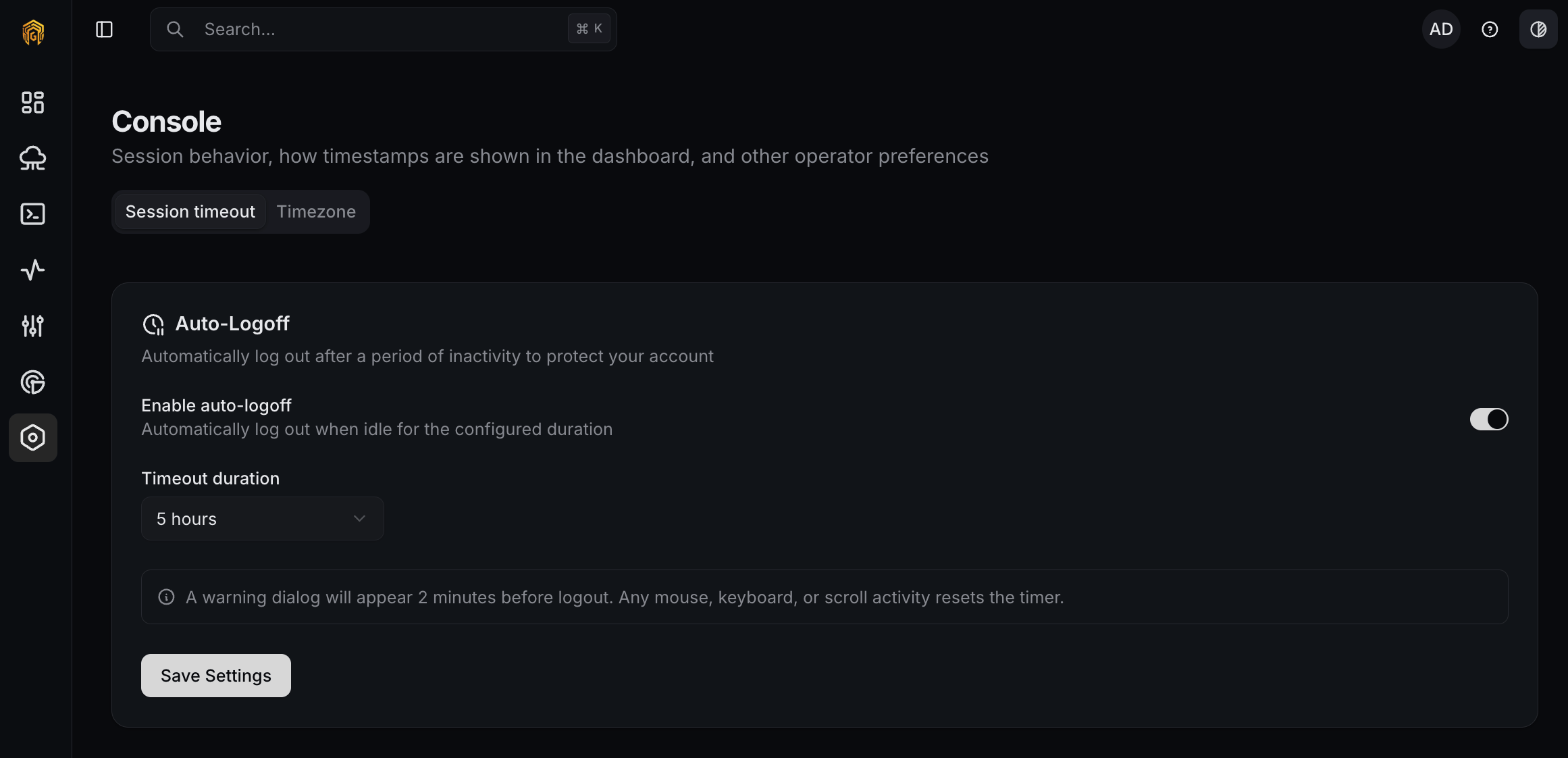
Auto-logoff on inactivity. Card is titled **Auto-Logoff** with help text *"Automatically log out after a period of inactivity to protect your account."*
### Options
| Field | Notes |
| ---------------------- | ----------------------------------------------------------------------------------------------------- |
| **Enable auto-logoff** | Toggle. Default **off**. |
| **Timeout duration** | Dropdown shown when the toggle is on. Options: **30 minutes**, **1 hour**, **5 hours**, **24 hours**. |
### What triggers a timeout
Any mouse movement, keystroke, or scroll resets the inactivity timer. When it runs out, you're logged out automatically.
### Warning dialog
Two minutes before logout, a dialog appears with the message *"You will be automatically logged out in \{MM:SS} due to inactivity."*
* **Stay Logged In** — resets the timer.
* **Log Out Now** — ends the session immediately.
 ## Timezone
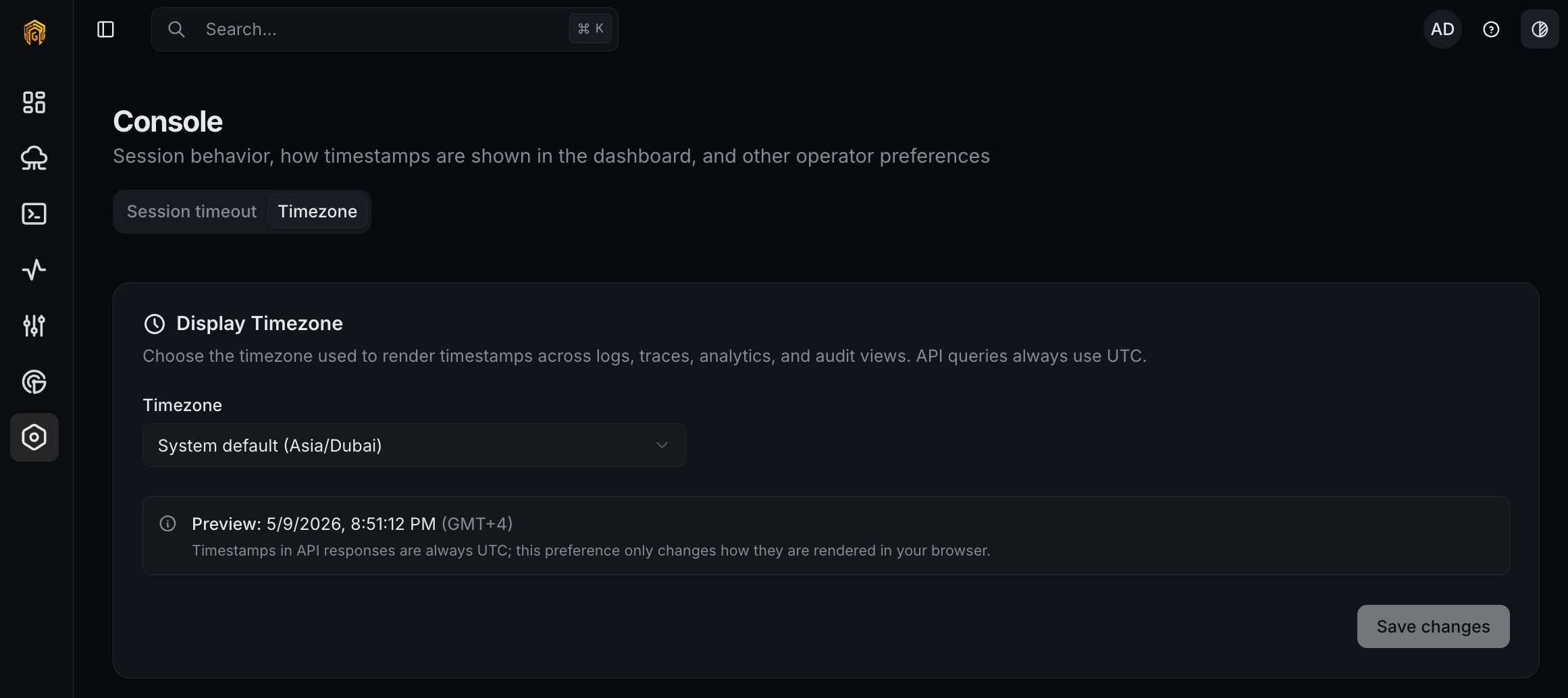
Card is titled **Display Timezone** with help text *"Choose the timezone used to render timestamps across logs, traces, analytics, and audit views. API queries always use UTC."*
### What it affects
Timestamps shown in:
* [Logs](/platform/logs) — Requests, MCP, Guardrails, Traces tabs.
* [Audit log](/platform/settings/audit-log).
* [Dashboard → Usage](/platform/dashboard/usage), [Spend](/platform/dashboard/spend), [Security](/platform/dashboard/security).
Stored data always uses **UTC**. The timezone setting is presentation-only — it re-renders timestamps but does not change what is queried or recorded.
### Options
* Dropdown with **System default (detected timezone)** at the top plus a curated list of common timezones (UTC, major US, EU, APAC, etc.).
* If your system timezone isn't in the curated list, it's still shown as the system-default option.
* A preview line renders the current time in the selected timezone with its abbreviation, e.g. **2026-04-17 14:23:45 (EDT)**.
* Default: system timezone (resolved via the browser's `Intl.DateTimeFormat()` API).
## Timezone
Card is titled **Display Timezone** with help text *"Choose the timezone used to render timestamps across logs, traces, analytics, and audit views. API queries always use UTC."*
### What it affects
Timestamps shown in:
* [Logs](/platform/logs) — Requests, MCP, Guardrails, Traces tabs.
* [Audit log](/platform/settings/audit-log).
* [Dashboard → Usage](/platform/dashboard/usage), [Spend](/platform/dashboard/spend), [Security](/platform/dashboard/security).
Stored data always uses **UTC**. The timezone setting is presentation-only — it re-renders timestamps but does not change what is queried or recorded.
### Options
* Dropdown with **System default (detected timezone)** at the top plus a curated list of common timezones (UTC, major US, EU, APAC, etc.).
* If your system timezone isn't in the curated list, it's still shown as the system-default option.
* A preview line renders the current time in the selected timezone with its abbreviation, e.g. **2026-04-17 14:23:45 (EDT)**.
* Default: system timezone (resolved via the browser's `Intl.DateTimeFormat()` API).
 ## How to configure
Open **Settings → Console** from the dashboard sidebar.
On the **Session timeout** tab, toggle **Enable auto-logoff** on and pick a **Timeout duration**. Settings save automatically.
Switch to the **Timezone** tab and pick a value from the dropdown. The preview line updates immediately so you can verify.
## Permissions
No role gating — any signed-in user can change their own session timeout and timezone. Neither setting is visible to admins or coworkers.
## How to configure
Open **Settings → Console** from the dashboard sidebar.
On the **Session timeout** tab, toggle **Enable auto-logoff** on and pick a **Timeout duration**. Settings save automatically.
Switch to the **Timezone** tab and pick a value from the dropdown. The preview line updates immediately so you can verify.
## Permissions
No role gating — any signed-in user can change their own session timeout and timezone. Neither setting is visible to admins or coworkers.