> ## Documentation Index
> Fetch the complete documentation index at: https://docs.guardway.ai/llms.txt
> Use this file to discover all available pages before exploring further.
# Security
> Configure MCP servers, guardrail rules, and SLM-based guardrails for the gateway.
## What this is for
**Configuration → Security** is where you control what the gateway is allowed to do beyond plain LLM inference: which MCP servers it exposes to clients, which content/intent rules it enforces on every request, and which on-gateway SLM (small language model) classifiers run as additional guards.
The page has three tabs: **MCP**, **Guardrails**, and **SLM Guardrails**.
## MCP
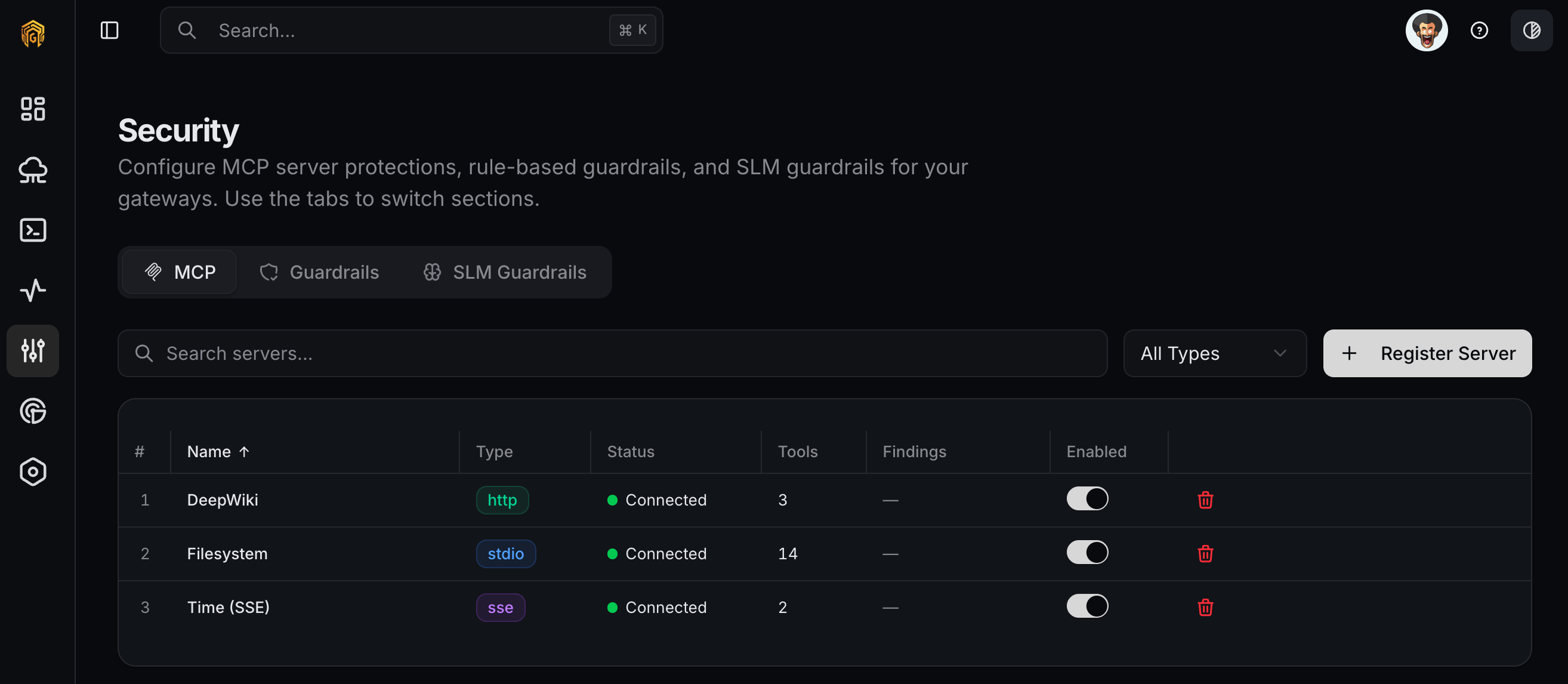
Register the Model Context Protocol servers your gateway should make available to clients. Once registered, MCP servers are scoped per API key on the [API Keys](/platform/configuration/api-keys) MCP tab.
 ### Options
The **Register MCP Server** dialog has two tabs: **Template** for ready-made configurations and **Manual** for free-form setup.
| Field | Notes |
| ---------------------- | ------------------------------------------------------------------------------------------------------------------- |
| **Server Name** | Display name (e.g. `My MCP Server`). |
| **Server Type** | `STDIO`, `HTTP`, or `SSE`. |
| **Command** | STDIO only (e.g. `npx`). |
| **Arguments** | STDIO only, comma-separated (e.g. `-y, @modelcontextprotocol/server-filesystem, /tmp`). |
| **URL** | HTTP/SSE only — the server endpoint. |
| **Authentication** | `None`, `API Key`, `Bearer Token`, `Basic Auth`, or `OAuth2`. Reveals secret/credential fields based on the choice. |
| **Additional Headers** | Optional JSON for advanced HTTP/SSE setups. |
### How to configure
Open **Configuration → Security** from the dashboard sidebar and click the **MCP** tab.
Click **Register MCP Server**. Pick a **Template** to autofill a known integration (filesystem, github, etc.) or switch to **Manual**.
### Options
The **Register MCP Server** dialog has two tabs: **Template** for ready-made configurations and **Manual** for free-form setup.
| Field | Notes |
| ---------------------- | ------------------------------------------------------------------------------------------------------------------- |
| **Server Name** | Display name (e.g. `My MCP Server`). |
| **Server Type** | `STDIO`, `HTTP`, or `SSE`. |
| **Command** | STDIO only (e.g. `npx`). |
| **Arguments** | STDIO only, comma-separated (e.g. `-y, @modelcontextprotocol/server-filesystem, /tmp`). |
| **URL** | HTTP/SSE only — the server endpoint. |
| **Authentication** | `None`, `API Key`, `Bearer Token`, `Basic Auth`, or `OAuth2`. Reveals secret/credential fields based on the choice. |
| **Additional Headers** | Optional JSON for advanced HTTP/SSE setups. |
### How to configure
Open **Configuration → Security** from the dashboard sidebar and click the **MCP** tab.
Click **Register MCP Server**. Pick a **Template** to autofill a known integration (filesystem, github, etc.) or switch to **Manual**.
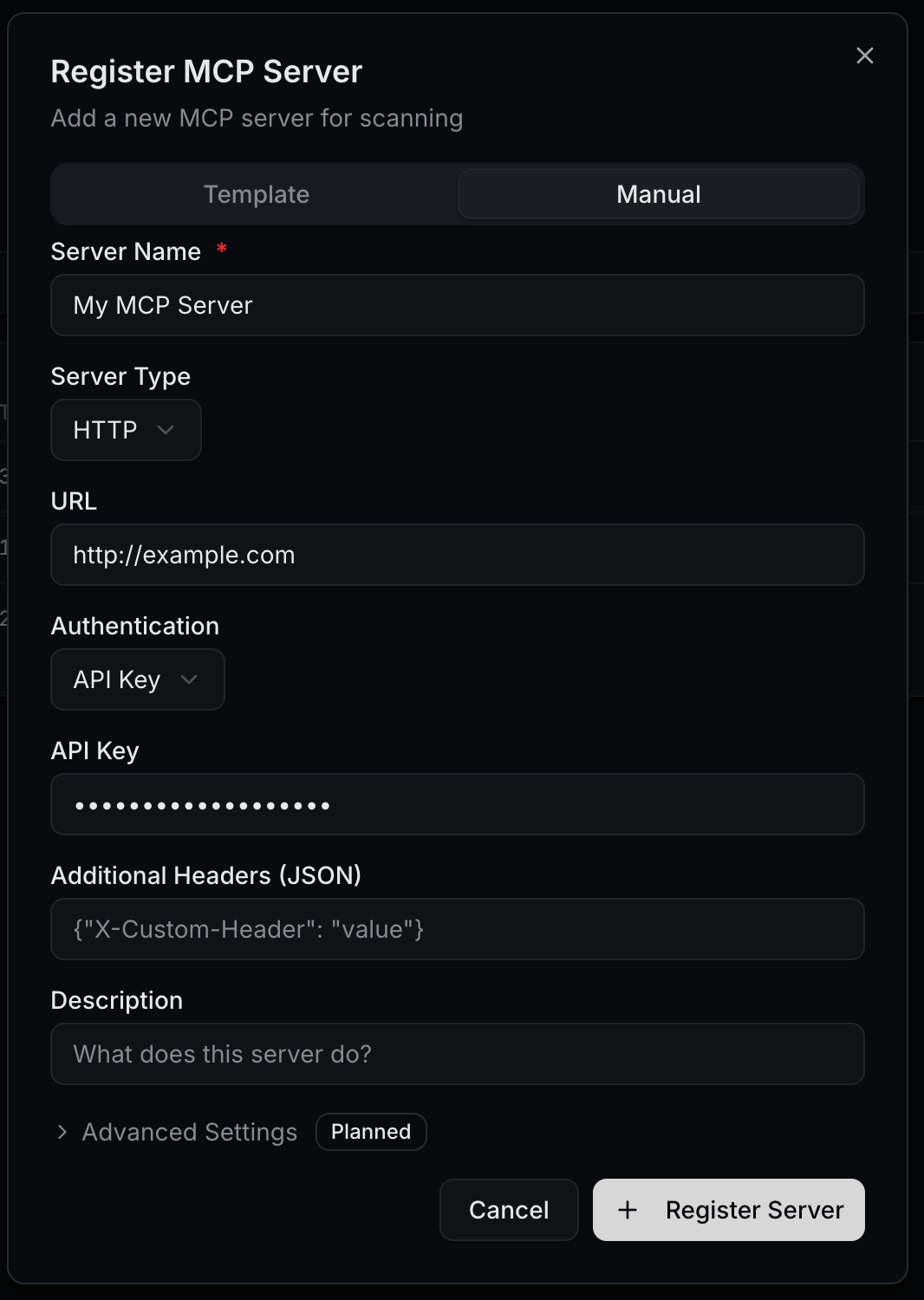 Choose **STDIO** for processes the gateway spawns, or **HTTP** / **SSE** for remote MCP servers. Fill the matching fields.
Select an auth scheme and provide the secret. Use **None** only for local STDIO servers on the gateway host.
The server appears in the list with status `connected` once the gateway can reach it. Open [API Keys](/platform/configuration/api-keys), edit a key, and use the **MCP** tab to scope the key to specific servers and tools.
## Guardrails
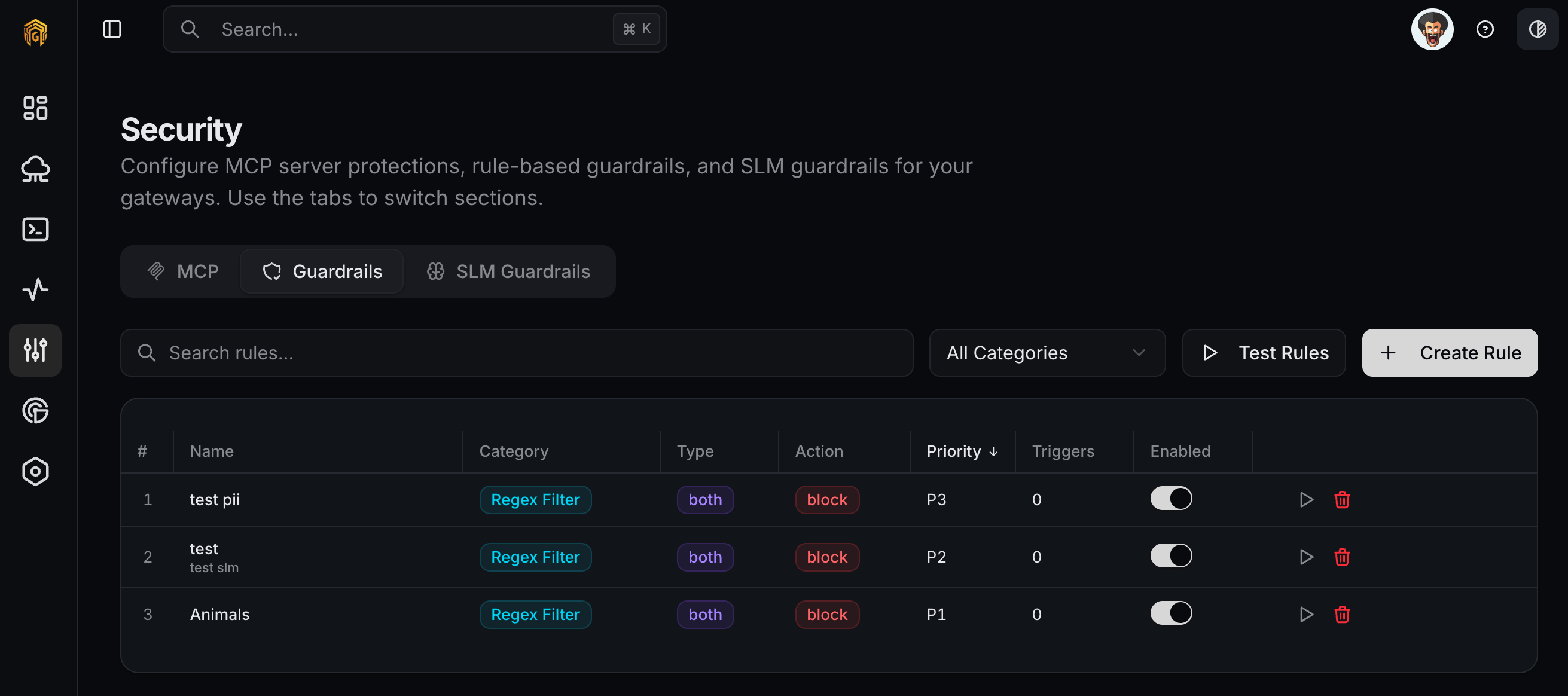
Rule-based content controls applied to every request that flows through the gateway. Use these to redact PII, block prompt injection patterns, enforce keyword filters, or just log policy hits.
Choose **STDIO** for processes the gateway spawns, or **HTTP** / **SSE** for remote MCP servers. Fill the matching fields.
Select an auth scheme and provide the secret. Use **None** only for local STDIO servers on the gateway host.
The server appears in the list with status `connected` once the gateway can reach it. Open [API Keys](/platform/configuration/api-keys), edit a key, and use the **MCP** tab to scope the key to specific servers and tools.
## Guardrails
Rule-based content controls applied to every request that flows through the gateway. Use these to redact PII, block prompt injection patterns, enforce keyword filters, or just log policy hits.
 ### Options
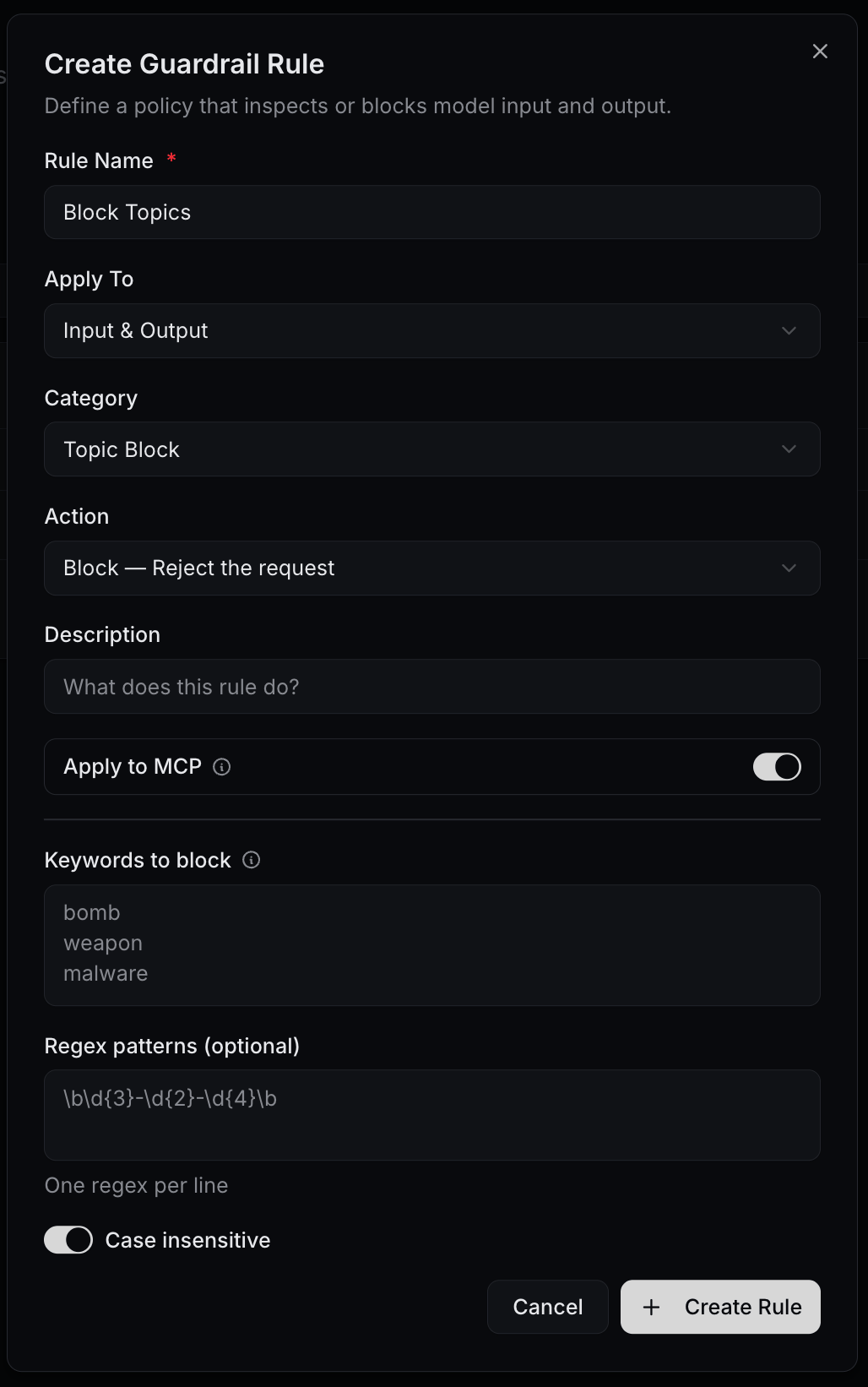
**Create Guardrail Rule** dialog:
| Field | Notes |
| ----------------------------- | ---------------------------------------------------------------------------------------------------------------------------- |
| **Rule Name** | e.g. `PII Redaction`. |
| **Apply To** | `Input Only`, `Output Only`, or `Input & Output`. |
| **Category** | `Content Filter`, `PII Detection`, `Prompt Injection`, `Topic Block`, `Regex Filter`, `Token Limit`, `Cost Limit`, `Custom`. |
| **Action** | `Block — reject the request`, `Warn — Allow but flag`, `Redact — replace matched content`, `Log — Record only`. |
| **Description** | Free-form notes. |
| **Apply to MCP** | Toggle. When on, the rule also runs against MCP traffic on this gateway. |
| **Keywords to block** | One per line — for keyword-style categories. |
| **Regex patterns (optional)** | One per line — e.g. `\b\d{3}-\d{2}-\d{4}\b`. |
| **Ignore case** | Toggle for keyword/regex matches. |
Rules are listed with **Name**, **Category**, **Type** (input / output / both), **Action**, **Priority**, **Triggers**, and **Enabled**. A built-in **Test** dialog lets you paste sample text and see which rules fire.
### How to configure
Open **Configuration → Security** from the dashboard sidebar and click the **Guardrails** tab.
Click **Create Guardrail Rule**. Set **Rule Name**, pick **Apply To**, **Category**, and **Action**. Add **Keywords** and/or **Regex patterns** for keyword-style categories.
### Options
**Create Guardrail Rule** dialog:
| Field | Notes |
| ----------------------------- | ---------------------------------------------------------------------------------------------------------------------------- |
| **Rule Name** | e.g. `PII Redaction`. |
| **Apply To** | `Input Only`, `Output Only`, or `Input & Output`. |
| **Category** | `Content Filter`, `PII Detection`, `Prompt Injection`, `Topic Block`, `Regex Filter`, `Token Limit`, `Cost Limit`, `Custom`. |
| **Action** | `Block — reject the request`, `Warn — Allow but flag`, `Redact — replace matched content`, `Log — Record only`. |
| **Description** | Free-form notes. |
| **Apply to MCP** | Toggle. When on, the rule also runs against MCP traffic on this gateway. |
| **Keywords to block** | One per line — for keyword-style categories. |
| **Regex patterns (optional)** | One per line — e.g. `\b\d{3}-\d{2}-\d{4}\b`. |
| **Ignore case** | Toggle for keyword/regex matches. |
Rules are listed with **Name**, **Category**, **Type** (input / output / both), **Action**, **Priority**, **Triggers**, and **Enabled**. A built-in **Test** dialog lets you paste sample text and see which rules fire.
### How to configure
Open **Configuration → Security** from the dashboard sidebar and click the **Guardrails** tab.
Click **Create Guardrail Rule**. Set **Rule Name**, pick **Apply To**, **Category**, and **Action**. Add **Keywords** and/or **Regex patterns** for keyword-style categories.
 Use the **Test** action on the rule row, paste representative sample text, and confirm the rule matches what you expect.
Flip **Enabled** to turn the rule on. Trigger a matching request from [Playground](/platform/playground) and verify the action in [Logs](/platform/logs).
## SLM Guardrails
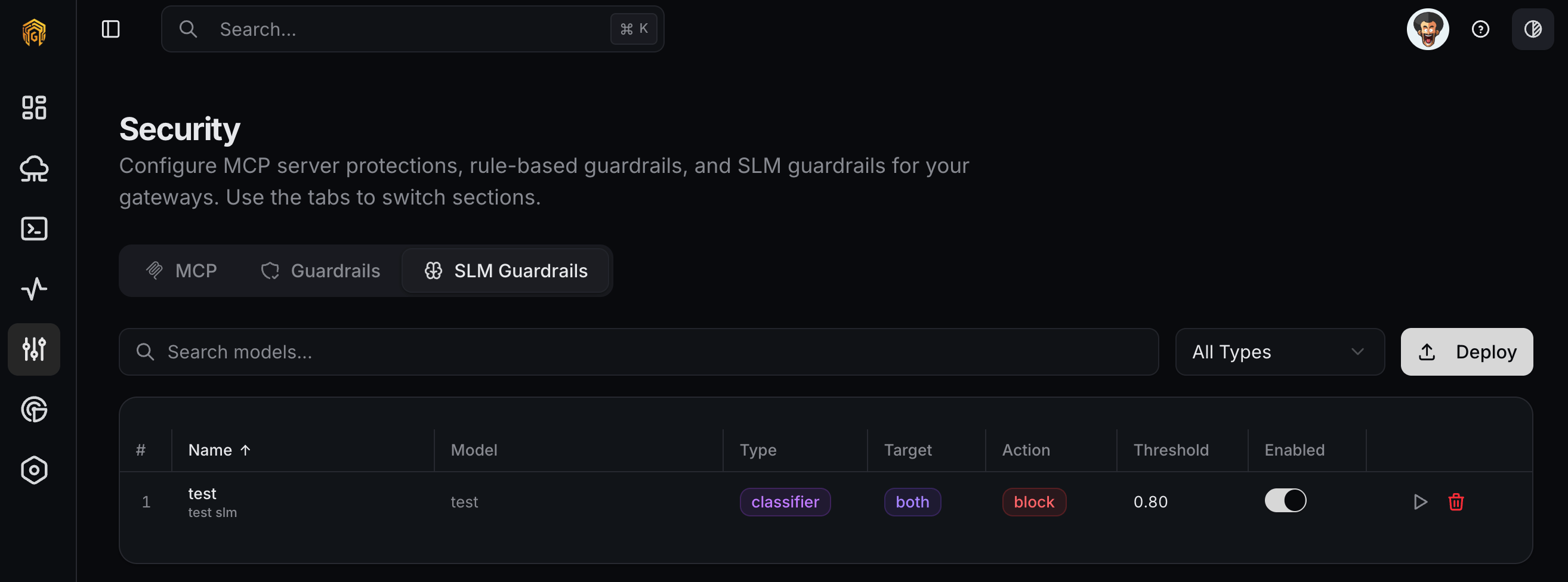
On-gateway small language models that classify, score, detect, or rewrite content. Use these when keyword/regex rules aren't expressive enough — toxicity classifiers, jailbreak detectors, intent scorers.
Use the **Test** action on the rule row, paste representative sample text, and confirm the rule matches what you expect.
Flip **Enabled** to turn the rule on. Trigger a matching request from [Playground](/platform/playground) and verify the action in [Logs](/platform/logs).
## SLM Guardrails
On-gateway small language models that classify, score, detect, or rewrite content. Use these when keyword/regex rules aren't expressive enough — toxicity classifiers, jailbreak detectors, intent scorers.
 ### Options
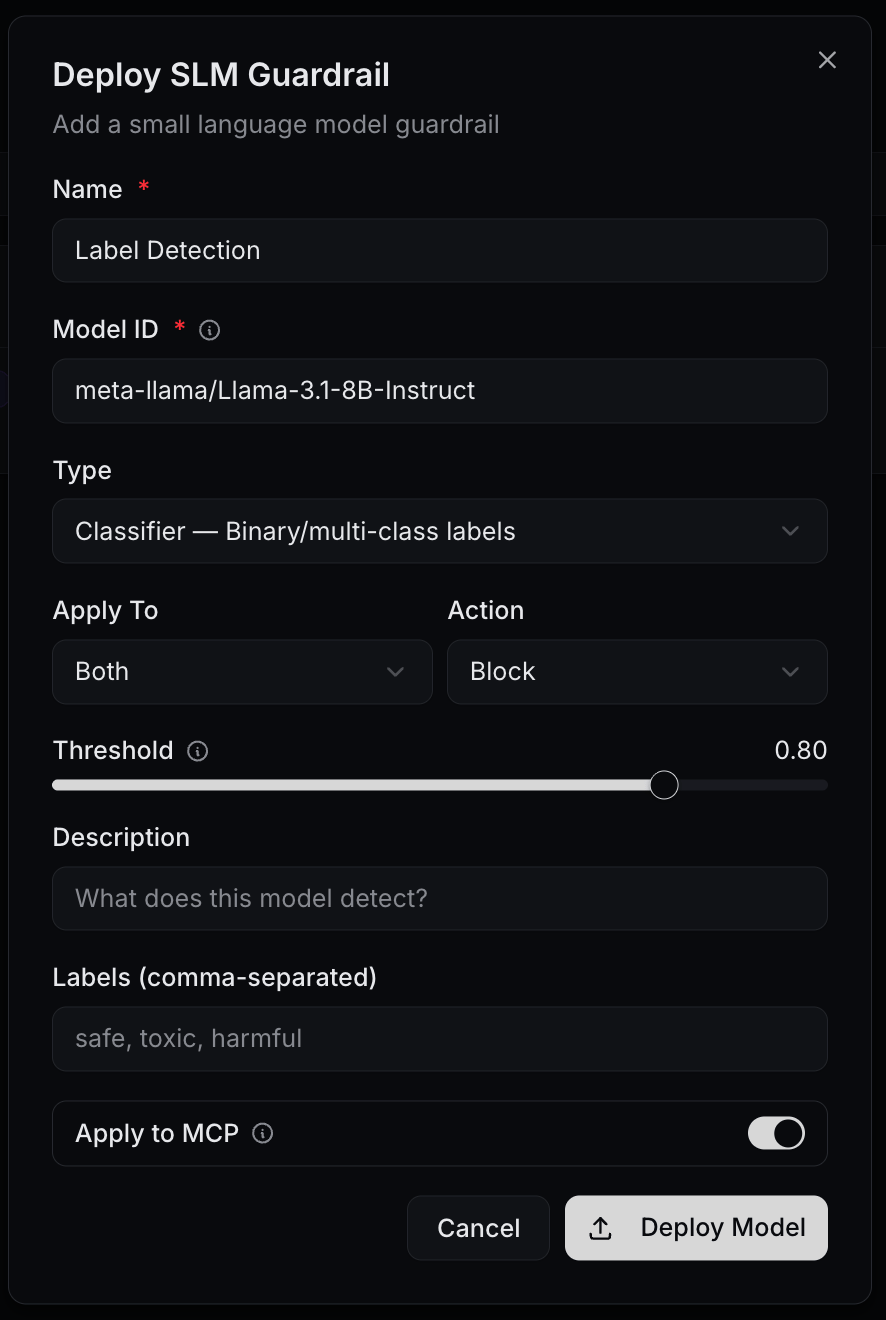
**Deploy SLM Guardrail** dialog:
| Field | Notes |
| ---------------- | -------------------------------------------------------------------------- |
| **Name** | e.g. `Toxicity Classifier`. |
| **Model** | Pick a curated model or enter a model ref (e.g. `guardway/model-name-v1`). |
| **Type** | `classifier`, `scorer`, `detector`, or `rewriter`. |
| **Apply To** | `Input Only`, `Output Only`, or `Input & Output`. |
| **Action** | `block`, `warn`, `rewrite`, or `log`. |
| **Threshold** | Decision threshold (slider). |
| **Description** | What this model detects. |
| **Labels** | Comma-separated — e.g. `safe, toxic, harmful`. |
| **Apply to MCP** | Toggle. |
Each row exposes **Avg latency**, **Accuracy**, and **Evaluations** so you can see real performance before promoting it to a blocking action.
### How to configure
Open **Configuration → Security** from the dashboard sidebar and click the **SLM Guardrails** tab.
Click **Deploy SLM Guardrail**, pick a **Model** and **Type**, set **Apply To**, **Action**, and **Threshold**.
### Options
**Deploy SLM Guardrail** dialog:
| Field | Notes |
| ---------------- | -------------------------------------------------------------------------- |
| **Name** | e.g. `Toxicity Classifier`. |
| **Model** | Pick a curated model or enter a model ref (e.g. `guardway/model-name-v1`). |
| **Type** | `classifier`, `scorer`, `detector`, or `rewriter`. |
| **Apply To** | `Input Only`, `Output Only`, or `Input & Output`. |
| **Action** | `block`, `warn`, `rewrite`, or `log`. |
| **Threshold** | Decision threshold (slider). |
| **Description** | What this model detects. |
| **Labels** | Comma-separated — e.g. `safe, toxic, harmful`. |
| **Apply to MCP** | Toggle. |
Each row exposes **Avg latency**, **Accuracy**, and **Evaluations** so you can see real performance before promoting it to a blocking action.
### How to configure
Open **Configuration → Security** from the dashboard sidebar and click the **SLM Guardrails** tab.
Click **Deploy SLM Guardrail**, pick a **Model** and **Type**, set **Apply To**, **Action**, and **Threshold**.
 Set **Action** to `log` first. Run real traffic for a window, watch **Accuracy** and **Evaluations** on the row.
Once you trust the model, change **Action** to `warn`, `block`, or `rewrite`. Verify in [Logs](/platform/logs).
SLM Guardrails run on the gateway, not in the cloud. Inference latency depends on the gateway host's available GPU/CPU.
## Related
* [API Keys](/platform/configuration/api-keys) — scope MCP servers and tools per key.
* [Logs](/platform/logs) — every guardrail trigger is logged with the rule that matched.
* [Notifications](/platform/settings/notifications) — subscribe to `guardrail.violation` events.
Set **Action** to `log` first. Run real traffic for a window, watch **Accuracy** and **Evaluations** on the row.
Once you trust the model, change **Action** to `warn`, `block`, or `rewrite`. Verify in [Logs](/platform/logs).
SLM Guardrails run on the gateway, not in the cloud. Inference latency depends on the gateway host's available GPU/CPU.
## Related
* [API Keys](/platform/configuration/api-keys) — scope MCP servers and tools per key.
* [Logs](/platform/logs) — every guardrail trigger is logged with the rule that matched.
* [Notifications](/platform/settings/notifications) — subscribe to `guardrail.violation` events.