> ## Documentation Index
> Fetch the complete documentation index at: https://docs.guardway.ai/llms.txt
> Use this file to discover all available pages before exploring further.
# Access
> Manage the users and teams that operate this gateway, with roles, budgets, and per-team spend.
## What this is for
**Configuration → Access** groups the users and teams that operate a specific gateway. These entries live alongside the gateway's providers, routes, and keys — separately from the platform-level organization members managed under [Settings → Users](/platform/settings/members).
Use this page to invite users to a gateway, group them into teams, set per-team monthly spend caps, and assign roles that control what each user can do.
## Options
The page has two tabs: **Users** and **Teams**.
### Users tab
| Column | Notes |
| ----------- | ------------------------------------ |
| Name | Display name. |
| Email | Unique per gateway. |
| Role | Owner, Admin, Member, or Viewer. |
| Status | `active`, `invited`, or `suspended`. |
| Team | Team assignment, if any. |
| Last active | Most recent session timestamp. |
Filters: full-text search on name/email, **Role** dropdown (`All Roles`, `Owner`, `Admin`, `Member`, `Viewer`), sortable columns. Summary cards at the top: **Total users**, **Active**, **Admins**, **Pending invites**.
**Invite User** form:
| Field | Required | Notes |
| ----- | -------- | --------------------------------------------------- |
| Email | Yes | Invite is sent here. |
| Role | No | `Admin`, `Member`, or `Viewer`. Defaults to Member. |
| Team | No | Assign at invite time or later. |
Row actions: **Edit** (inline role change), **Change Role**, **Suspend** / **Reactivate**, **Resend Invite** (only for `invited` status), **Delete** (with confirmation).
### Teams tab
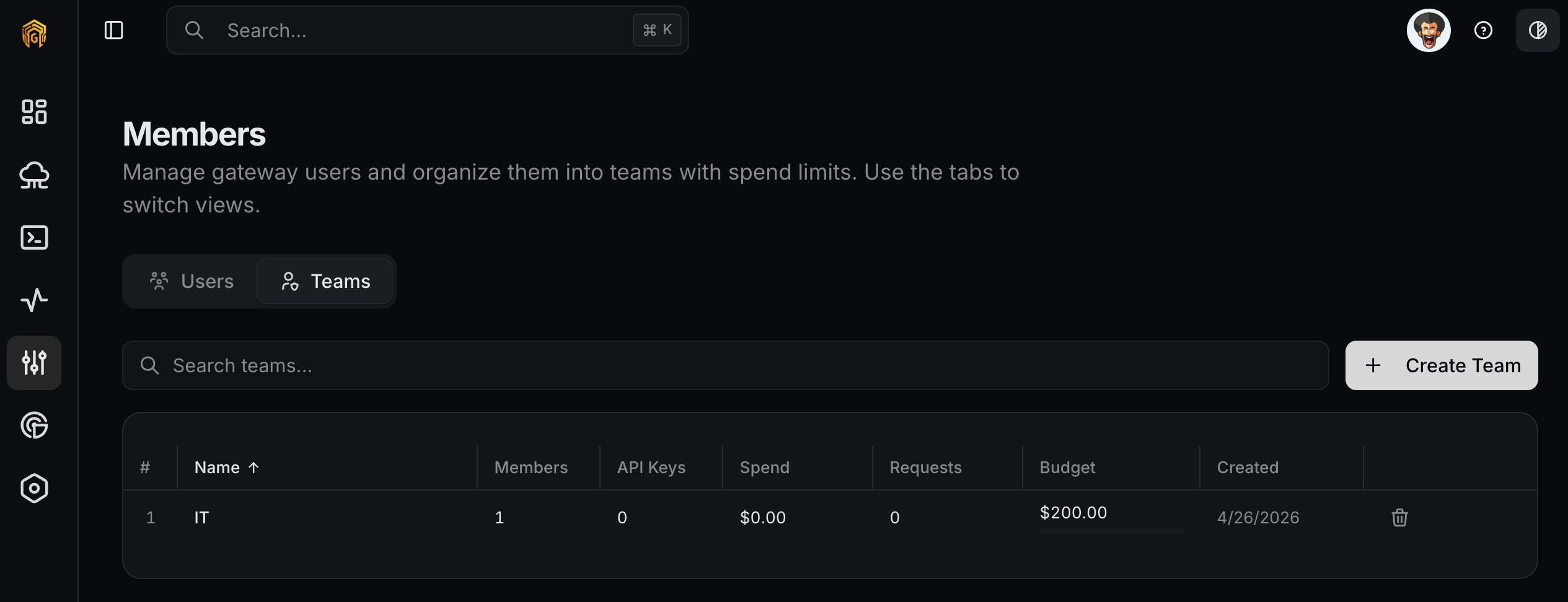
Teams group users for **budget and spend tracking**. Each row shows the team name, member count, monthly spend, monthly requests, and a budget progress bar (green under 70%, yellow 70–89%, red ≥90%).
Summary cards: **Total teams**, **Total members**, **Monthly spend**, **Monthly requests**.
**Create Team** form:
| Field | Required | Notes |
| ------------------------- | -------- | -------------------------------------------------------------------------------- |
| Team Name | Yes | e.g. `Engineering`. |
| Description | No | What the team does. |
| Monthly Spend Limit (USD) | No | Hard cap — requests are blocked when the team hits it. Leave blank for no limit. |
Row actions: **Edit** (name, description, spend limit), **Delete** (with confirmation). Negative spend limits are rejected inline.
### Roles
| Role | Can do |
| ---------- | --------------------------------------------------------------------------- |
| **Owner** | Everything. Assign roles, manage billing, delete the gateway's access list. |
| **Admin** | Configure providers, routes, guardrails, teams, and keys. Invite users. |
| **Member** | Issue and use API keys within their team. Read dashboards. |
| **Viewer** | Read-only. |
## How to configure
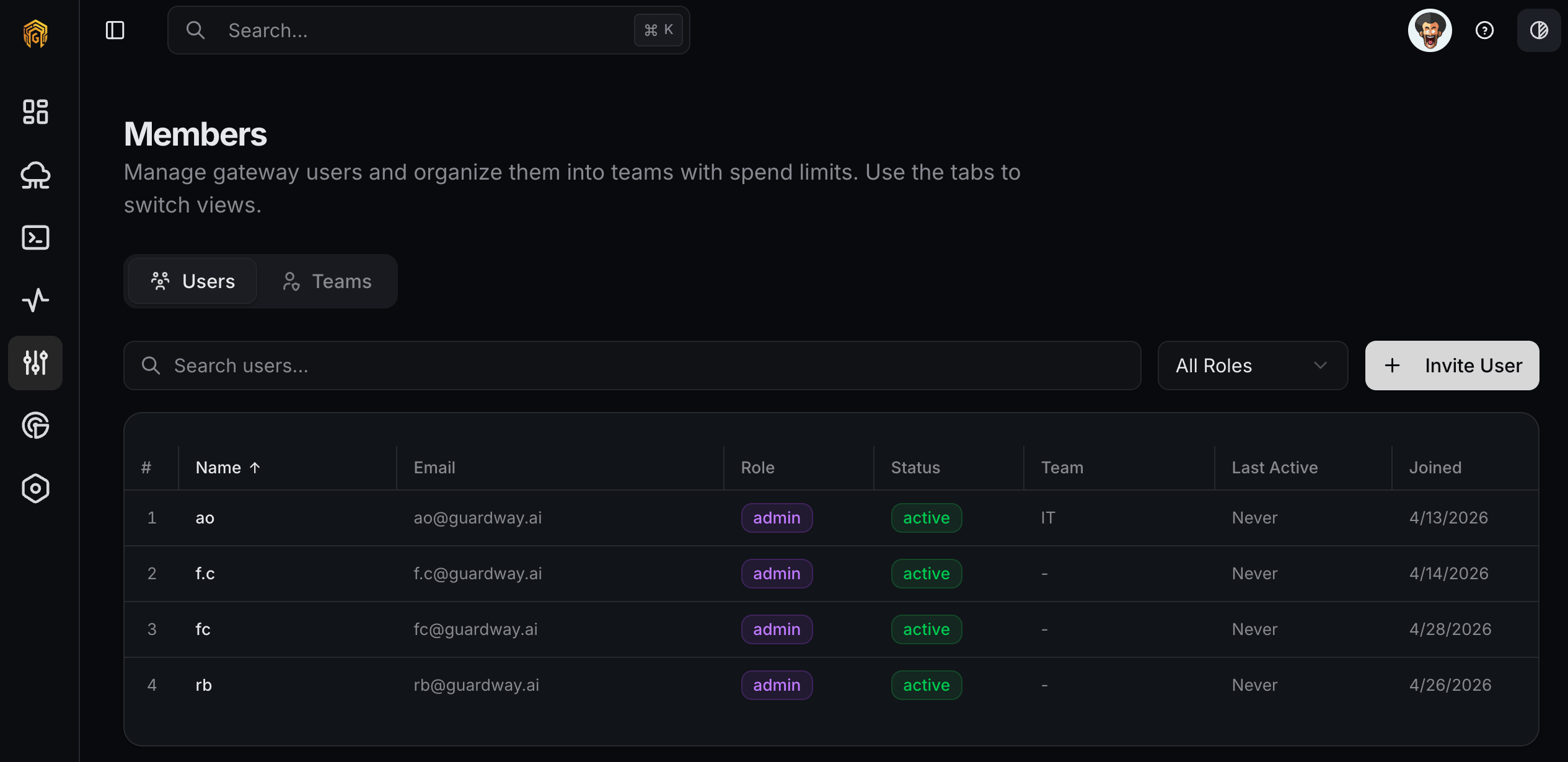 Open **Configuration → Access** from the dashboard sidebar. The **Users** tab is open by default; switch to **Teams** for budget/spend grouping.
On the Users tab, click **Invite User**, enter the email, pick a role (defaults to Member), optionally assign a team, and send. The user appears with status `invited` until they accept.
Switch to **Teams**, click **Create Team**, set a **Team Name**, an optional **Description**, and an optional **Monthly Spend Limit (USD)**.
Open **Configuration → Access** from the dashboard sidebar. The **Users** tab is open by default; switch to **Teams** for budget/spend grouping.
On the Users tab, click **Invite User**, enter the email, pick a role (defaults to Member), optionally assign a team, and send. The user appears with status `invited` until they accept.
Switch to **Teams**, click **Create Team**, set a **Team Name**, an optional **Description**, and an optional **Monthly Spend Limit (USD)**.
 Every invite, role change, suspension, team create/edit, and delete is recorded in [Audit log](/platform/settings/audit-log). Confirm the actions appear with the correct actor.
## Permissions
The **Invite User** button and mutating actions are hidden for users without mutate permission. Only **Owner** and **Admin** can invite, edit, suspend, or delete users and teams.
## Related
* [Settings → Users](/platform/settings/members) — organization-level members and invitations.
* [Settings → Roles](/platform/settings/roles) — define and assign roles at the org level.
* [API Keys](/platform/configuration/api-keys) — keys can be scoped to a specific team for per-team budgets.
Every invite, role change, suspension, team create/edit, and delete is recorded in [Audit log](/platform/settings/audit-log). Confirm the actions appear with the correct actor.
## Permissions
The **Invite User** button and mutating actions are hidden for users without mutate permission. Only **Owner** and **Admin** can invite, edit, suspend, or delete users and teams.
## Related
* [Settings → Users](/platform/settings/members) — organization-level members and invitations.
* [Settings → Roles](/platform/settings/roles) — define and assign roles at the org level.
* [API Keys](/platform/configuration/api-keys) — keys can be scoped to a specific team for per-team budgets.