> ## Documentation Index
> Fetch the complete documentation index at: https://docs.guardway.ai/llms.txt
> Use this file to discover all available pages before exploring further.
# MCP
> Register MCP servers once, expose them through the gateway, and decide per API key or per application which tools each team can use.
## What this is for
**Configuration → MCP** is where you register the Model Context Protocol servers your gateway exposes to AI clients such as Claude or VS Code / GitHub Copilot. Clients connect to the gateway instead of connecting to each MCP server directly. The gateway holds the upstream credentials, runs guardrails on tool calls, and logs every call.
You don't need an LLM provider to use it. An API key can be **MCP-only**: switch every provider off on the key and keep **MCP enabled** on. The key then reaches only MCP servers, and every LLM endpoint refuses it with `403 llm_access_disabled`. That way the gateway serves as a single, governed front door to your internal MCP servers.
## Options
### Register MCP server
**Register MCP server** is a two-step dialog.
**Connection**
| Field | Notes |
| - | - |
| **Select Template** | Autofills a known integration. Leave it empty to configure manually. |
| **Server Name** | Display name (e.g. `My MCP Server`). Required. |
| **Transport** | `STDIO`, `HTTP`, or `SSE`. |
| **Gateways** | The server is delivered to all gateways in your organization. |
| **Command** / **Arguments (comma-separated)** | STDIO only (e.g. `npx`). |
| **URL** | HTTP / SSE only — the upstream server endpoint. |
**Auth**
| Field | Notes |
| - | - |
| **Authentication** | `None`, `API Key`, `Bearer Token`, `Basic Auth`, `OAuth2 (client credentials)`, or `OAuth sign-in (e.g. GitHub)`. Leave it as `None` for public servers or local development. |
| **Header name** | `API Key` only. `X-API-Key`, `api-key`, `Ocp-Apim-Subscription-Key`, or a custom header. |
| **Client certificate (mTLS)** | Optional client certificate and private key (PEM), plus an optional server CA certificate and server name, for upstreams that require mutual TLS or use a private CA. |
| **Additional Headers (JSON)** | Extra headers sent to the upstream on every request. |
| **Description** | Free-form notes. |
Upstream credentials stay on the gateway. Clients only ever send their Guardway API key.
### Tools
After a server is registered, the gateway discovers its tools automatically. Open the server and use **Discover Tools** in the **Tools** section to refresh the list. Turning a tool off in the **Allow** column hides it from every key.
## How to configure
Open **Configuration → MCP** from the dashboard sidebar and click **Register MCP server**.
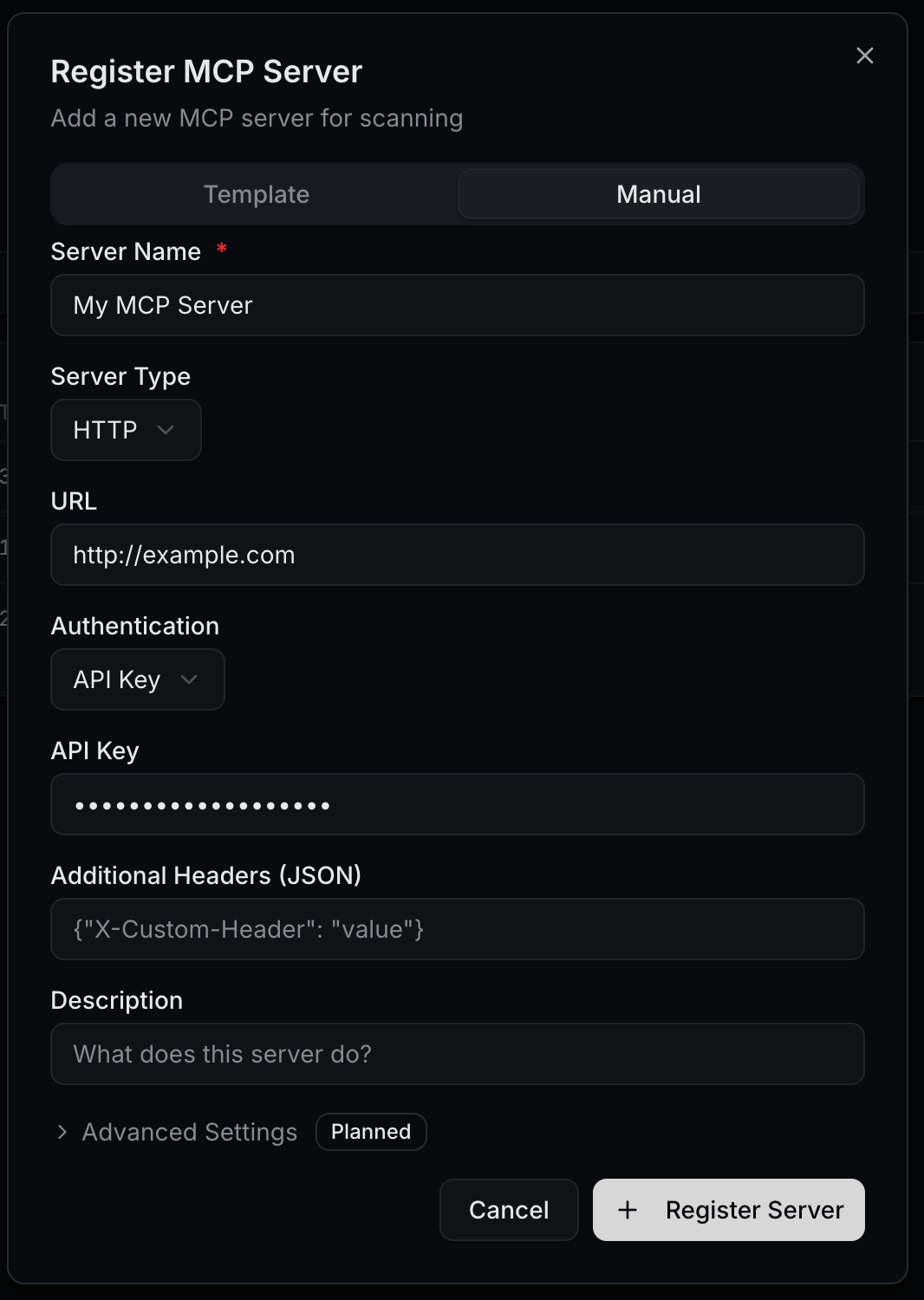 Pick a **Template** or fill **Server Name**, **Transport**, and the **URL** (or **Command** for STDIO).
Choose how the gateway authenticates to the upstream server and provide the credentials. Click **Register Server**.
Open the server. The **Tools** section lists what the gateway discovered. Turn off any tool that no one should use.
## Connect a client
The gateway serves MCP on two kinds of URL. Both authenticate with an API key from [API Keys](/platform/configuration/api-keys), sent as `Authorization: Bearer `.
| URL | What the client sees |
| - | - |
| `/mcp/` | One registered server. The server's edit panel shows this URL and ready-made client snippets under **Client Configuration**. |
| `/mcp` | Every server the key may use, combined into one MCP server. Each tool name is prefixed with its server's slug: `__`, for example `crm__read_data`. The slug is the last part of the server's own URL. |
Use the combined URL when a team should get tools from several MCP servers through a single connection.
```bash Claude Code theme={null}
claude mcp add --transport http guardway https:///mcp \
--header "Authorization: Bearer YOUR_API_KEY_HERE"
```
```json VS Code theme={null}
{
"servers": {
"guardway": {
"type": "http",
"url": "https:///mcp",
"headers": { "Authorization": "Bearer YOUR_API_KEY_HERE" }
}
}
}
```
```json Claude Desktop theme={null}
{
"mcpServers": {
"guardway": {
"command": "npx",
"args": ["-y", "mcp-remote", "https:///mcp", "--header", "Authorization: Bearer YOUR_API_KEY_HERE"]
}
}
}
```
To check what a key can see, list its tools from the command line:
```bash theme={null}
curl -s https:///mcp \
-H "Authorization: Bearer YOUR_API_KEY_HERE" \
-H "Content-Type: application/json" \
-d '{"jsonrpc":"2.0","id":1,"method":"tools/list"}'
```
**On the combined URL:**
* `tools/list`, `tools/call`, `prompts/list`, `prompts/get`, `resources/list`, `resources/read`, `initialize` and `ping` are supported. Prompts are prefixed like tools; resources keep their URIs. For any other MCP method, connect to the server's own URL.
* One slow or unreachable server does not fail the list: the gateway returns what the other servers answered. Each server has 25 seconds to answer (`GUARDWAY_MCP_AGGREGATE_UPSTREAM_TIMEOUT_SECONDS`).
* The separator between slug and tool is `__`. To use another, set `GUARDWAY_MCP_AGGREGATE_SEPARATOR` on the gateway; every client then uses the new names.
* A `GET` on `/mcp` lists the servers the key may use, with each one's slug, status, tool count and own URL.
After changing which tools a key can use, restart or reconnect MCP in the client so it fetches the new tool list.
MCP-only keys (every provider off, MCP on) are refused on every LLM endpoint by gateway **v0.5.40** and later. Older gateways refuse them on the main inference endpoints only.
## Give each team its own set of tools
The API key a client connects with decides which servers and tools it sees. Tools a key may not use are left out of the tool list, and calls to them are refused.
For example, two MCP servers:
* **CRM** has `read_data` and `write_db`.
* **Blog** has `read_posts` and `publish_post`.
| Team | Should get |
| - | - |
| HR | CRM `read_data`, Blog `read_posts` and `publish_post` |
| Sales | CRM `read_data` and Blog `read_posts` only |
There are two ways to set this up. Both can be combined, and a tool is available only when every rule that applies allows it.
Best when each team has one key.
Open **Configuration → API Keys** and create a key for each team (e.g. `hr-mcp`, `sales-mcp`). Only the name is required. To make it MCP-only, switch every provider off on the **Access** step and leave **MCP enabled** on.
In the key's MCP settings, keep **MCP enabled** on and set **MCP access mode** to **Allow list**.
Expand each server and switch on only the team's tools: for `sales-mcp`, `read_data` under CRM and `read_posts` under Blog. Servers with at least one switched-on tool are added to the key's allowed servers.
Give each team the combined `/mcp` URL and its own key.
Per-tool switches on a key are enforced by gateway **v0.5.39** and later. On older gateways, use an application policy (next tab) for tool-level rules.
Best when a team or agent uses several keys, or when you want one place to manage its rules.
Open **Security → Apps**, click **New application**, and enter a **Name** (e.g. `HR`) and **Slug**.
In **Configuration → API Keys**, set each of the team's keys' **Application** field to that application. Requests made with those keys inherit the application's policy.
Open **Security → Policy**, click **New policy**, and set **Application scope** to the application. In the **MCP tools** section, set **MCP tool calls** to **On: allow MCP (subject to rules)** and add **Tool rules**: one row per server with its **Allow tools** (e.g. server `CRM`, allow `read_data`). Use `*` as the server to apply a rule to every server. A deny always wins, and a non-empty allow list is exclusive.
Click **Save & apply**. The policy reaches live traffic within about a minute.
An application policy can only narrow what a key already allows.
A call to a tool the key may not use is refused with HTTP `403` and `{"error": "tool not permitted by policy"}`. The refusal is recorded in the gateway's audit log, which is stored locally on the gateway, and fires the **MCP Tool Denied** (`mcp.tool_denied`) [webhook event](/platform/settings/notifications).
Tool calls made through the gateway, on either URL, show up in [Logs → MCP](/platform/logs#mcp).
## Related
* [API Keys](/platform/configuration/api-keys) — create keys and set their MCP access.
* [Security](/platform/configuration/security) — guardrail rules, including rules that also run on MCP traffic.
* [Logs](/platform/logs) — MCP tool calls per server and tool.
Pick a **Template** or fill **Server Name**, **Transport**, and the **URL** (or **Command** for STDIO).
Choose how the gateway authenticates to the upstream server and provide the credentials. Click **Register Server**.
Open the server. The **Tools** section lists what the gateway discovered. Turn off any tool that no one should use.
## Connect a client
The gateway serves MCP on two kinds of URL. Both authenticate with an API key from [API Keys](/platform/configuration/api-keys), sent as `Authorization: Bearer `.
| URL | What the client sees |
| - | - |
| `/mcp/` | One registered server. The server's edit panel shows this URL and ready-made client snippets under **Client Configuration**. |
| `/mcp` | Every server the key may use, combined into one MCP server. Each tool name is prefixed with its server's slug: `__`, for example `crm__read_data`. The slug is the last part of the server's own URL. |
Use the combined URL when a team should get tools from several MCP servers through a single connection.
```bash Claude Code theme={null}
claude mcp add --transport http guardway https:///mcp \
--header "Authorization: Bearer YOUR_API_KEY_HERE"
```
```json VS Code theme={null}
{
"servers": {
"guardway": {
"type": "http",
"url": "https:///mcp",
"headers": { "Authorization": "Bearer YOUR_API_KEY_HERE" }
}
}
}
```
```json Claude Desktop theme={null}
{
"mcpServers": {
"guardway": {
"command": "npx",
"args": ["-y", "mcp-remote", "https:///mcp", "--header", "Authorization: Bearer YOUR_API_KEY_HERE"]
}
}
}
```
To check what a key can see, list its tools from the command line:
```bash theme={null}
curl -s https:///mcp \
-H "Authorization: Bearer YOUR_API_KEY_HERE" \
-H "Content-Type: application/json" \
-d '{"jsonrpc":"2.0","id":1,"method":"tools/list"}'
```
**On the combined URL:**
* `tools/list`, `tools/call`, `prompts/list`, `prompts/get`, `resources/list`, `resources/read`, `initialize` and `ping` are supported. Prompts are prefixed like tools; resources keep their URIs. For any other MCP method, connect to the server's own URL.
* One slow or unreachable server does not fail the list: the gateway returns what the other servers answered. Each server has 25 seconds to answer (`GUARDWAY_MCP_AGGREGATE_UPSTREAM_TIMEOUT_SECONDS`).
* The separator between slug and tool is `__`. To use another, set `GUARDWAY_MCP_AGGREGATE_SEPARATOR` on the gateway; every client then uses the new names.
* A `GET` on `/mcp` lists the servers the key may use, with each one's slug, status, tool count and own URL.
After changing which tools a key can use, restart or reconnect MCP in the client so it fetches the new tool list.
MCP-only keys (every provider off, MCP on) are refused on every LLM endpoint by gateway **v0.5.40** and later. Older gateways refuse them on the main inference endpoints only.
## Give each team its own set of tools
The API key a client connects with decides which servers and tools it sees. Tools a key may not use are left out of the tool list, and calls to them are refused.
For example, two MCP servers:
* **CRM** has `read_data` and `write_db`.
* **Blog** has `read_posts` and `publish_post`.
| Team | Should get |
| - | - |
| HR | CRM `read_data`, Blog `read_posts` and `publish_post` |
| Sales | CRM `read_data` and Blog `read_posts` only |
There are two ways to set this up. Both can be combined, and a tool is available only when every rule that applies allows it.
Best when each team has one key.
Open **Configuration → API Keys** and create a key for each team (e.g. `hr-mcp`, `sales-mcp`). Only the name is required. To make it MCP-only, switch every provider off on the **Access** step and leave **MCP enabled** on.
In the key's MCP settings, keep **MCP enabled** on and set **MCP access mode** to **Allow list**.
Expand each server and switch on only the team's tools: for `sales-mcp`, `read_data` under CRM and `read_posts` under Blog. Servers with at least one switched-on tool are added to the key's allowed servers.
Give each team the combined `/mcp` URL and its own key.
Per-tool switches on a key are enforced by gateway **v0.5.39** and later. On older gateways, use an application policy (next tab) for tool-level rules.
Best when a team or agent uses several keys, or when you want one place to manage its rules.
Open **Security → Apps**, click **New application**, and enter a **Name** (e.g. `HR`) and **Slug**.
In **Configuration → API Keys**, set each of the team's keys' **Application** field to that application. Requests made with those keys inherit the application's policy.
Open **Security → Policy**, click **New policy**, and set **Application scope** to the application. In the **MCP tools** section, set **MCP tool calls** to **On: allow MCP (subject to rules)** and add **Tool rules**: one row per server with its **Allow tools** (e.g. server `CRM`, allow `read_data`). Use `*` as the server to apply a rule to every server. A deny always wins, and a non-empty allow list is exclusive.
Click **Save & apply**. The policy reaches live traffic within about a minute.
An application policy can only narrow what a key already allows.
A call to a tool the key may not use is refused with HTTP `403` and `{"error": "tool not permitted by policy"}`. The refusal is recorded in the gateway's audit log, which is stored locally on the gateway, and fires the **MCP Tool Denied** (`mcp.tool_denied`) [webhook event](/platform/settings/notifications).
Tool calls made through the gateway, on either URL, show up in [Logs → MCP](/platform/logs#mcp).
## Related
* [API Keys](/platform/configuration/api-keys) — create keys and set their MCP access.
* [Security](/platform/configuration/security) — guardrail rules, including rules that also run on MCP traffic.
* [Logs](/platform/logs) — MCP tool calls per server and tool.