> ## Documentation Index
> Fetch the complete documentation index at: https://docs.guardway.ai/llms.txt
> Use this file to discover all available pages before exploring further.
# API Keys
> Issue, scope, rotate, and revoke API keys that authenticate applications calling your gateway.
## What this is for
API keys authenticate your applications when they call the gateway. Each key carries its own permissions, rate limits, optional budget, and an optional MCP scope. Keys are managed in **Configuration → API Keys** and are pushed to the connected gateway after creation.
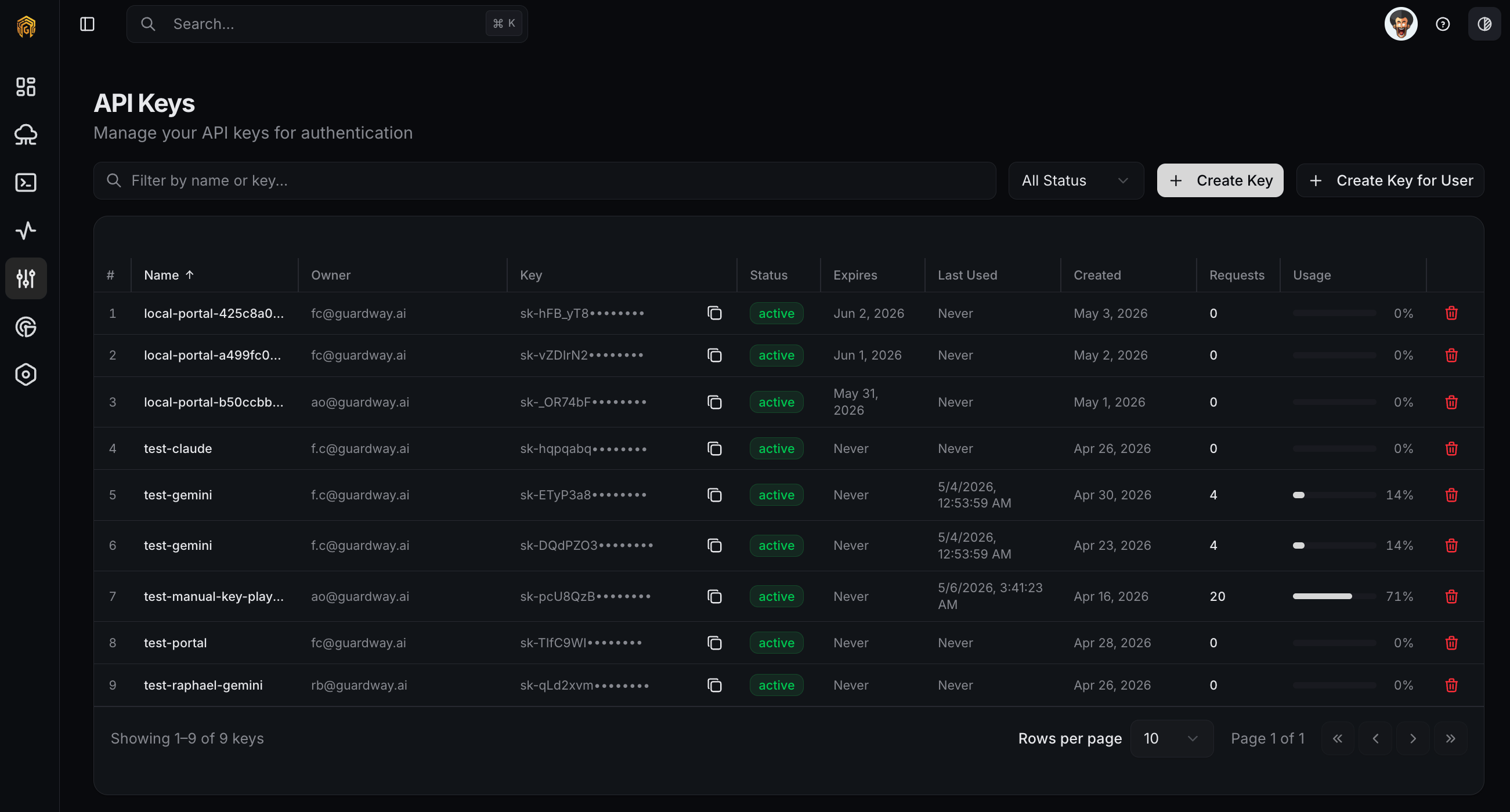
Use one key per application or environment so you can rotate, scope, and revoke them independently. The dashboard tracks status (`active`, `inactive`, `expired`, `revoked`), last-used time, request counts, and rate-limit usage for each key.
## Options
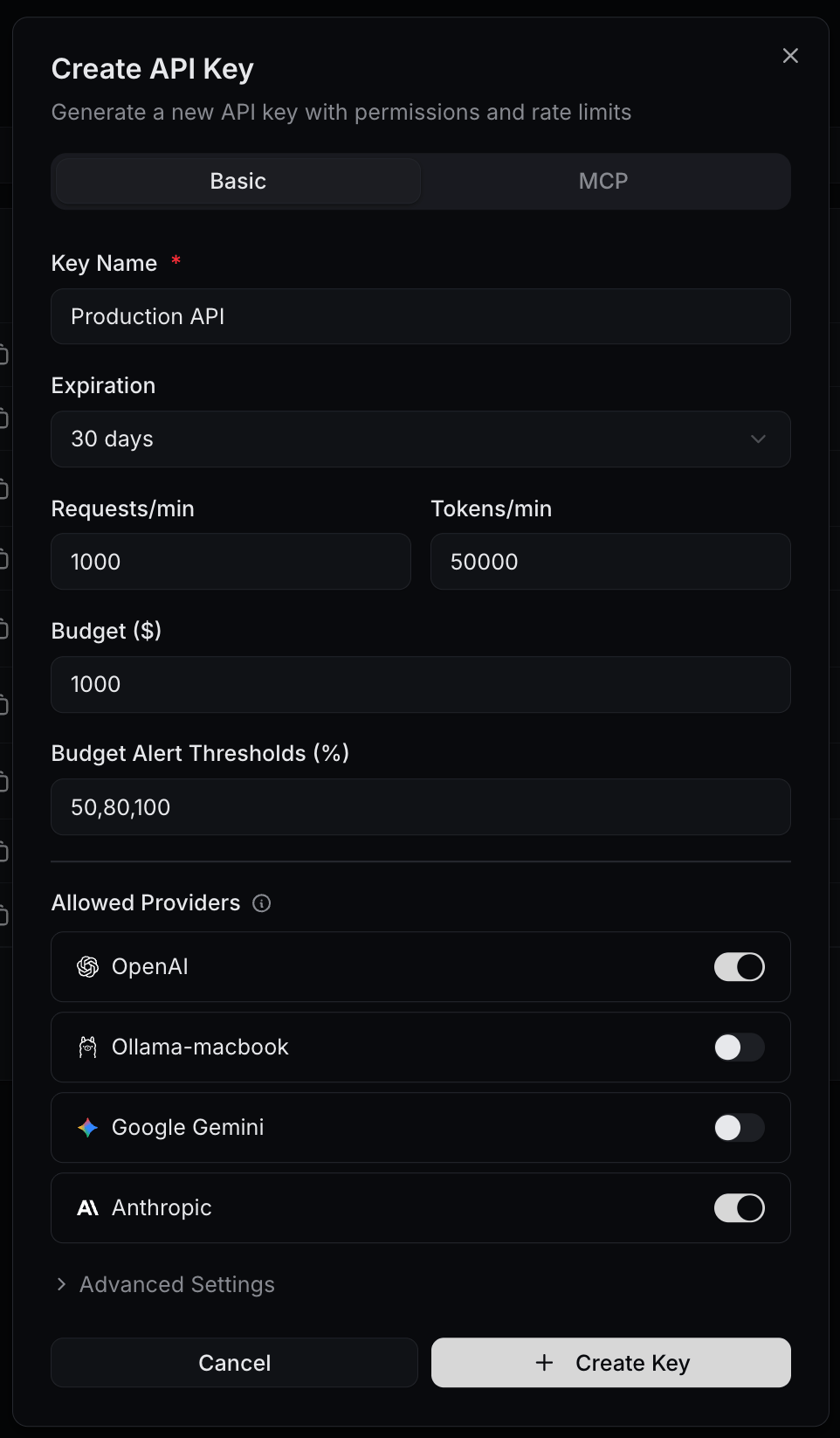
The **Create API Key** dialog has two tabs: **Basic** for the key itself and **MCP** for MCP server scoping.
### Basic tab
| Field | Purpose |
| -------------------------------- | --------------------------------------------------------------------------------------------------------------------------------- |
| **Key Name** | What you'll see in logs and the key list. Use the application or environment name. Required. |
| **Expiration** | `Never`, `30 days`, `60 days`, `90 days`, `180 days`, `1 year`. Keys without an expiration never auto-expire. |
| **Requests/min** | Per-key request rate limit. |
| **Tokens/min** | Per-key token rate limit. |
| **Budget (\$)** | Hard USD cap. Requests are blocked when exceeded. Optional. |
| **Budget Alert Thresholds (%)** | Comma-separated list (default `50,80,100`). Triggers a `quota.threshold` event at each crossing. Only shown when a budget is set. |
| **Allowed Providers** | Per-provider switches. All on means no provider restriction. Disable a switch to prevent the key from calling that provider. |
| **Allowed Models** *(advanced)* | Comma-separated allow-list (e.g. `gpt-4o, claude-3.5-sonnet`). Empty = all models from selected providers. |
| **IP Allowlist** *(advanced)* | Comma-separated IPs or CIDR ranges (e.g. `192.168.1.0/24, 10.0.0.1`). Empty = no IP restriction. |
| **Metadata (JSON)** *(advanced)* | Free-form JSON saved alongside the key (e.g. `{"team":"backend","env":"production"}`). Surfaced in logs. |
### MCP tab
Scope the key to specific MCP servers and tools. Leave empty to allow access to every MCP server attached to the gateway. Add server names (e.g. `filesystem`, `github`) and tool identifiers (e.g. `Filesystem/read_text_file`) to restrict.
## How to configure
 Open **Configuration → API Keys** from the dashboard sidebar and click **Create API Key**.
Set a **Key Name**, choose an **Expiration**, set **Requests/min** and **Tokens/min**, and optionally a **Budget** with **Alert Thresholds**. Toggle **Allowed Providers** off for any provider this key should not reach.
Expand **Advanced Settings** to set **Allowed Models**, **IP Allowlist**, and **Metadata**. Use the **MCP** tab to scope MCP servers and tools.
Click **Create**. The full secret is shown **once**. Copy it into your secrets manager immediately.
The secret value is shown **once** at creation. If you lose it, you must rotate the key.
The new key appears in the list with status **Active**. Run a test call from **Playground** with this key to confirm it reached the connected gateway.
Open **Configuration → API Keys** from the dashboard sidebar and click **Create API Key**.
Set a **Key Name**, choose an **Expiration**, set **Requests/min** and **Tokens/min**, and optionally a **Budget** with **Alert Thresholds**. Toggle **Allowed Providers** off for any provider this key should not reach.
Expand **Advanced Settings** to set **Allowed Models**, **IP Allowlist**, and **Metadata**. Use the **MCP** tab to scope MCP servers and tools.
Click **Create**. The full secret is shown **once**. Copy it into your secrets manager immediately.
The secret value is shown **once** at creation. If you lose it, you must rotate the key.
The new key appears in the list with status **Active**. Run a test call from **Playground** with this key to confirm it reached the connected gateway.
 ## Status, rotate, revoke
* **Active / Inactive** — toggle a key on or off without rotating its secret.
* **Rotate** issues a new secret. The old secret stops working immediately, so plan a deploy window for any client that uses it.
* **Revoke** disables the key permanently and clears its in-flight quota.
Every status change, rotation, and revocation is recorded in the [Audit log](/platform/settings/audit-log).
## Related
* [Providers](/platform/configuration/providers) — connect the upstream LLM providers a key can call.
* [Models](/platform/configuration/models) — control which provider models are enabled.
* [Security](/platform/configuration/security) — guardrail and MCP policies enforced for every key.
* [Notifications](/platform/settings/notifications) — subscribe to `quota.threshold` and `quota.exceeded` events.
## Status, rotate, revoke
* **Active / Inactive** — toggle a key on or off without rotating its secret.
* **Rotate** issues a new secret. The old secret stops working immediately, so plan a deploy window for any client that uses it.
* **Revoke** disables the key permanently and clears its in-flight quota.
Every status change, rotation, and revocation is recorded in the [Audit log](/platform/settings/audit-log).
## Related
* [Providers](/platform/configuration/providers) — connect the upstream LLM providers a key can call.
* [Models](/platform/configuration/models) — control which provider models are enabled.
* [Security](/platform/configuration/security) — guardrail and MCP policies enforced for every key.
* [Notifications](/platform/settings/notifications) — subscribe to `quota.threshold` and `quota.exceeded` events.