> ## Documentation Index
> Fetch the complete documentation index at: https://docs.guardway.ai/llms.txt
> Use this file to discover all available pages before exploring further.
# Deploy
> Run the Guardway gateway container with the Register Gateway dialog — pick a deployment target, download the bundle (or take just the token), and start it with Docker Compose.
## What this is for
Every Guardway gateway is **customer-hosted**: the dashboard issues a one-time registration token, you start the gateway in your own network, and the gateway calls the Guardway control plane on first boot to exchange the token for long-lived credentials.
This page mirrors the **Register Gateway** dialog on the **Gateways** page end-to-end and tells you exactly what to do on the host.
**Docker Compose is the only supported installation method today.** Kubernetes / Helm and systemd are not shipped — see [Limitations](/resources/limitations).
## Before you start
* **Docker Engine** ≥ 24 with Compose v2 (`docker compose version`).
* Outbound HTTPS internet access — the gateway reaches the Guardway control plane through the `GUARDWAY_CLOUD_URL` env var (covered on [Environment](/guardway-gateway/environment)). No specific paths or hostnames are documented here.
* One free TCP port on the gateway host. **Default `8080`**.
## Step 1 — Pick a deployment target
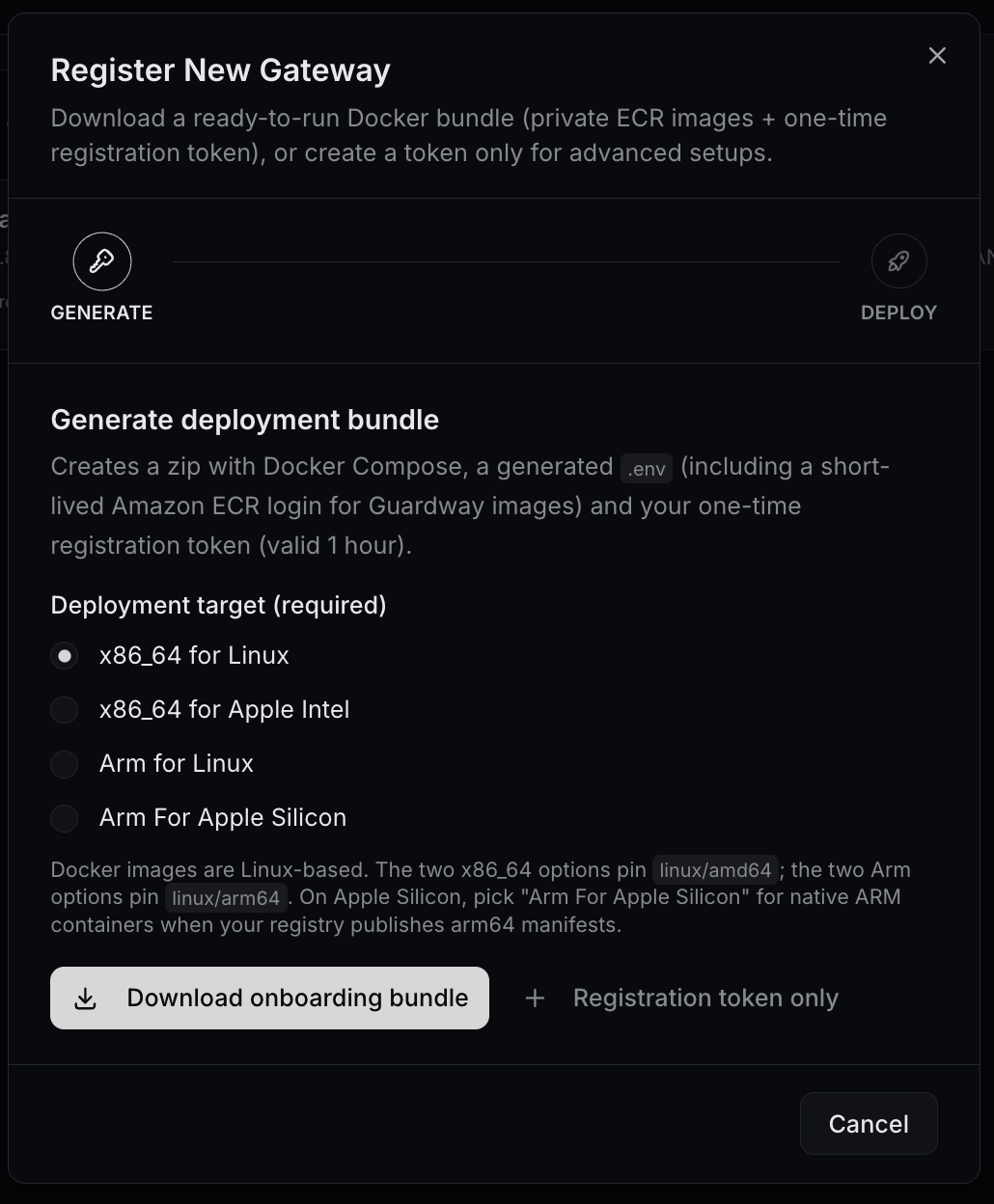
Open the **Gateways** page from the dashboard sidebar, click **Register Gateway**, and pick one of the four options. The bundle pins a Docker container platform that matches your host:
| Deployment target | Pinned container platform |
| --------------------------- | ------------------------- |
| **x86\_64 for Linux** | `linux/amd64` |
| **x86\_64 for Apple Intel** | `linux/amd64` |
| **Arm for Linux** | `linux/arm64` |
| **Arm For Apple Silicon** | `linux/arm64` |
On Apple Silicon, pick **Arm For Apple Silicon** for native ARM containers. The two x86\_64 options pin `linux/amd64`; the two Arm options pin `linux/arm64`.
## Step 2 — Bundle vs. registration token
The dialog offers two ways to start:
| Path | When to pick it |
| ------------------------------ | ------------------------------------------------------------------------------------------------------------------------------------------------------------------------------------------------------- |
| **Download onboarding bundle** | The default. Creates a zip with `docker-compose.yml`, a generated `.env` with the registration token, and a `login-ecr.sh` script for pulling Guardway's private ECR images. Best for first-time setup. |
| **Registration token only** | For advanced setups where you already have your own compose file or you're wiring the env into a config-management tool. The dialog returns just the token and the env-var snippet. |
The registration token is **valid for 1 hour** and **single-use**. If it expires before you start the gateway, just register again to get a new one.
 ## Step 3 — `docker compose up -d`
### From the bundle
Unzip the bundle on the host, then from the unpacked directory:
```bash theme={null}
set -a && source .env && set +a
./login-ecr.sh
docker compose --env-file .env up -d
```
`login-ecr.sh` runs Amazon ECR's `get-login-password` flow against the credentials baked into the bundle. Those credentials expire **in about 1 hour** — if Docker can't pull the image, regenerate the bundle and try again.
### From the token only
Drop the printed env block into your own `.env`, point your `docker-compose.yml` at the Guardway gateway image, and:
```bash theme={null}
docker compose up -d gateway
```
## Step 3 — `docker compose up -d`
### From the bundle
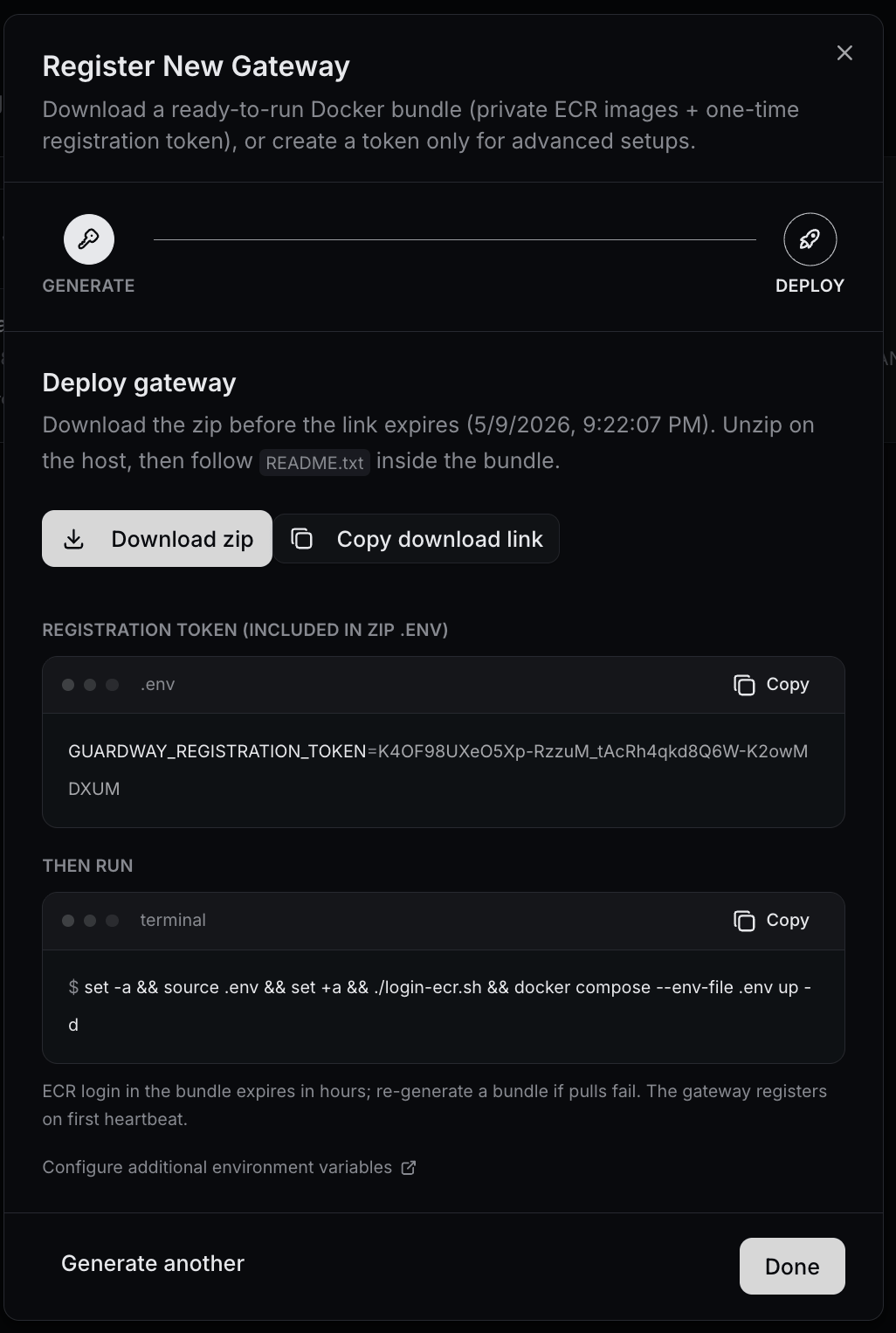
Unzip the bundle on the host, then from the unpacked directory:
```bash theme={null}
set -a && source .env && set +a
./login-ecr.sh
docker compose --env-file .env up -d
```
`login-ecr.sh` runs Amazon ECR's `get-login-password` flow against the credentials baked into the bundle. Those credentials expire **in about 1 hour** — if Docker can't pull the image, regenerate the bundle and try again.
### From the token only
Drop the printed env block into your own `.env`, point your `docker-compose.yml` at the Guardway gateway image, and:
```bash theme={null}
docker compose up -d gateway
```
 ## Step 4 — Registration handshake
On first boot the gateway:
1. Reads `GUARDWAY_REGISTRATION_TOKEN` from the environment.
2. Reaches the Guardway control plane (`GUARDWAY_CLOUD_URL`) and exchanges the token for long-lived credentials.
3. Persists those credentials at **`/etc/guardway/credentials.json`** (override with `GUARDWAY_CREDENTIALS_PATH`).
4. Starts heartbeating every `GUARDWAY_HEARTBEAT_INTERVAL` (default **60 s**).
5. Appears in the dashboard under **Gateways** after the **first successful heartbeat**.
The token is only used once. On subsequent restarts, the gateway uses the credentials file and the env-var token is ignored.
## Step 5 — Default port and minimum env vars
The gateway HTTP API listens on **TCP `8080`** (override with `PORT`).
The dialog generates exactly these env vars for the bundle:
| Var | Purpose |
| ----------------------------- | -------------------------------------------------------------------------------------- |
| `GUARDWAY_REGISTRATION_TOKEN` | One-time pairing token from the dashboard. |
| `GUARDWAY_GATEWAY_NAME` | Dashboard label for this gateway. Compose default is `default`. |
| `GUARDWAY_LOCAL_IP` | LAN IP for Connect / Playground hints (e.g. `192.168.1.10`). Optional but recommended. |
The full reference is on [Environment](/guardway-gateway/environment).
## Step 6 — Verify
On the **Gateways** page the gateway row flips to a green **Healthy** pill once the first heartbeat lands. That's the customer-facing signal that the gateway is up and reachable from the control plane.
If it stays **Pending** for more than a minute, see Troubleshooting below.
## Troubleshooting
Tokens are single-use and live for \~1 hour. Re-open the dialog and generate a fresh one.
The bundle's `login-ecr.sh` credentials expire in roughly 1 hour. If you didn't run `up -d` in time, re-download the bundle.
Check outbound HTTPS from the host (corporate proxy / firewall). Confirm host clock is in sync — clock skew breaks JWT signatures. Verify `GUARDWAY_CLOUD_URL` is reachable from the container.
The default path is `/etc/guardway/credentials.json`. Either run the container as a user that can write it, mount a writable volume, or set `GUARDWAY_CREDENTIALS_PATH` to a directory the process can write.
Stop the gateway, delete the credentials file (default `/etc/guardway/credentials.json`), generate a new token, and start again. The gateway re-registers as if it were a fresh install.
## Related
* [Environment](/guardway-gateway/environment) — every env var the gateway reads.
* [Activate](/guardway-gateway/activate) — what success looks like once the gateway is up.
* [Requirements](/guardway-gateway/requirements) — hardware and network prerequisites.
* [Limitations](/resources/limitations) — Kubernetes/Helm and systemd are not yet shipped.
## Step 4 — Registration handshake
On first boot the gateway:
1. Reads `GUARDWAY_REGISTRATION_TOKEN` from the environment.
2. Reaches the Guardway control plane (`GUARDWAY_CLOUD_URL`) and exchanges the token for long-lived credentials.
3. Persists those credentials at **`/etc/guardway/credentials.json`** (override with `GUARDWAY_CREDENTIALS_PATH`).
4. Starts heartbeating every `GUARDWAY_HEARTBEAT_INTERVAL` (default **60 s**).
5. Appears in the dashboard under **Gateways** after the **first successful heartbeat**.
The token is only used once. On subsequent restarts, the gateway uses the credentials file and the env-var token is ignored.
## Step 5 — Default port and minimum env vars
The gateway HTTP API listens on **TCP `8080`** (override with `PORT`).
The dialog generates exactly these env vars for the bundle:
| Var | Purpose |
| ----------------------------- | -------------------------------------------------------------------------------------- |
| `GUARDWAY_REGISTRATION_TOKEN` | One-time pairing token from the dashboard. |
| `GUARDWAY_GATEWAY_NAME` | Dashboard label for this gateway. Compose default is `default`. |
| `GUARDWAY_LOCAL_IP` | LAN IP for Connect / Playground hints (e.g. `192.168.1.10`). Optional but recommended. |
The full reference is on [Environment](/guardway-gateway/environment).
## Step 6 — Verify
On the **Gateways** page the gateway row flips to a green **Healthy** pill once the first heartbeat lands. That's the customer-facing signal that the gateway is up and reachable from the control plane.
If it stays **Pending** for more than a minute, see Troubleshooting below.
## Troubleshooting
Tokens are single-use and live for \~1 hour. Re-open the dialog and generate a fresh one.
The bundle's `login-ecr.sh` credentials expire in roughly 1 hour. If you didn't run `up -d` in time, re-download the bundle.
Check outbound HTTPS from the host (corporate proxy / firewall). Confirm host clock is in sync — clock skew breaks JWT signatures. Verify `GUARDWAY_CLOUD_URL` is reachable from the container.
The default path is `/etc/guardway/credentials.json`. Either run the container as a user that can write it, mount a writable volume, or set `GUARDWAY_CREDENTIALS_PATH` to a directory the process can write.
Stop the gateway, delete the credentials file (default `/etc/guardway/credentials.json`), generate a new token, and start again. The gateway re-registers as if it were a fresh install.
## Related
* [Environment](/guardway-gateway/environment) — every env var the gateway reads.
* [Activate](/guardway-gateway/activate) — what success looks like once the gateway is up.
* [Requirements](/guardway-gateway/requirements) — hardware and network prerequisites.
* [Limitations](/resources/limitations) — Kubernetes/Helm and systemd are not yet shipped.