> ## Documentation Index
> Fetch the complete documentation index at: https://docs.guardway.ai/llms.txt
> Use this file to discover all available pages before exploring further.
# Activate
> What success looks like once a freshly registered gateway is running — Pending becomes Online, the dashboard sees the first heartbeat, and you can drive a request through Playground.
## What this is for
Once you've completed [Deploy](/guardway-gateway/deploy) and started the gateway container, this page tells you **what success should look like** in the dashboard. If everything on this page checks out, the gateway is fully activated and ready to serve requests.
## Step 1 — Watch the status pill flip
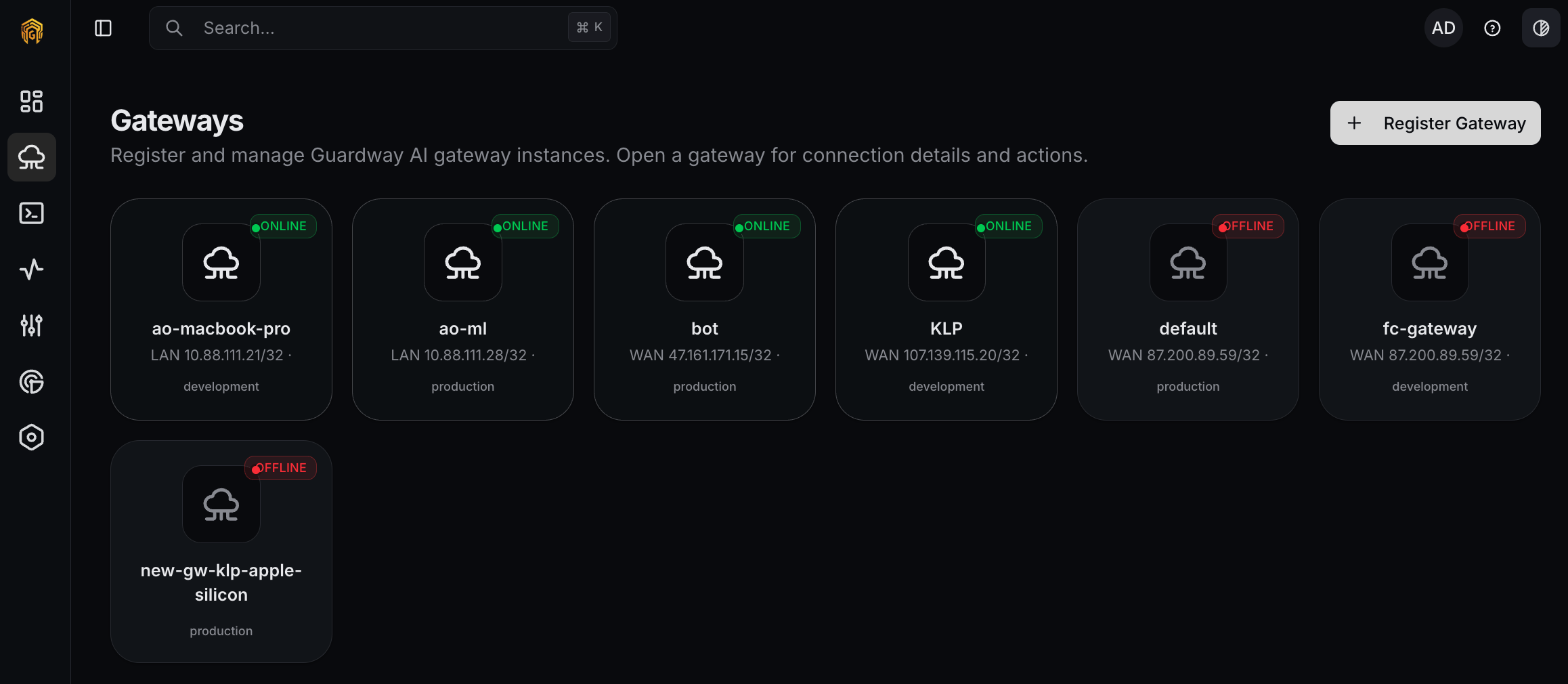
Open the **Gateways** page from the dashboard sidebar. Within \~60 seconds of `docker compose up -d`, a row appears for the new gateway with one of these pills:
| Pill | Meaning |
| ----------- | ---------------------------------------------------------------------------------------------------------- |
| **Pending** | Registered with the control plane but no heartbeat received yet. Usually resolves in under a minute. |
| **Healthy** | First heartbeat received. The gateway is online and ready. |
| **Offline** | No heartbeat in the last few intervals. Check the container with `docker logs guardway-gateway`. |
| **Revoked** | Credentials were revoked from the dashboard. The gateway is blocked from reconnecting until re-registered. |
The pill flips to **Healthy** the moment the first successful heartbeat lands — by default that's `GUARDWAY_HEARTBEAT_INTERVAL` (60s) after startup. See [Environment](/guardway-gateway/environment) to tune the interval.
 ## Step 2 — Inspect the gateway detail
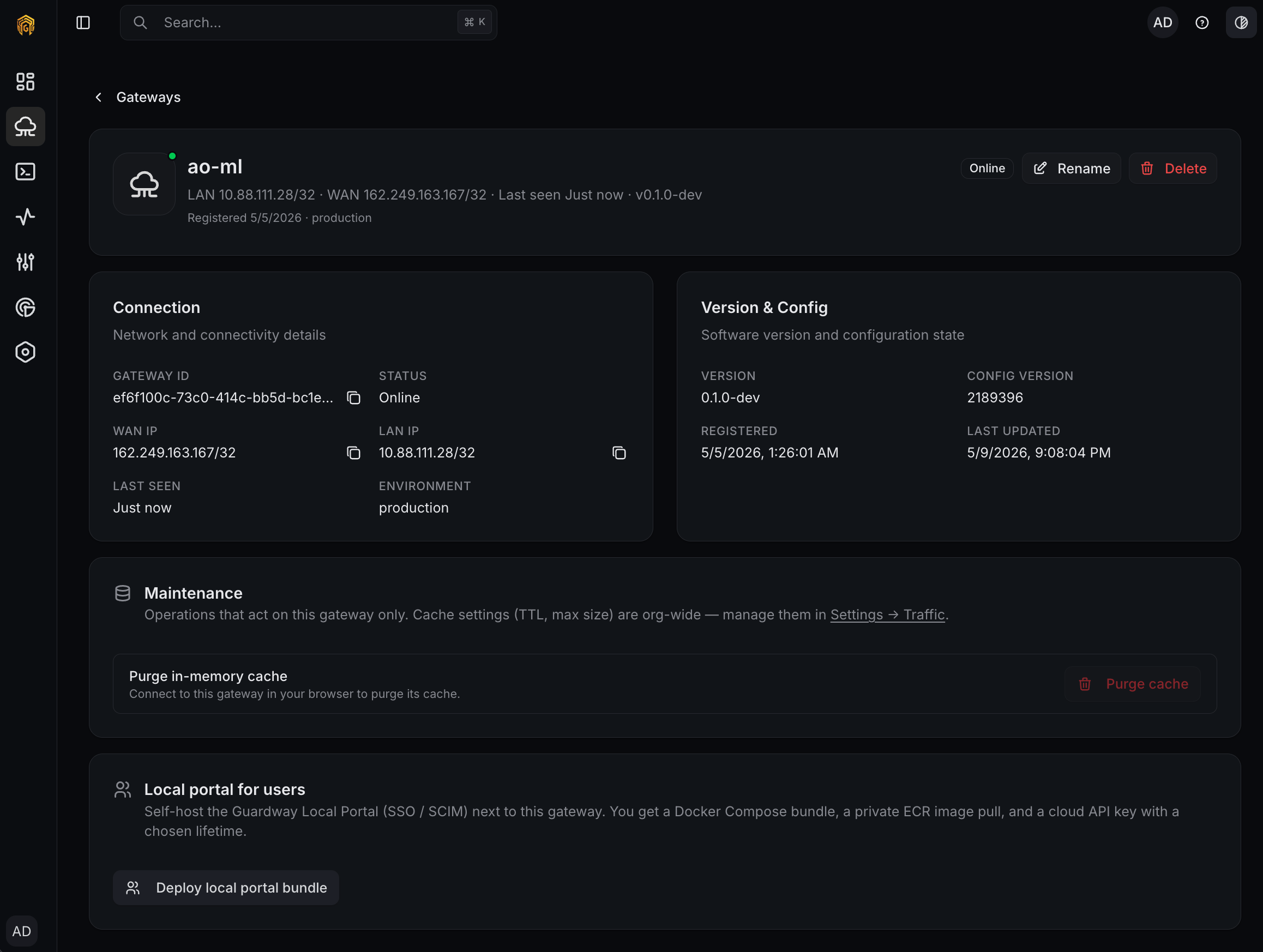
Click the gateway row to open its detail page. This view is your post-activation control panel for that specific gateway:
* **Connection** — Gateway ID, Status, WAN IP, LAN IP, Last Seen, Environment.
* **Version & Config** — running gateway version, config revision, registration timestamp, last config update.
* **Maintenance** — gateway-only operations like **Purge in-memory cache**. Org-wide cache settings (TTL, max size) live on [Settings → Traffic](/platform/settings/traffic).
* **Local portal for users** — **Deploy local portal bundle** generates a Docker Compose bundle for a self-hosted Guardway Local Portal (SSO/SCIM) that pairs with this gateway.
* **Header actions** — **Rename** updates the dashboard label; **Delete** removes the gateway and revokes its credentials.
## Step 2 — Inspect the gateway detail
Click the gateway row to open its detail page. This view is your post-activation control panel for that specific gateway:
* **Connection** — Gateway ID, Status, WAN IP, LAN IP, Last Seen, Environment.
* **Version & Config** — running gateway version, config revision, registration timestamp, last config update.
* **Maintenance** — gateway-only operations like **Purge in-memory cache**. Org-wide cache settings (TTL, max size) live on [Settings → Traffic](/platform/settings/traffic).
* **Local portal for users** — **Deploy local portal bundle** generates a Docker Compose bundle for a self-hosted Guardway Local Portal (SSO/SCIM) that pairs with this gateway.
* **Header actions** — **Rename** updates the dashboard label; **Delete** removes the gateway and revokes its credentials.
 ## Step 3 — Send the first request
Open [Playground](/platform/playground), pick the new gateway, choose any model that's already exposed, and send a short prompt. The first request through the gateway proves end-to-end connectivity:
* The dashboard reaches the gateway's local URL.
* The gateway authenticates the request, applies any guardrails and routing, and forwards to the upstream provider.
* The response streams back to Playground, and a row appears under [Logs](/platform/logs).
If both Playground and Logs show the request, activation is complete.
## Step 4 — Confirm aggregate signals
Within a few minutes, the dashboard's main views start showing the new gateway:
* [Dashboard → Overview](/platform/dashboard/overview) — request counters tick up.
* [Dashboard → Usage](/platform/dashboard/usage) — token totals appear for the request you just sent.
* [Logs](/platform/logs) — the request you sent in Step 2 is visible with prompt, completion, latency, and any guardrail decisions.
## Troubleshooting
Run `docker logs guardway-gateway`. The most common causes are outbound HTTPS blocked by a corporate proxy/firewall, system clock skew breaking JWT validation, or a registration token that was already consumed. See [Deploy → Troubleshooting](/guardway-gateway/deploy#troubleshooting).
The dashboard reaches the gateway over its **local** URL (the LAN/host address from `GUARDWAY_LOCAL_IP` or whatever you connect with). The control-plane heartbeat going through doesn't prove that path is reachable. Confirm the host running your browser can reach the gateway on TCP `8080`.
The dashboard authenticates to the gateway with a per-session JWT derived from your Supabase token. If you signed in to the dashboard *before* registering the gateway, sign out and back in to refresh the session.
Stop the container, delete the credentials file (default `/etc/guardway/credentials.json`), generate a new registration token from the dashboard, and run `docker compose up -d` again. The gateway re-registers as if it were a fresh install.
## Related
* [Deploy](/guardway-gateway/deploy) — the Register Gateway dialog walkthrough.
* [Environment](/guardway-gateway/environment) — every env var the gateway reads.
* [Playground](/platform/playground) — the fastest way to send a first request.
* [Logs](/platform/logs) — confirm the first request appears.
## Step 3 — Send the first request
Open [Playground](/platform/playground), pick the new gateway, choose any model that's already exposed, and send a short prompt. The first request through the gateway proves end-to-end connectivity:
* The dashboard reaches the gateway's local URL.
* The gateway authenticates the request, applies any guardrails and routing, and forwards to the upstream provider.
* The response streams back to Playground, and a row appears under [Logs](/platform/logs).
If both Playground and Logs show the request, activation is complete.
## Step 4 — Confirm aggregate signals
Within a few minutes, the dashboard's main views start showing the new gateway:
* [Dashboard → Overview](/platform/dashboard/overview) — request counters tick up.
* [Dashboard → Usage](/platform/dashboard/usage) — token totals appear for the request you just sent.
* [Logs](/platform/logs) — the request you sent in Step 2 is visible with prompt, completion, latency, and any guardrail decisions.
## Troubleshooting
Run `docker logs guardway-gateway`. The most common causes are outbound HTTPS blocked by a corporate proxy/firewall, system clock skew breaking JWT validation, or a registration token that was already consumed. See [Deploy → Troubleshooting](/guardway-gateway/deploy#troubleshooting).
The dashboard reaches the gateway over its **local** URL (the LAN/host address from `GUARDWAY_LOCAL_IP` or whatever you connect with). The control-plane heartbeat going through doesn't prove that path is reachable. Confirm the host running your browser can reach the gateway on TCP `8080`.
The dashboard authenticates to the gateway with a per-session JWT derived from your Supabase token. If you signed in to the dashboard *before* registering the gateway, sign out and back in to refresh the session.
Stop the container, delete the credentials file (default `/etc/guardway/credentials.json`), generate a new registration token from the dashboard, and run `docker compose up -d` again. The gateway re-registers as if it were a fresh install.
## Related
* [Deploy](/guardway-gateway/deploy) — the Register Gateway dialog walkthrough.
* [Environment](/guardway-gateway/environment) — every env var the gateway reads.
* [Playground](/platform/playground) — the fastest way to send a first request.
* [Logs](/platform/logs) — confirm the first request appears.