> ## Documentation Index
> Fetch the complete documentation index at: https://docs.guardway.ai/llms.txt
> Use this file to discover all available pages before exploring further.
# Sign Up
> Create your Guardway account, activate it from the invite email, and land on the dashboard.
Guardway's dashboard is a SaaS product at [app.guardway.ai](https://app.guardway.ai). Signing up is a four-step flow backed by Supabase Auth — no credit card required to start.
## Step 1 — Request access
Go to [app.guardway.ai](https://app.guardway.ai) and enter your work email on the sign-in screen. If your email is new to Guardway, we'll provision your account and send an invite.
 ## Step 2 — Open the invite email
You'll receive an invite from `no-reply@guardway.ai`. Click the **Activate account** link — it redirects you to the dashboard with a one-time token.
## Step 2 — Open the invite email
You'll receive an invite from `no-reply@guardway.ai`. Click the **Activate account** link — it redirects you to the dashboard with a one-time token.
 The activation link expires in **1 hour**. If yours expired, return to the sign-in screen and request a new one.
## Step 3 — Set your password
The activation link lands you on a **Create a password** screen. Pick a strong password (we recommend a password manager) and confirm.
The activation link expires in **1 hour**. If yours expired, return to the sign-in screen and request a new one.
## Step 3 — Set your password
The activation link lands you on a **Create a password** screen. Pick a strong password (we recommend a password manager) and confirm.
 ## Step 4 — Land on the dashboard
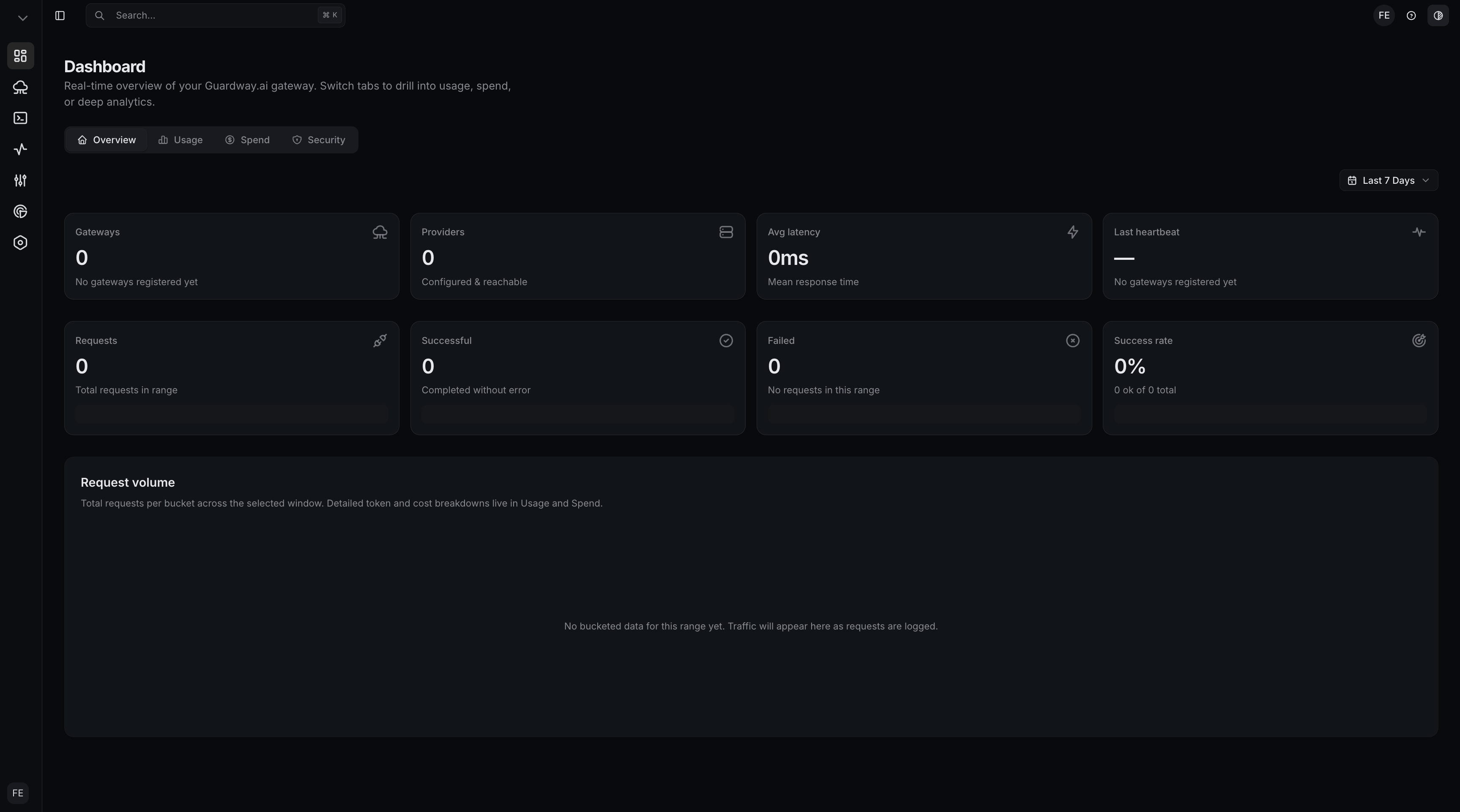
After confirming, you're signed in and redirected to the **Overview** page. You'll see empty KPI cards (requests, providers, latency, tokens, spend, uptime) waiting for your first gateway.
## Step 4 — Land on the dashboard
After confirming, you're signed in and redirected to the **Overview** page. You'll see empty KPI cards (requests, providers, latency, tokens, spend, uptime) waiting for your first gateway.
 ## What happens under the hood
* Your account is created in Guardway's Supabase project.
* An **organization** is created automatically and you become its first owner.
* The dashboard's middleware refreshes your session on every request; there's nothing to configure for auth.
## Next step
The dashboard is empty until a gateway is online. Deploy one with a single `docker run` command.
## What happens under the hood
* Your account is created in Guardway's Supabase project.
* An **organization** is created automatically and you become its first owner.
* The dashboard's middleware refreshes your session on every request; there's nothing to configure for auth.
## Next step
The dashboard is empty until a gateway is online. Deploy one with a single `docker run` command.