> ## Documentation Index
> Fetch the complete documentation index at: https://docs.guardway.ai/llms.txt
> Use this file to discover all available pages before exploring further.
# Local Dashboard
> The gw-cli serve dashboard — inventory tabs, the Accounts summary, live freshness, Rescan, and always-on options.
## What this is for
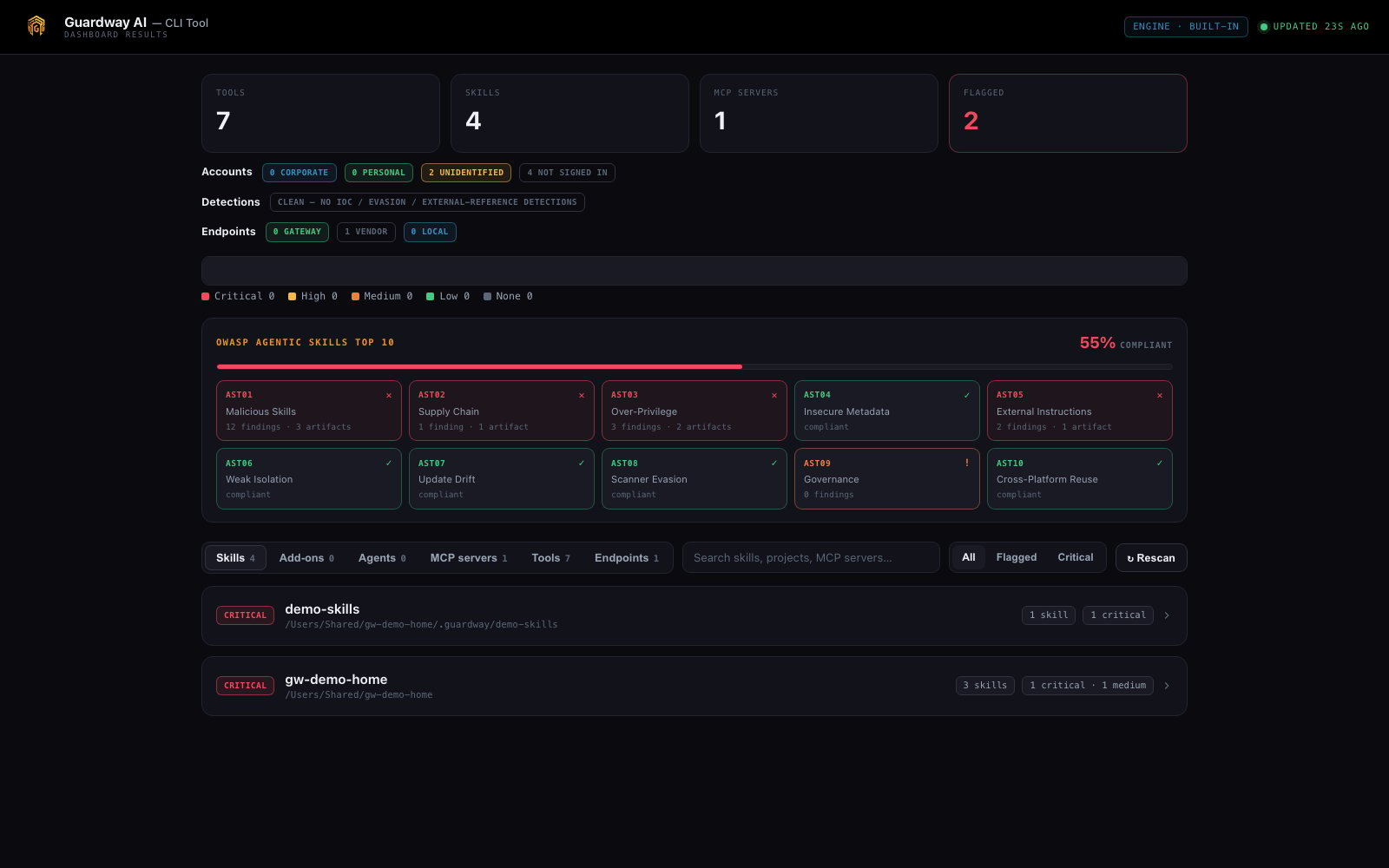
`gw-cli serve` opens a **local** dashboard — served from the machine itself, at `http://localhost:8789` by default — that shows everything discovery found: skills grouped by project with risk badges, the agent extension surface, MCP servers, tools, an Accounts summary, and (on macOS) any live captured traffic. It stays current on its own, rescanning within seconds of a file change.
Like the rest of `gw-cli`, the dashboard is endpoint-local: it reads the encrypted store under `~/.guardway` and uploads nothing.
 ## Options
### Tabs
The dashboard header reads **Guardway — Endpoint** and carries these tabs:
| Tab | What it shows |
| --------------- | --------------------------------------------------------------- |
| **Skills** | Discovered skills, grouped by project, each with a risk badge. |
| **Add-ons** | Commands, hooks, subagents, and plugins — risky ones flagged ⚠. |
| **Agents** | Discovered agent projects. |
| **MCP servers** | Registered MCP configs and their findings. |
| **Tools** | The AI tools / apps detected on the machine. |
| **Runtime** | Live captured LLM traffic (populated by `mitm` on macOS). |
Above the tabs, an **Accounts** summary shows each tool's account as **corporate** or **personal**.
### OWASP compliance panel
Near the top, an **OWASP Agentic Skills Top 10** panel scores this machine against the framework: an overall **compliance %** plus a tile per item (AST01–AST10), each **PASS** / **ATTENTION** / **FAIL** with its finding and artifact counts. It updates on every rescan. **AST09 (Governance)** reads as ATTENTION until you record an approval baseline with [`gw-cli approve`](/discovery/guardway-cli/cli-reference#approve); after that, anything new or changed shows up as a `GOV-UNAPPROVED` finding. See [OWASP Agentic Skills Top 10](/discovery/guardway-cli/inventory#owasp-agentic-skills-top-10).
### Freshness & Rescan
* The header shows a live freshness indicator — *"updated Xs ago."*
* `serve` watches your project folders and **rescans within seconds** of any change, plus a periodic sweep, and **prunes** anything you delete — no manual step needed.
* A **Rescan** button forces an immediate re-scan. Use it instead of running `discover` in a second terminal (only one process can hold the store at a time).
## How to configure
Run an inventory first so the dashboard has something to show:
```sh theme={null}
gw-cli discover --deep
```
```sh theme={null}
gw-cli serve # → http://localhost:8789
gw-cli serve --port 9000 # → http://localhost:9001
gw-cli serve --no-open # don't auto-open a browser
```
Stop it with `Ctrl-C`.
Prefer a scheduled refresh over an always-on server:
```sh theme={null}
gw-cli schedule --interval daily --at 09:00
```
It re-runs `discover --deep` on a cadence and exits; open `serve` whenever you want to look.
The packaged `install-service.sh` keeps the dashboard live at `http://localhost:8789`, auto-updating on file changes, so you don't need to keep a terminal open.
## Limits
* The dashboard is **local-only** — it is not the Guardway platform dashboard and does not send data to the control plane.
* Only one `gw-cli` process can use the store at a time; the **Rescan** button exists so you don't need a second `discover` run while `serve` is up.
* The **Runtime** tab is populated by live capture (`gw-cli mitm`), which is macOS-only.
## Related
* [CLI Reference](/discovery/guardway-cli/cli-reference) — `serve`, `schedule`, and `mitm` flags.
* [Inventory & Risk Scoring](/discovery/guardway-cli/inventory) — what the badges and findings mean.
* [Overview](/discovery/guardway-cli/overview) — install and the end-to-end flow.
## Options
### Tabs
The dashboard header reads **Guardway — Endpoint** and carries these tabs:
| Tab | What it shows |
| --------------- | --------------------------------------------------------------- |
| **Skills** | Discovered skills, grouped by project, each with a risk badge. |
| **Add-ons** | Commands, hooks, subagents, and plugins — risky ones flagged ⚠. |
| **Agents** | Discovered agent projects. |
| **MCP servers** | Registered MCP configs and their findings. |
| **Tools** | The AI tools / apps detected on the machine. |
| **Runtime** | Live captured LLM traffic (populated by `mitm` on macOS). |
Above the tabs, an **Accounts** summary shows each tool's account as **corporate** or **personal**.
### OWASP compliance panel
Near the top, an **OWASP Agentic Skills Top 10** panel scores this machine against the framework: an overall **compliance %** plus a tile per item (AST01–AST10), each **PASS** / **ATTENTION** / **FAIL** with its finding and artifact counts. It updates on every rescan. **AST09 (Governance)** reads as ATTENTION until you record an approval baseline with [`gw-cli approve`](/discovery/guardway-cli/cli-reference#approve); after that, anything new or changed shows up as a `GOV-UNAPPROVED` finding. See [OWASP Agentic Skills Top 10](/discovery/guardway-cli/inventory#owasp-agentic-skills-top-10).
### Freshness & Rescan
* The header shows a live freshness indicator — *"updated Xs ago."*
* `serve` watches your project folders and **rescans within seconds** of any change, plus a periodic sweep, and **prunes** anything you delete — no manual step needed.
* A **Rescan** button forces an immediate re-scan. Use it instead of running `discover` in a second terminal (only one process can hold the store at a time).
## How to configure
Run an inventory first so the dashboard has something to show:
```sh theme={null}
gw-cli discover --deep
```
```sh theme={null}
gw-cli serve # → http://localhost:8789
gw-cli serve --port 9000 # → http://localhost:9001
gw-cli serve --no-open # don't auto-open a browser
```
Stop it with `Ctrl-C`.
Prefer a scheduled refresh over an always-on server:
```sh theme={null}
gw-cli schedule --interval daily --at 09:00
```
It re-runs `discover --deep` on a cadence and exits; open `serve` whenever you want to look.
The packaged `install-service.sh` keeps the dashboard live at `http://localhost:8789`, auto-updating on file changes, so you don't need to keep a terminal open.
## Limits
* The dashboard is **local-only** — it is not the Guardway platform dashboard and does not send data to the control plane.
* Only one `gw-cli` process can use the store at a time; the **Rescan** button exists so you don't need a second `discover` run while `serve` is up.
* The **Runtime** tab is populated by live capture (`gw-cli mitm`), which is macOS-only.
## Related
* [CLI Reference](/discovery/guardway-cli/cli-reference) — `serve`, `schedule`, and `mitm` flags.
* [Inventory & Risk Scoring](/discovery/guardway-cli/inventory) — what the badges and findings mean.
* [Overview](/discovery/guardway-cli/overview) — install and the end-to-end flow.